
After you create a custom configuration for the mobile app, you can easily change its style, function, or assignment.
Required Editions
| Available in: both Salesforce Classic (not available in all orgs) and Lightning Experience |
| The Field Service core features, managed package, and mobile app are available in Enterprise, Unlimited, and Developer Editions. |
| To access the Field Service mobile app, users need the Field Service Mobile user license. |
| User Permissions Needed | |
|---|---|
| For admins to create and manage email templates and content in a builder: | Customize application |
| For mobile app users to customize using App Setup menu options: | Custom applications for Field Service mobile |
Edit Your Custom Tabs Configuration
Improve tabs to better suit your users’ needs.
- From Setup, in the Quick Find box, enter Field Service Mobile App Builder, and then select Field Service Mobile App Builder.
-
In the App Configurations pane, click the dropdown next to the selected configuration, and
then select Edit App Configuration.
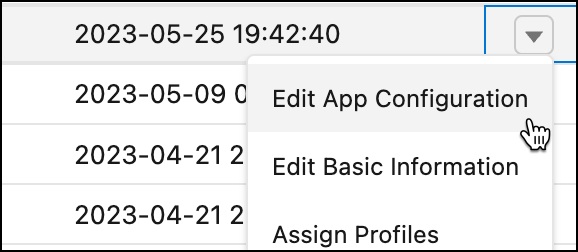
This action opens the mobile app builder user interface where you can rename, reorder, delete, and add tabs.
Edit the App Name
Change the app name to suit your needs or add clarity on its purpose.
- From Setup, click the dropdown next to the selected configuration and select Edit Basic Information.
- Edit the App Name field, and then click Save. You can't edit the API name.
Assign Profiles to a Configuration
Choose who sees the custom configuration in their Field Service mobile app based on user preferences and needs.
-
Assign profiles from within Setup or in the mobile app builder user
interface.
- From Setup, click the dropdown next to the selected configuration, and then select Assign Profiles.
- Select the profiles that can view your app configuration.
- If no conflicts exist, click Assign.
- If conflicts exist, click Next.
- Review the assignment changes you’re about to make. Take one of these actions.
- Confirm that you want to override the current assignments and click Override & Publish.
- To change the selected assignments, click Cancel & Back.
- Assign profiles from the mobile app builder user interface.
-
In the App Configurations pane, click the app you want to open.
-
Click Publish.
The Publish button is available when the configuration is in a draft state (if it has never been published or when changes occurred since the last publish date).
- Select the profiles that can view your custom app configuration.
- If no conflicts exist, click Assign.
- If conflicts exist, click Next.
- Review the assignment changes you’re about to make. Take one of these actions.
- Confirm that you want to override the current assignments and click Override & Publish.
- To change the selected assignments, click Cancel & Back.
-
Click Publish.
Clone a Configuration
Make your work customizing configurations for multiple users go more quickly.
- From Setup, click the dropdown next to the selected configuration, and then select Clone.
- Edit the App Name field.
- Edit the API Name field.
- Click Save.
Delete a Configuration
Remove unneeded custom configurations.

Note A configuration can’t be reinstated and after it’s deleted assigned profiles can no
longer view the configuration.
- From Setup, click the dropdown next to the selected configuration, and then select Delete.
- Confirm and then click Delete.