
Give the Field Service mobile app your company’s look and feel by customizing the colors used in the user interface. Apply your company colors or optimize the color scheme to compensate for the relative brightness of your mobile workforce’s work environments.
Required Editions
| Available in: both Salesforce Classic (not available in all orgs) and Lightning Experience |
| The Field Service core features, managed package, and mobile app are available in Enterprise, Unlimited, and Developer Editions. |
| To access the Field Service mobile app, users need the Field Service Mobile user license. |
| User Permissions Needed | |
|---|---|
| To customize branding colors: | Customize Application |
- From Setup, enter Field Service Mobile Settings in the Quick Find box, and select Field Service Mobile Settings.
-
Click Edit next to the mobile settings configuration you want to
modify, or New to set up a new settings configuration.
Each configuration can be assigned to one or more user profiles.
-
Under Branding Colors, update the hex color code of each setting as needed.
 Note Each value must consist of the # symbol followed by six letters or numbers.
 -
When you have entered values for every token you wish to modify, click
Save.
Users must log out and log in to the app to see changes to branding.
Note iOS 13 and later app users can enable Dark Mode from their OS settings. However,
this overrides the custom branding colors for some UI elements.
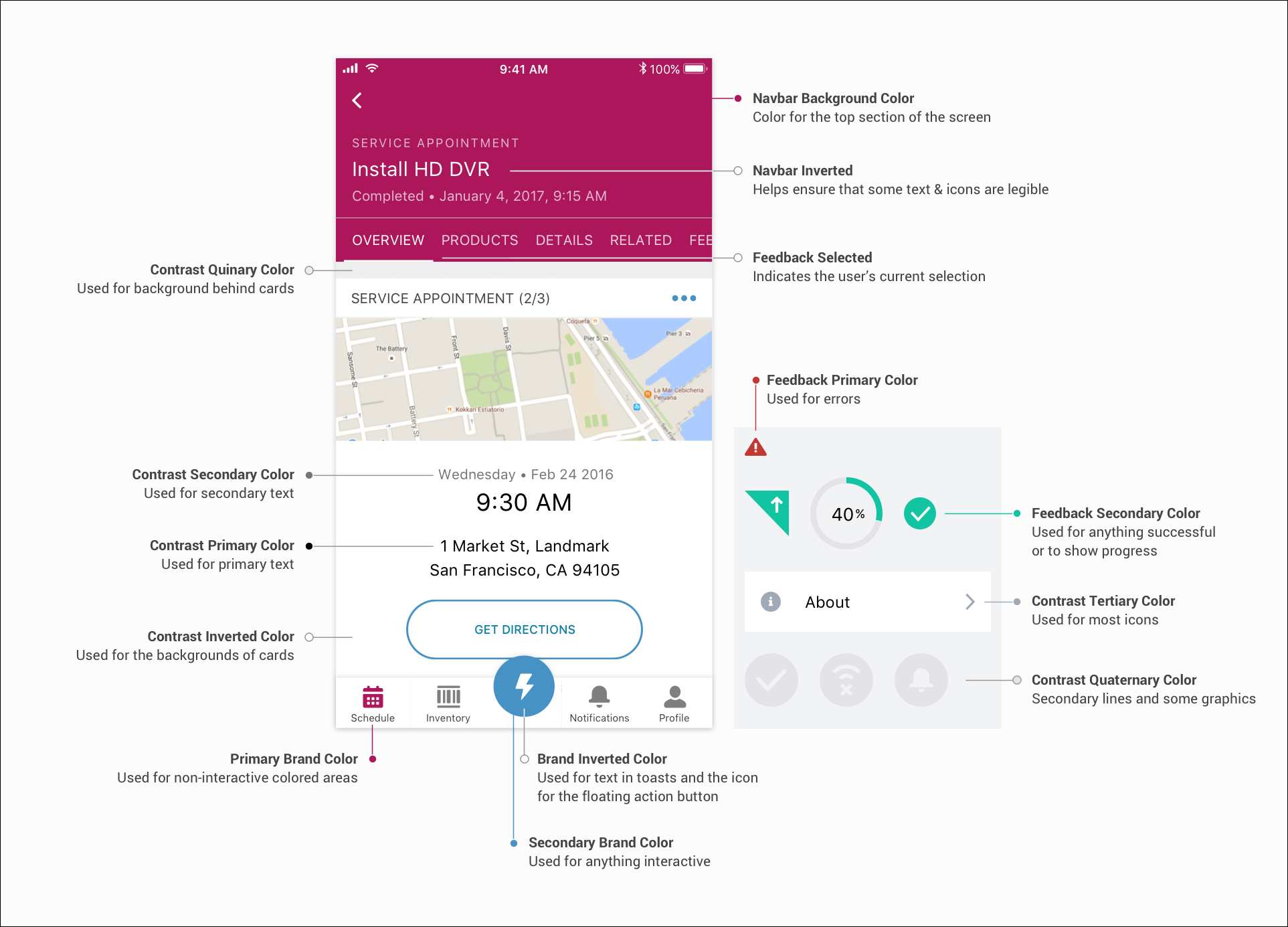
| Token Name | Description | Default Value |
|---|---|---|
| Navbar Background Color | The color of the top bar in the app. | #803ABE |
| Navbar Inverted Color | The secondary color of the top bar in the app. | #FFFFFF |
| Brand Inverted Color | The color of toasts and the contrast color for the floating action button. | #FFFFFF |
| Feedback Primary Color | The color of error messages. | #C23934 |
| Feedback Secondary Color | The color of success messages or progress icons. | #13C4A3 |
| Feedback Selected Color | The color indicating the user’s current selection. | #FFFFFF |
| Primary Brand Color | The color of non-interactive areas in the app. | #803ABE |
| Secondary Brand Color | The color of interactive areas in the app. | #2A7AB0 |
| Contrast Primary Color | The color of primary text. | #000000 |
| Contrast Secondary Color | The color of secondary text. | #444444 |
| Contrast Tertiary Color | The color of the icons on the settings screen and of primary lines that delineate different areas of the UI. | #9FAAB5 |
| Contrast Quaternary Color | The color of some graphics and of secondary lines that delineate different areas of the UI. | #E6E6EB |
| Contrast Quinary Color | The color of the background behind cards in the UI. | #EEEEEE |
| Contrast Inverted Color | The color of card backgrounds in the UI. | #FFFFFF |