You can use this permission set for the Field Service mobile workers and the Field
Service admins. For Appointment Assistant Contactless Signature, each mobile worker needs the
Field Service Appointment Assistant permission set license to share the service report with the
customer.
Required Editions
| Available in: both Salesforce Classic (not available in all orgs) and Lightning
Experience |
| The Field Service core features, managed package, and mobile app are available in
Enterprise, Unlimited, and Developer Editions.
|
| The Field Service Appointment Assistant managed package and permission set
license are required. |
| User Permissions Needed |
| To create permission sets: |
Manage Profiles and Permission Sets |
-
From Setup, in the Quick Find box, enter Users, and then select
Permission Sets.
-
Create the permission set.
-
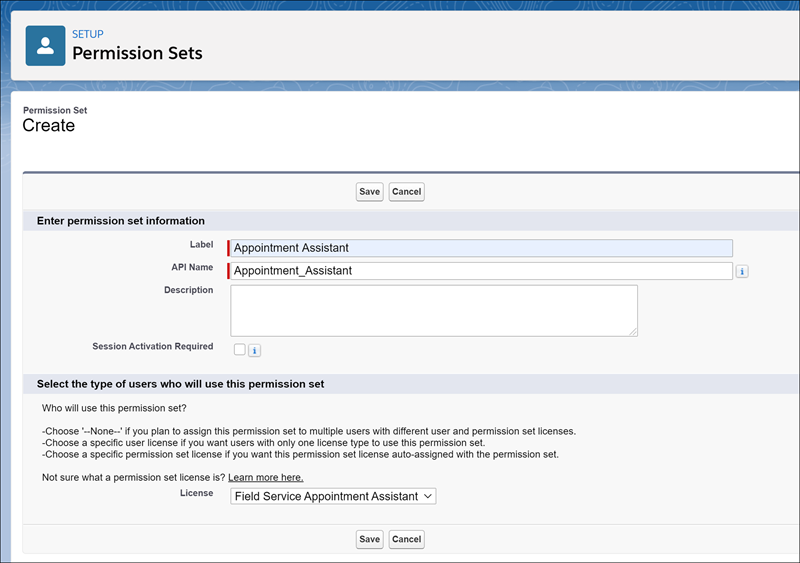
Click New.
-
For Label, enter the name of the permission set, for example, Appointment
Assistant.
-
Click the API Name field to populate it.
-
For License, select Field Service Appointment Assistant.
The Field Service Appointment Assistant license is an add-on license. If the license
isn’t available for selection, ask your account executive for help.
-
Save the permission set.
-
Enable the permission set.
-
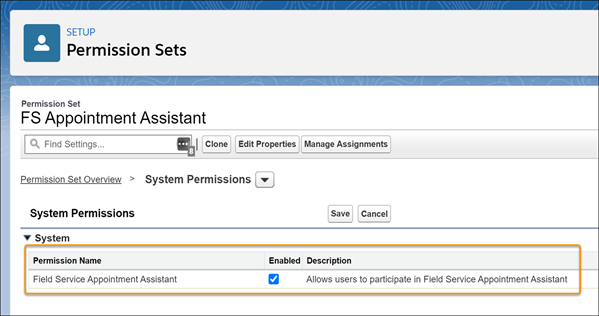
Open the Appointment Assistant permission set that you created.
-
In System, click System Permissions.
-
Click Edit, and enable the Field Service Appointment Assistant
permission.
-
Save your changes.
-
Assign the permission set to each mobile worker.

 The Field Service Appointment Assistant license is an add-on license. If the license isn’t available for selection, ask your account executive for help.