
Streamline your messaging process for Field Service Appointment Assistant by setting up flows that use the messaging components that you created.
Required Editions
| Available in: both Salesforce Classic (not available in all orgs) and Lightning Experience |
| The Field Service core features, managed package, and mobile app are available in Enterprise, Unlimited, and Developer Editions. |
| Available only if Digital Engagement is enabled. |
| User Permissions Needed | |
|---|---|
| To open, edit, or create a flow in Flow Builder: | Manage Flow |
- From Setup, in the Quick Find box, enter Process Automation, and then select Flows.
- To Create the En Route flow, click New Flow.
- Select Record-Triggered Flow, and click Create.
-
In the Configure Start window:
- In Object, enter Assigned Resource.
- In Trigger the Flow When, select A record is updated.
- In Condition Requirements, select All Conditions Are Met (AND).
- For Field, enter LocationStatus.
- For Operator, select Equals.
- For Value, enter EnRoute.
- In When to Run the Flow for Updated Records, select Only when a record is updated to meet the condition requirements.
- Click Done.
- Add a collection variable for the Messaging User object. This collection variable is populated with a list of messaging user record IDs based on your criteria. For example, you can configure your flow to send an automated message to a subset of messaging users based on channel and consent status.
- Add an action to the canvas. The New Action window opens.
-
Select the Send Conversation Messages action and complete the
fields.
- In Messaging Users, select the collection variable that you created.
- In Messaging Component, select your new messaging component. Make sure that the component status is Active on the Messaging Components page in Setup.
- Select Any Time for when to send the message.
- Select Yes, apply Messaging End User settings for end user’s consent preferences.
- In Session Longevity, select Yes, End Session Immediately if the end user doesn’t need to respond in this messaging session.
You can use values from earlier in a flow to set inputs for the message. If the action fields don’t contain valid inputs, the flow fails.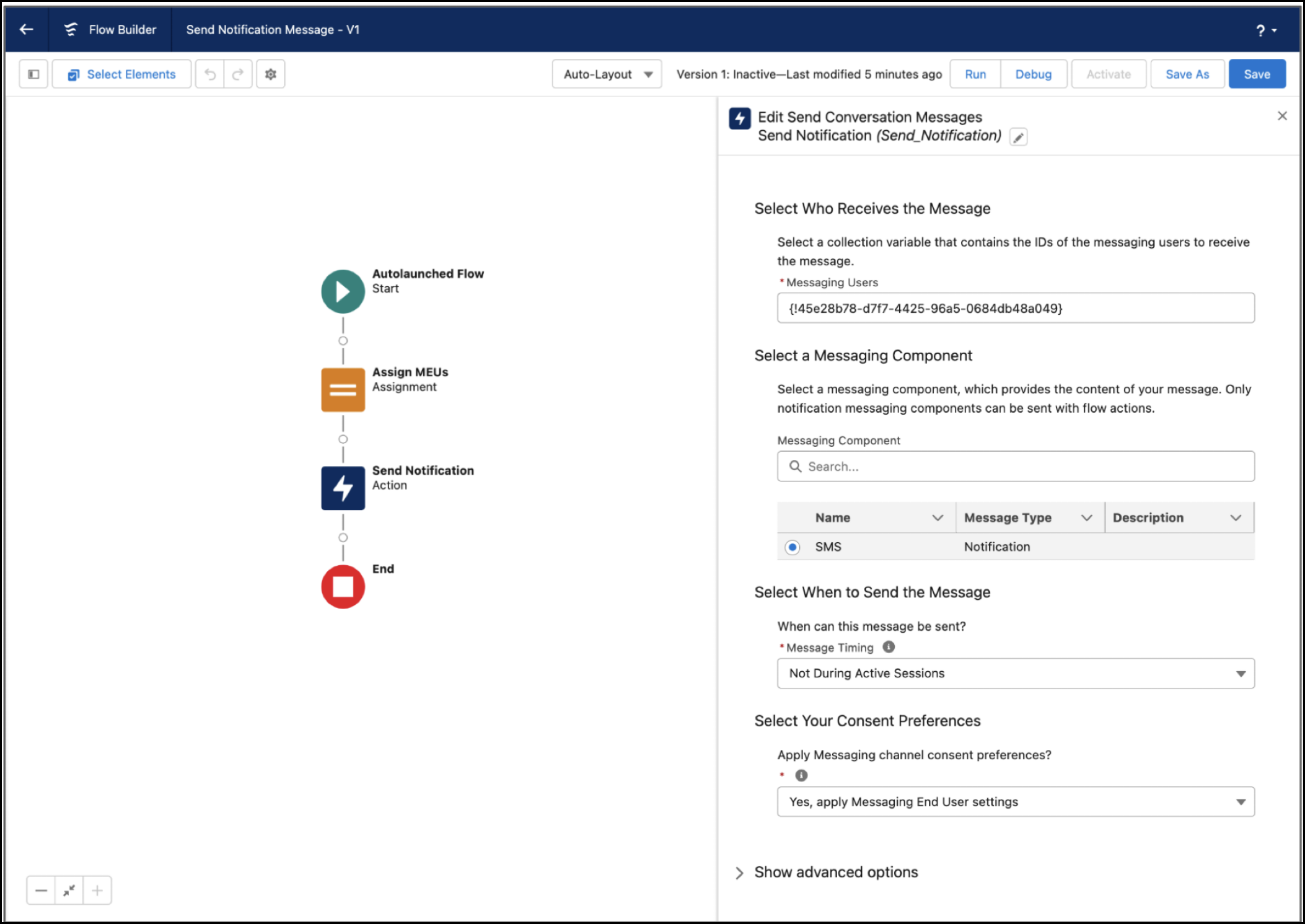
- Click Done.
- Save and activate the flow.
-
To create the Approaching Messages flow, repeat these steps with a few changes.
-
In step 4:
- In Condition Requirements, select All Conditions Are Met (AND).
- For Field, enter LocationStatus.
- For Operator, select Equals.
- For Value, enter LastMile.
-
In step 7:
- In Messaging Component, select the messaging component that you created for Approaching messages.
-
In step 4:
The limit for active flows per flow type is 2,000. To help troubleshoot flows, turn on flow debug logs.