
To enable Appointment Assistant Real-Time Location, add it to your Experience Builder site.
Required Editions
| Available in: both Salesforce Classic (not available in all orgs) and Lightning Experience |
| The Field Service core features, managed package, and mobile app are available in Enterprise, Unlimited, and Developer Editions. |
| The Field Service Appointment Assistant managed package and permission set license are required. |
| User Permissions Needed | |
|---|---|
| To add components to sites: | Create and Set Up Experience Sites AND View Setup and Configuration |
- From Setup, in the Quick Find box, enter Digital Experiences, and then select All Sites.
- In the row for your site, click Builder.
-
From Experience Builder, click Components
 .
.
- From Custom Components, locate the Real-Time Location component.
-
Drag the component onto the site.
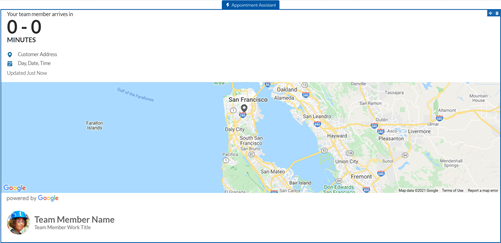
If you can’t see the map in the Appointment Assistant component, add the https://maps.a.forceusercontent.com URL to your trusted URLs with a CSP context of All. Select the connect-src (scripts), frame-src (iframe content), and img-src (images) CSP directives. See Manage Trusted URLs.
 Note For the LWR Experience Cloud Site template, the map isn’t fully supported.
- Manage What Customers See About Field Service Mobile Workers
You can control how much information is shared about your mobile workers and their location. - Add Custom Icons to the Real-Time Location Component
Add your own icons to mark the team member’s and the customer’s locations on the map. - Set Up Masked Phone Calls for Real-Time Location
Using masked phone calls requires setting up Salesforce Voice with Amazon Connect. - Let Customers Reschedule and Cancel Appointments in the Real-Time Location Component
Let your customers reschedule and cancel appointments even if the mobile worker is on the way to the appointment.