Display the Appointment Assistant Real-Time Location component in the service
appointment layout. This view lets your admins, dispatchers, and call center reps see the same
ETA, map view, and mobile worker’s details that your customers can see. The component is
displayed as the team member travels to the customer, until arrival.
Required Editions
| Available in: both Salesforce Classic (not available in all orgs) and Lightning
Experience |
| The Field Service core features, managed package, and mobile app are available in
Enterprise, Unlimited, and Developer Editions.
|
| The Field Service Appointment Assistant managed package and permission set
license are required. |
| User Permissions Needed |
| To configure layouts: |
Customize Application |
-
Add the component to the service appointment layout.
-
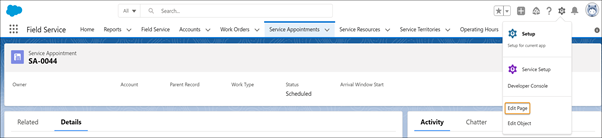
In Service Appointments, open one of the appointments.
-
Click the settings icon and select Edit Page.
-
In Lightning App Builder, drag the Real-Time Location component
onto the layout.
-
Save your changes.
-
Allow the display of the component on the service appointment layout.
-
From Setup, in the Quick Find box, enter Digital Experiences, and
then select All Sites.
-
In the row for your site, click Builder.
-
In Experience Builder, click Settings
 .
.
-
Click Security & Privacy.
-
For Clickjack Protection Level, select Allow framing by any
page.
-
Publish the Experience Builder site.
-
If the component appears as a gray screen, modify the Clickjack protection level.
-
In Experience Builder, click
 and select Administration.
-
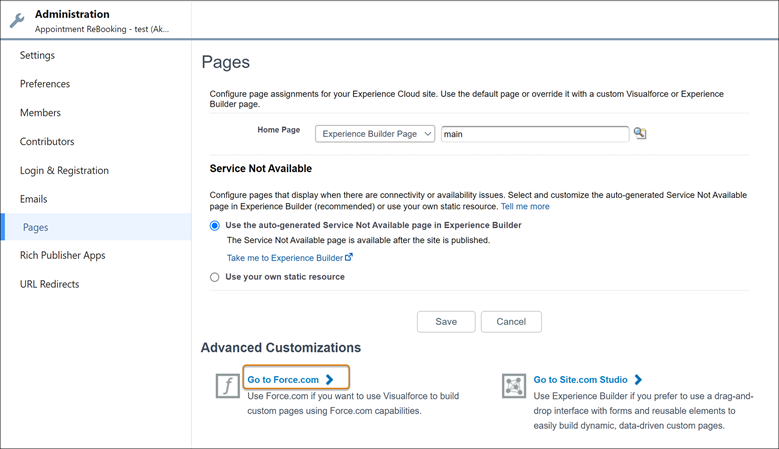
Click Pages.
-
Under Advanced Customization, click Go to Force.com.
-
From Site Detail, click Edit.
-
For Clickjack Protection Level, select Allow framing by any page (No
protection).
-
Save your changes.
-
Publish the Experience Builder site again.

 Note If you’re using an Experience site custom template, the component can appear too large and include a scroll bar. You can change the size of the component in the service appointment layout to fix its appearance.