
To create a static flow, use a form messaging component based on either a global action or Apex class.
Required Editions
| View supported editions. | |
 This article applies to:
|
Enhanced WhatsApp channels |
 This article doesn’t apply to:
|
Enhanced In-App Chat, Enhanced Web Chat v1, Enhanced Web Chat v2, Enhanced Facebook Messenger, Standard and Enhanced SMS, Enhanced Apple Messages for Business, Enhanced LINE, and Bring Your Own Channel |
| User Permissions Needed | |
|---|---|
| To create messaging components: |
Customize Application AND View Setup and Configuration OR System Administrator |
| To send and receive messages in Messaging: | Messaging Agent |

Note Each messaging component is available in one or more formats, and some formats work only in
certain channels. For a list of formats that each channel supports, see Messaging Component
Types and Formats. It’s a good idea to add at least one supported format for each channel where
the component will be sent. If no formats are added, the component uses the default text
format.
- Open the form messaging component in the Messaging Component Builder. Or, create a new one.
- Fill out the details of your component.
- In the Component Formats section, click Details, and then click Add Format.
- Select Flow, and click Done. The format controls how the component looks in messaging sessions.
-
In the left-hand sidebar, under Component Formats, click Flow.
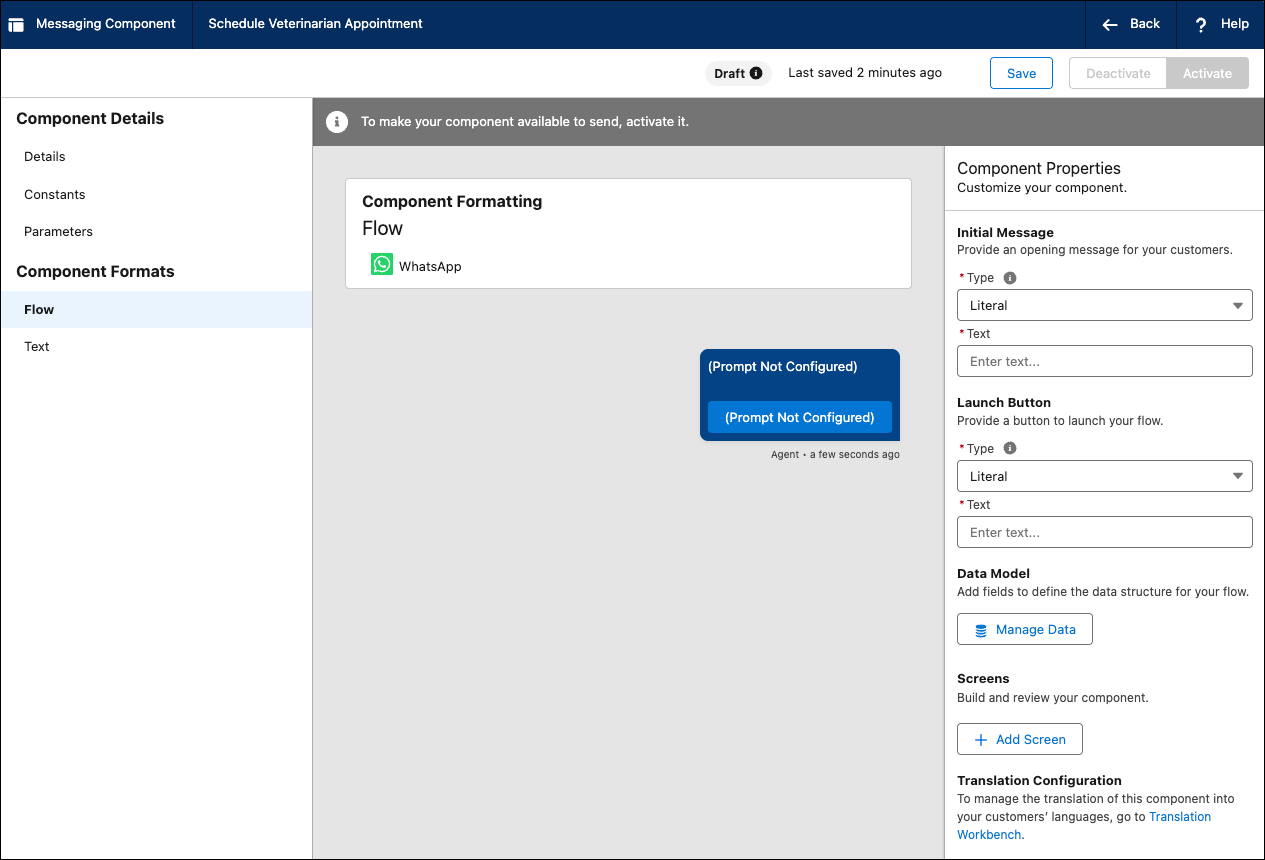
- In the right-hand sidebar, under Component Properties, configure the text, buttons, and input fields you want your customers to see. For example, to enable customers to book an appointment, add a “Book Now” launch button and an “Appointment Time” input field. For a form based on an Apex class, use the Add Content modal to add different types of content to the form.
- Click Save. You’ve created a WhatsApp Flow and your agents can select it from a list of messaging components in the Service Console.