
Learn how Salesforce tracks messaging sessions in Agentforce Service (formerly Service Cloud), from the first message to the last. Understanding session status transitions helps you route and monitor inquiries effectively.
Required Editions
| View supported editions. | |
 This article applies to:
|
Enhanced In-App Chat, Enhanced Web Chat, Enhanced WhatsApp, Standard and Enhanced Facebook Messenger, Standard and Enhanced SMS, Enhanced Apple Messages for Business, Enhanced LINE, and Bring Your Own Channel |
A messaging session’s participants can include a messaging user—also known as the customer—and a service rep, an Agentforce agent, an Einstein bot, or a combination of them. A session’s possible starting statuses, ending statuses, and status transitions depend on several factors:
- Who initiated the session (the customer or the business)
- The capacity setting (status or tab-based)
- The type of channel , such as SMS or Enhanced Chat
- Account configuration, which is required to make some of the scenarios work
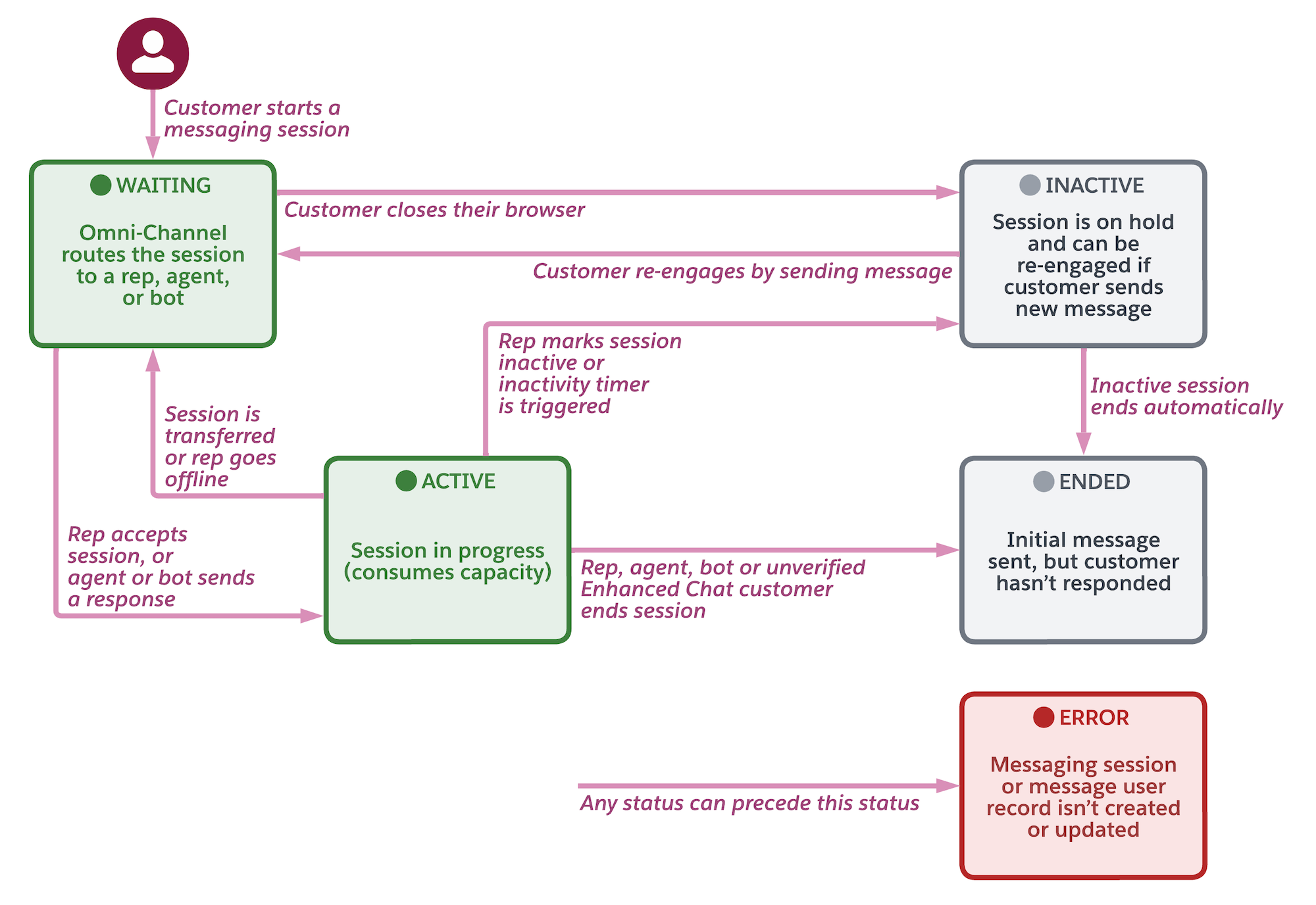
Customer-Initiated Tab-Based Capacity
Review possible status transitions for messaging sessions that customers initiate in Enhanced Messaging and Enhanced Chat channels with tab-based capacity.
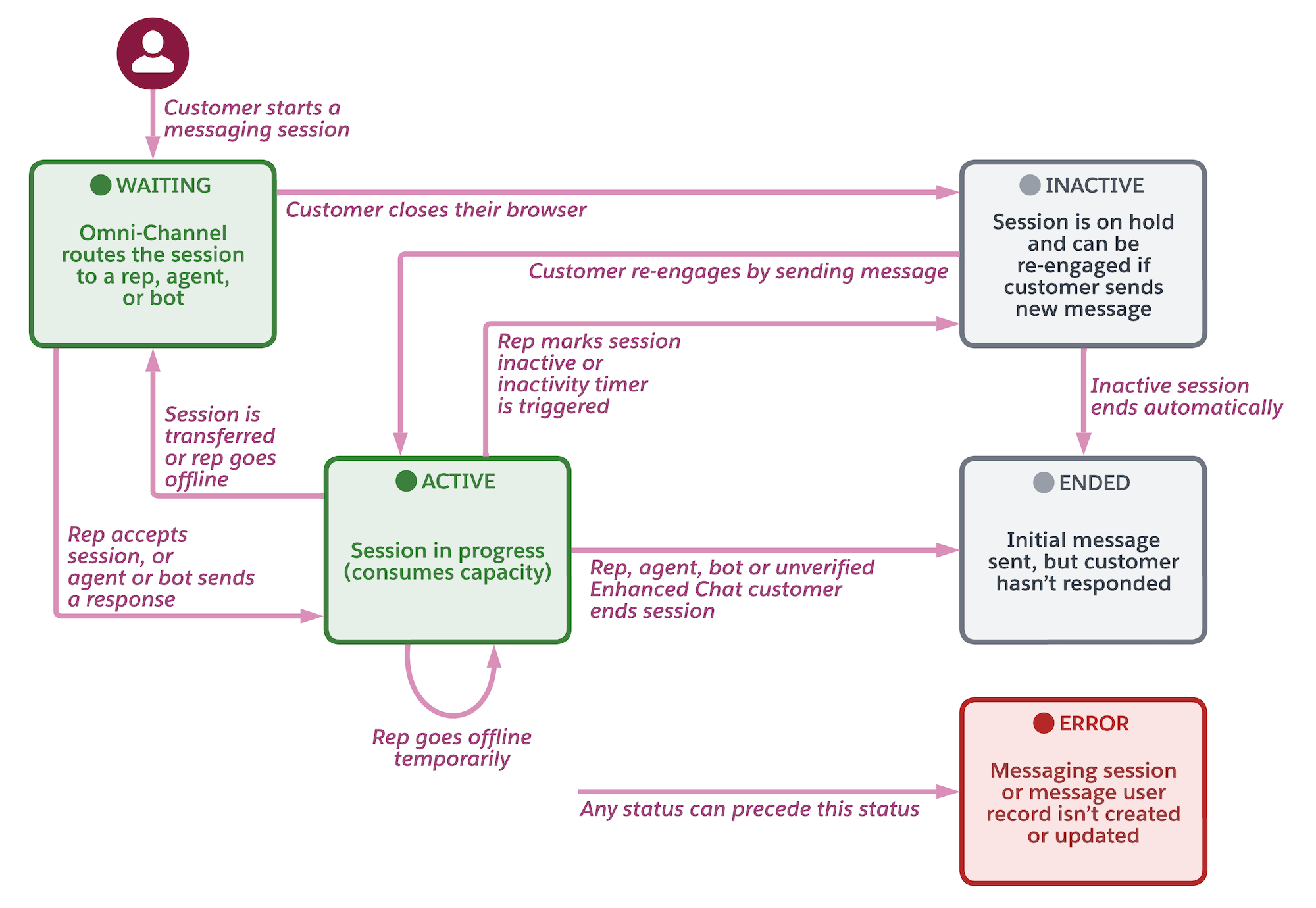
Customer-Initiated Status-Based Capacity
Review possible status transitions for messaging sessions that customers initiate in Enhanced Messaging and Enhanced Chat channels with status-based capacity.
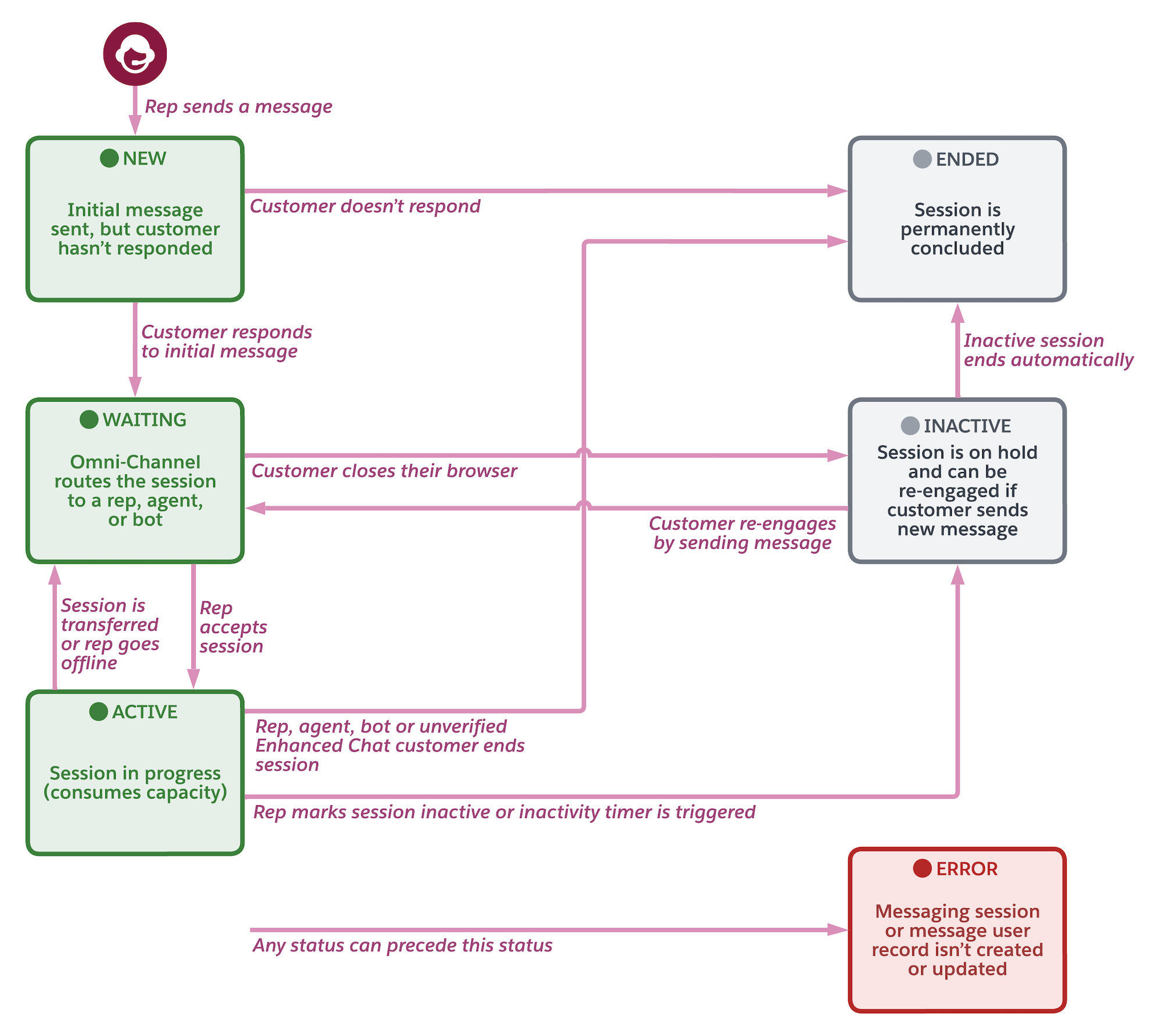
Business-Initiated Tab-Based Capacity
Review possible status transitions for messaging sessions initiated by your business (service reps, bots, or agents) in Enhanced Messaging and Enhanced In-App Chat channels with tab-based capacity. Reps can’t initiate sessions in Enhanced Web Chat channels.
Business-Initiated Status-Based Capacity
Review possible status transitions for messaging sessions initiated by your business (service reps, bots, or agents) in Enhanced Messaging and Enhanced In-App Chat channels with status-based capacity. Reps can’t initiate sessions in Enhanced Web Chat channels.
Messaging Session Statuses
- New
- The messaging session was created. This status occurs when a service rep sends an opening message.
- Waiting
-
An inbound messaging session is being routed or transferred, or a service rep initiated a messaging session and awaits the customer’s response. These actions can cause a session’s status to change to Waiting.
- A customer creates a messaging session by sending a message.
- A service rep transfers an active messaging session.
- A service rep creates a messaging session by sending a message.
- A service rep goes offline during an active messaging session (applies only for tab-based capacity models).
- After a messaging session is marked inactive, the customer resumes the conversation by sending a message.
- Active
- The messaging session is in progress. This status occurs when a service rep or bot accepts an inbound messaging session, or a customer responds in a business-initiated messaging session.
- Consent
- (Enhanced Messaging and Enhanced Chat channels only) The messaging user sends only consent keywords (opt-in, double opt-in, or help keywords) in the messaging session. For example, the messaging user has responded Start to agree to receive messages about new products, but hasn’t sent a unique inquiry that requires the attention of a bot or service rep. The Consent status value helps you design routing flows that exclude consent-related messaging sessions from routing.
- Inactive
-
(Enhanced Messaging and Enhanced Chat channels only) A previously active messaging user received a message, but stopped responding before their issue was resolved. Service reps can mark a session inactive by selecting Mark Inactive next to the End Chat option. If a tab-based capacity model is used, reps can also close the session tab and select No Customer Response. You can automatically mark sessions inactive if the customer doesn’t respond within a specified time period.
Marking a session inactive frees up the service rep’s capacity, and also serves as a way to put the messaging user on hold. With tab-based capacity, if the messaging user sends a message after a session is marked inactive, the session status updates to Waiting and the session is rerouted to the next available rep. With status-based capacity, the same rep continues helping the customer. Inactive sessions switch to the Ended status after approximately 30 hours.
- Error
-
(Enhanced Messaging and Enhanced Chat channels only) Salesforce fails to create or update a messaging session or a messaging user record. Misconfigured triggers or field requirements on the Messaging Session or Messaging User objects can cause errors. Salesforce tracks these failed messaging sessions and their error reasons in the Error Reason field on the Messaging Session object.
If the same issue caused the messaging user’s previous messaging session to end in an error, Salesforce updates the previous session’s Last Modified Date field instead of logging a new failed session.
- Ended
-
The messaging user is no longer communicating with a service rep. Possible reasons for this status include:
- The messaging user opted out of receiving messages in the channel.
- The service rep closed the messaging session tab and ended the session.
- A flow sent an automated message in a new session, and the flow action isn’t configured to keep the session open for 48 hours.
- The session was inactive for more than 30 hours.
- A service rep initiated the messaging session, and the customer didn’t respond within 24 hours for a standard channel or 48 hours for an enhanced channel.
It’s up to you to define when a session ends. For example, let your support team know when it’s appropriate to inactivate a session rather than ending it. A service rep can begin a new messaging session with a messaging user only after the user’s previous session has ended with a status of Ended or Error.
Messaging sessions with a status of Ended or Error can be deleted. Sessions can’t be mass-deleted, but you can delete individual sessions on the session record page.
- Ending or Inactivating Messaging Sessions Automatically
In certain circumstances, a messaging session’s status can automatically change to Inactive or Ended. Learn when and how these automatic updates occur. - Automated Session Expiry and Inactivity Handling for Enhanced Chat
Inactivity in Enhanced Chat is handled differently depending on certain timeout settings and whether a service representative, bot, or Agentforce Service agent is involved in the conversation.