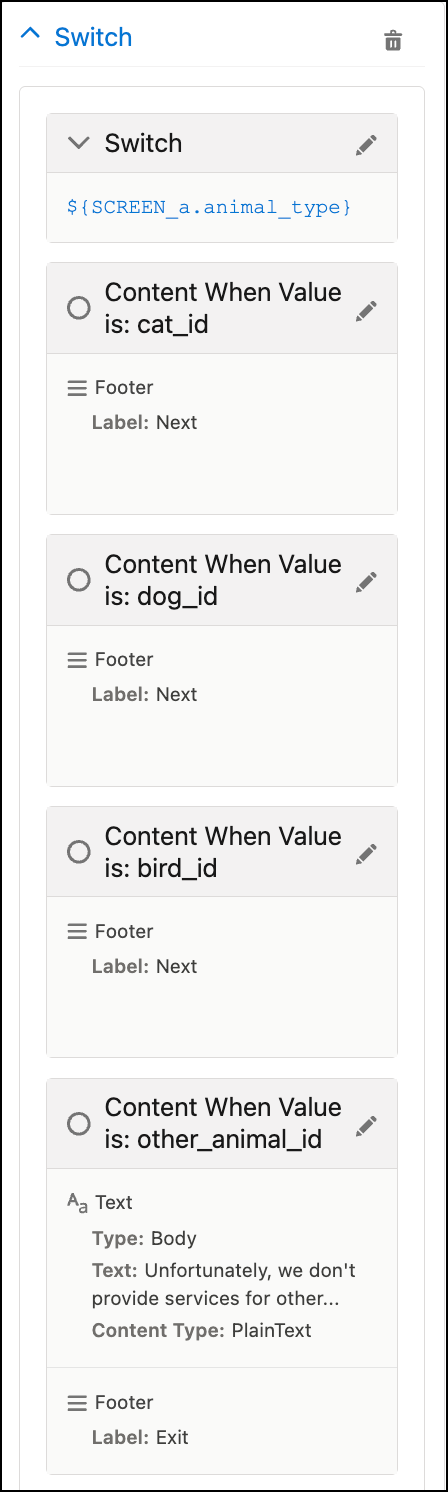
Use the Switch screen element to dynamically show or hide content. It compares a single field value against one or more specified values, and then displays the content associated with the first value that is an exact match. If no match is found, it returns the preconfigured default value. Unlike the If element, Switch is limited to performing an exact match comparison on a single field and doesn’t support complex logical operators like AND or OR.
Required Editions
| View supported editions. | |
 This article applies to:
|
Enhanced WhatsApp channels, Unified WhatsApp |
 This article doesn’t apply to:
|
Enhanced In-App Chat, Enhanced Web Chat, Standard and Enhanced Facebook Messenger, Standard and Enhanced SMS, Enhanced Apple Messages for Business, Enhanced LINE, and Bring Your Own Channel |
| User Permissions Needed | |
|---|---|
| To create messaging components: |
Customize Application AND View Setup and Configuration OR System Administrator |
| To send and receive messages in Messaging: | Messaging Agent |
To illustrate how to use Switch, consider this example. You are the admin for Healthy Pets, a veterinary hospital. Your job is to build a WhatsApp Flow, where the initial screen asks the customer for their animal type, and then sends them to a screen to provide details about the animal. To share specific details about each animal type, create a different screen for each type. For example, if the customer selects Cat, the Next button takes them to the Cat screen. After providing animal-specific information, the customer is then sent to the final screen, where they confirm their account information.
This example assumes that you already created the WhatsApp Flow with these screens.
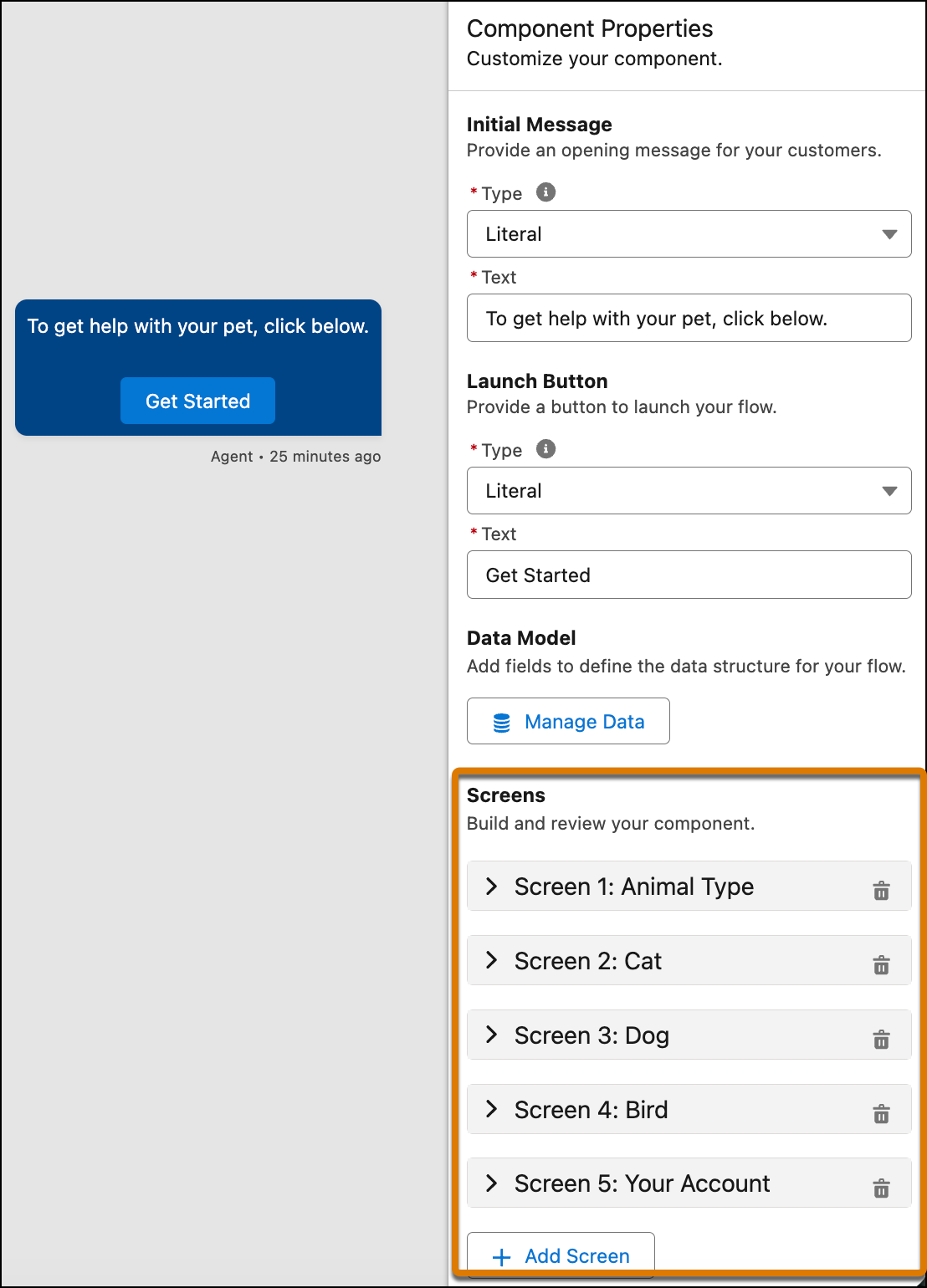
- In the Component Formats section of the Form messaging component, select Flow.
-
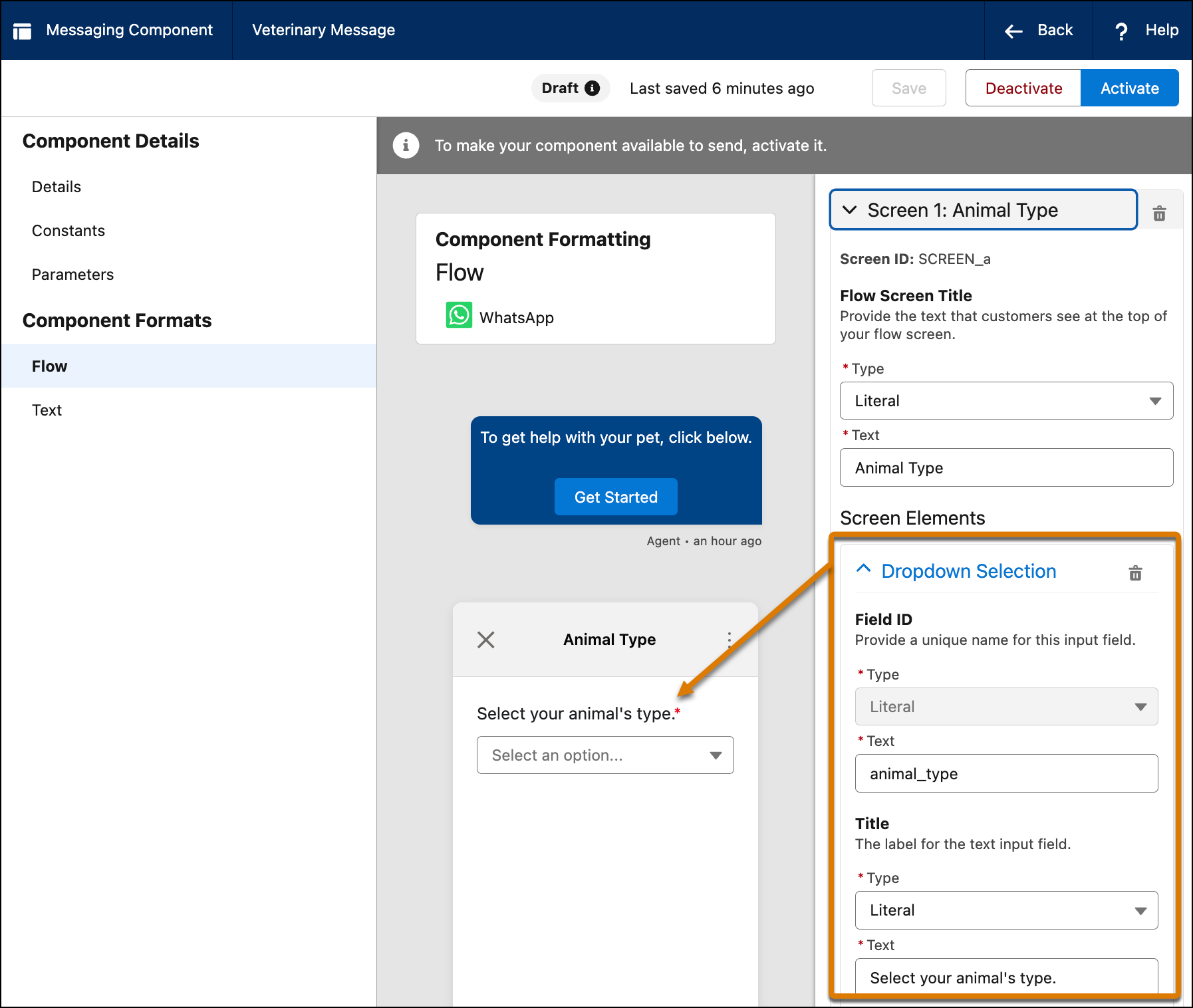
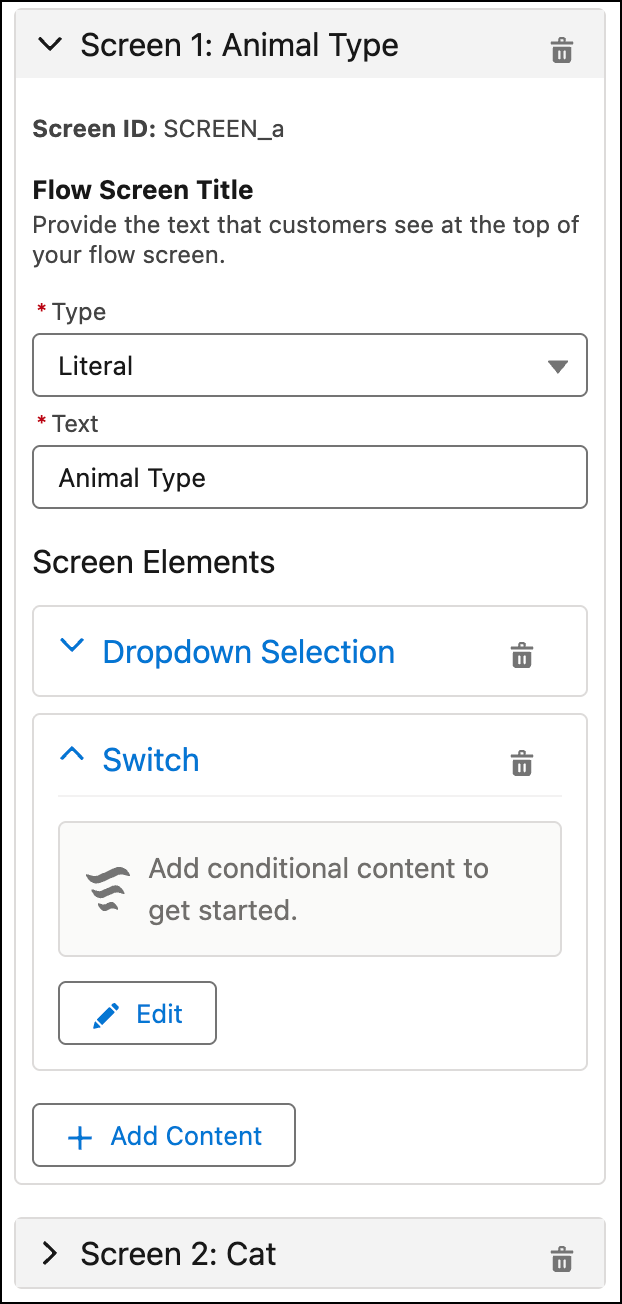
In the Screens section, expand the Animal Type screen and add a dropdown screen element
that shows: Cat, Dog, Bird, and Other Animal.
-
To preview the Animal Type screen, in Component Properties in the right sidebar, select
and expand the screen node.
- To advance the user to the next screen based on their animal type selection in the Animal Type screen, add a Switch element.
- In the Component Properties of the Animal Type screen, click Add Content, select Switch under Conditional Logic, and click Done.
-
To configure the Switch element, expand the Switch node and click
Edit.
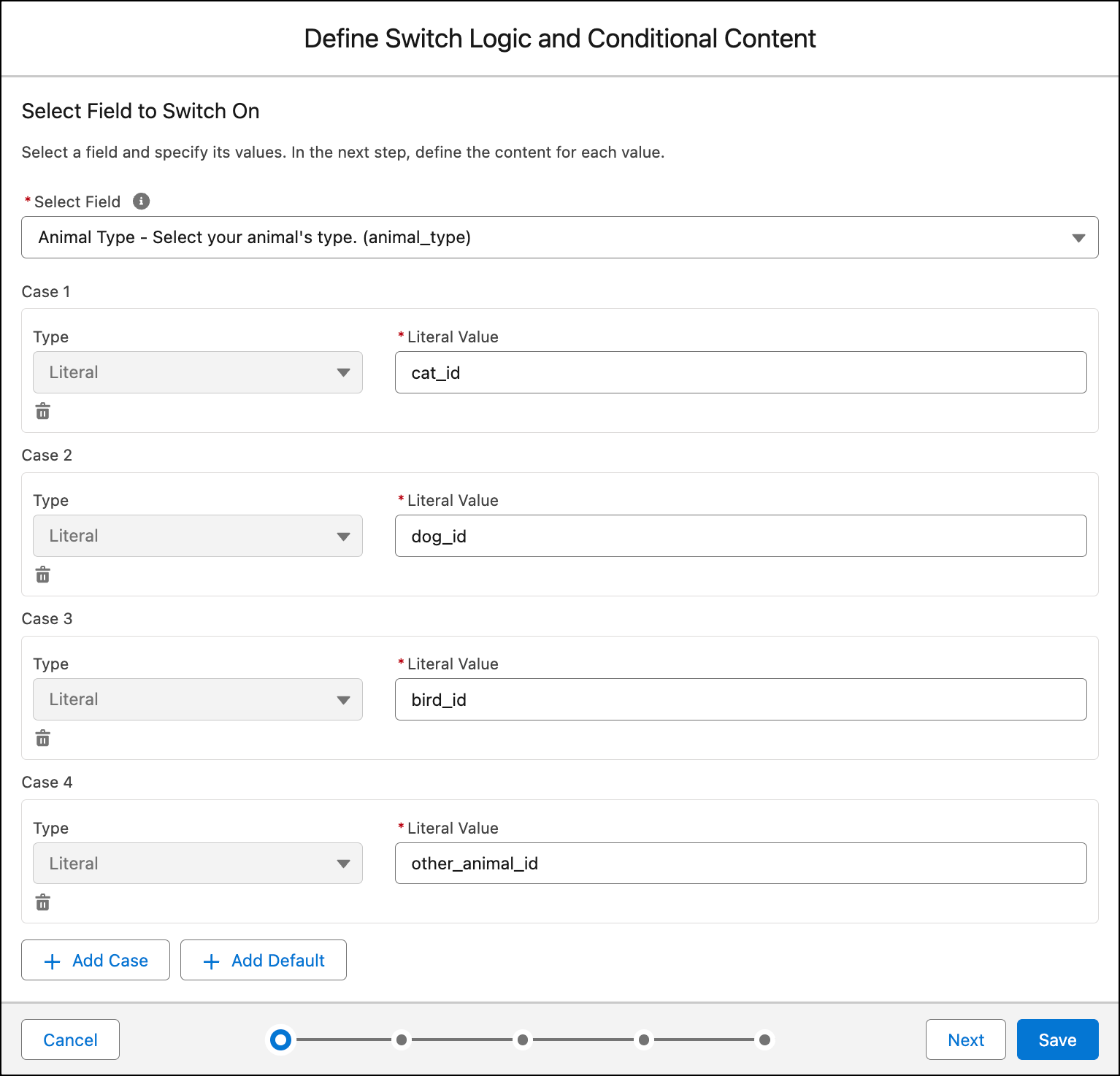
- In Select Field, select the field that the customer uses to choose their animal type.
-
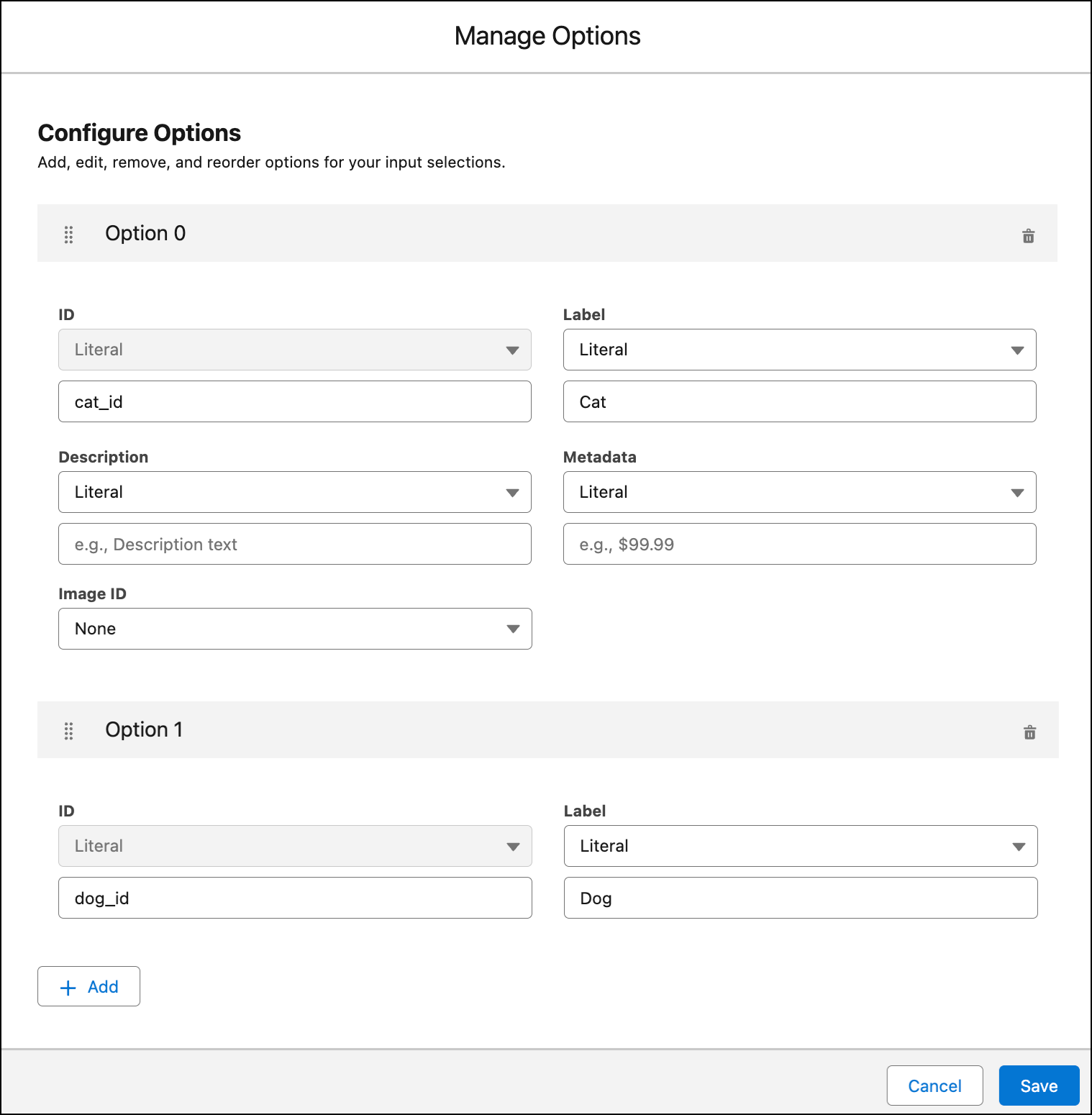
Add a separate case for each animal type that can be selected.
For the Literal Value field, enter the ID, not the display label, of every selection that you defined in the Dropdown Selection screen element in the Animal Type screen.
- Click Next.
-
For each case, select the content to show when that condition is true.
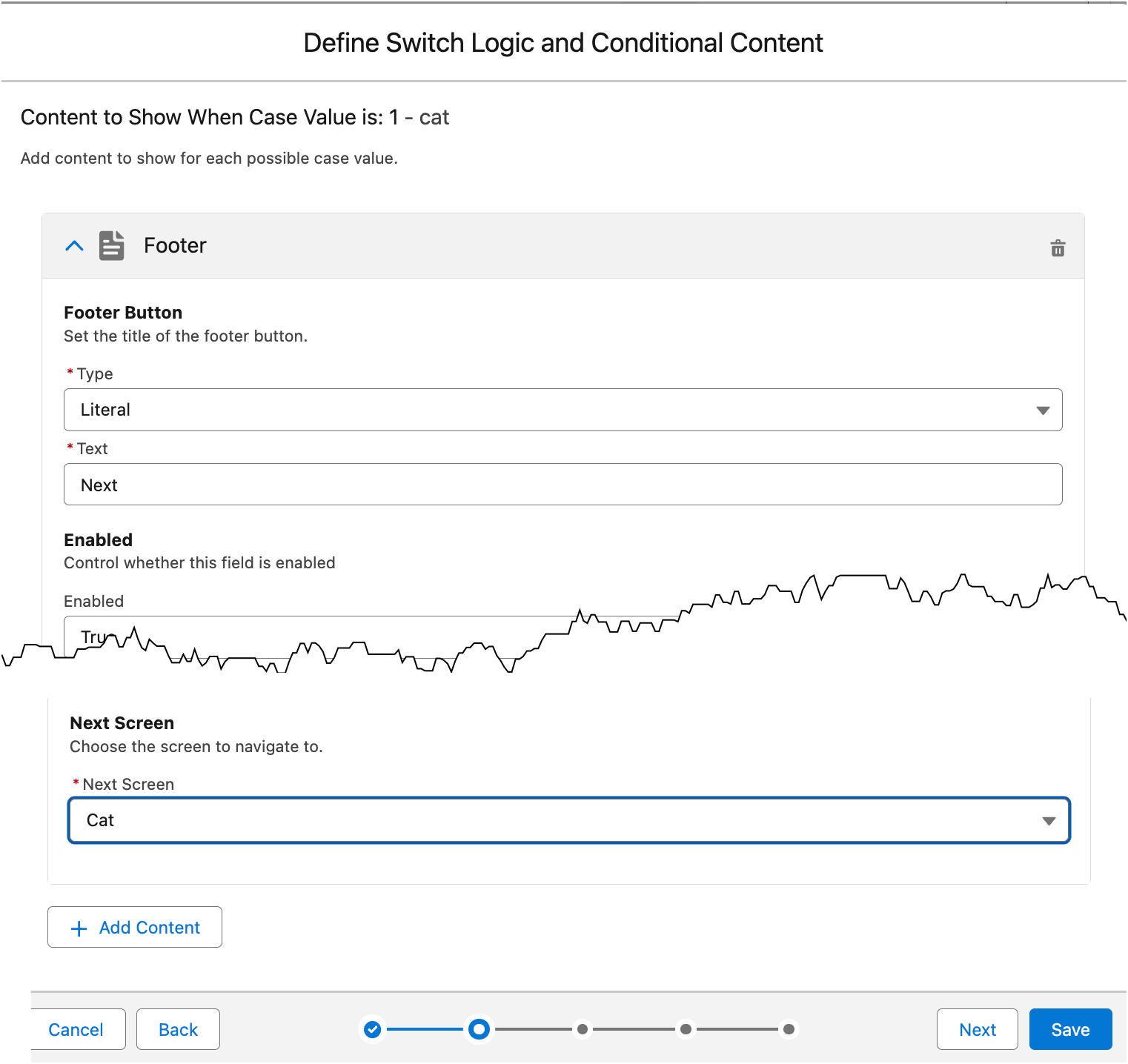
For example, add a Next button in the footer that takes the customer to the Cat page if they selected Cat as the animal type.
- To add a button that advances to the animal type screen, click Add Content, expand Other Content Types, and select Footer.
-
Enter the footer details, including entering “Next” as the button label and
selecting the animal type screen in the Next Screen field.
-
Click Next.
The Define Switch Logic and Conditional Content modal walks you through every case so that you can configure what content to show. For all of them, add the Next button that takes them to the animal type’s page.
-
When you’re done, click Save.
In the Component Properties, the Switch node shows the cases and the resulting content for each case.