Use the If Condition screen element to dynamically show content or screens. For
example, you can use the If Condition to add a footer that navigates to a different screen based
on the previous selection. With the If Condition screen element, Salesforce evaluates one or
more conditions in sequence and displays the content if the condition evaluates to true. If the
condition is false, the logic returns the other preconfigured content. Unlike the Switch
conditional logic, If Condition logic supports complex criteria by combining conditions using
AND and OR logical operators.
Required Editions
| View supported editions. |
 This article applies to:
|
Enhanced WhatsApp channels, Unified WhatsApp |
 This article doesn’t apply to:
|
Enhanced In-App Chat, Enhanced Web Chat, Standard and Enhanced Facebook
Messenger, Standard and Enhanced SMS, Enhanced Apple Messages for Business, Enhanced
LINE, and Bring Your Own Channel |
| User Permissions
Needed |
| To create messaging components: |
Customize Application AND View Setup and Configuration
OR
System Administrator
|
| To send and receive messages in Messaging: |
Messaging Agent |
To illustrate how to use the If Condition screen element, consider this example. You are
the Salesforce admin for Healthy Pets, a veterinary hospital. Your job is to update the last
screen of a WhatsApp Flow to include a summary of the scheduled veterinary appointment.
The summary must follow this format:
Dr. <doctor_name> looks forward to seeing your
<animal_type> for a <visit_type> visit. If you
have any questions, feel free to reach out to us.
Use an If Condition to display a different message based on the type of visit (in-person or
video call) and animal type. Dr. Catalina handles in-person visits for cats only. Dr.
Virtuoloso handles all other visits, virtual or in person, for any other type of animal.
This example assumes that you already created a form messaging component based on an Apex
class and created a Flow format.
-
Open the Form messaging component.
-
In the left sidebar, under the Component Formats section, select
Flow.
-
In the Screens section, expand the screen where you want to add the summary.
-
In the Component Properties section, click Add Content.
-
Expand Conditional Logic, select If Condition, and click
Done.
-
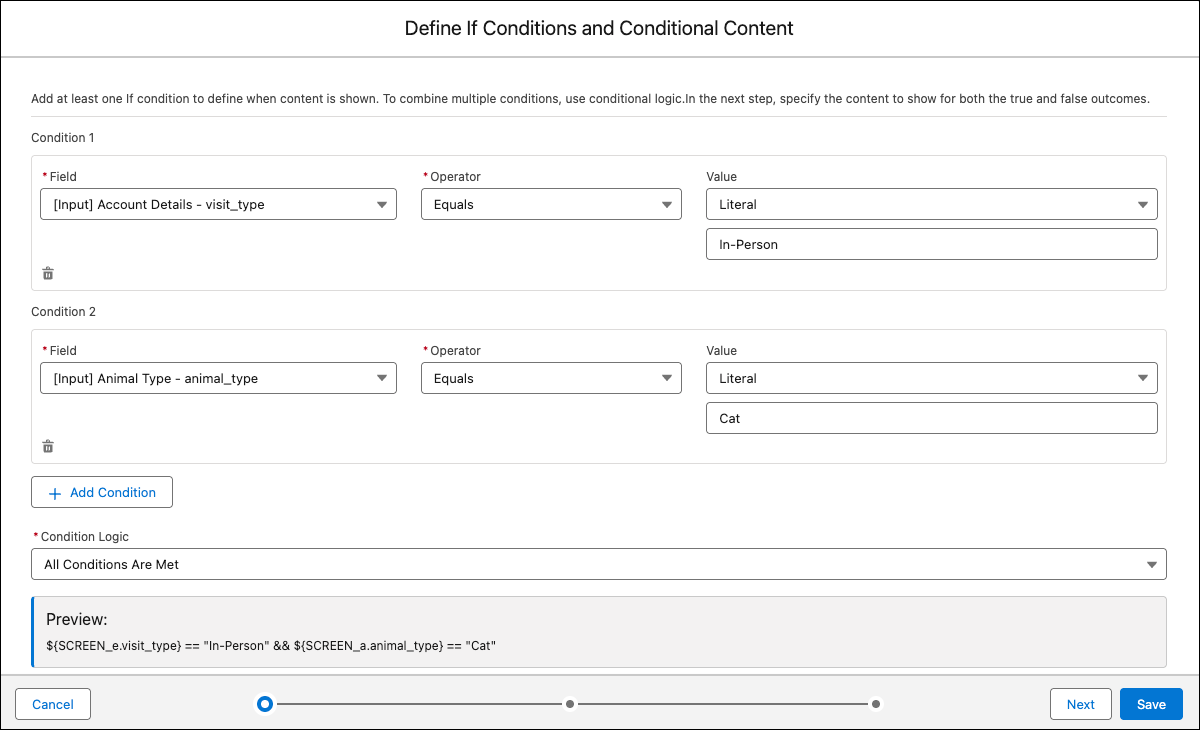
Add the condition.
-
Add another condition that checks if the animal type is Cat.
-
Add the condition that checks if the visit type is In-Person.
-
Because both conditions must be true to assign Dr. Catalina to the appointment, in
the Condition Logic field, select All Conditions Are Met.
-
Click Next.
-
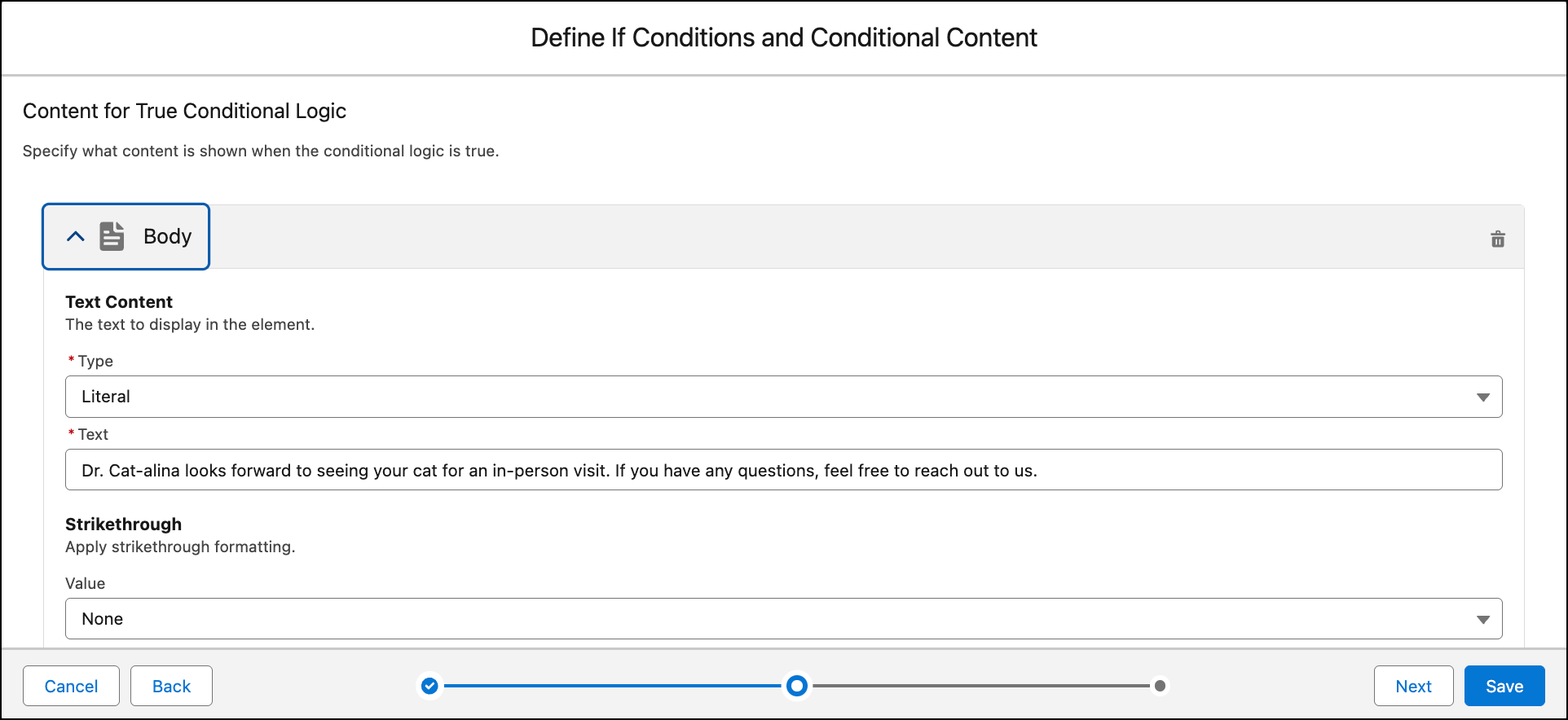
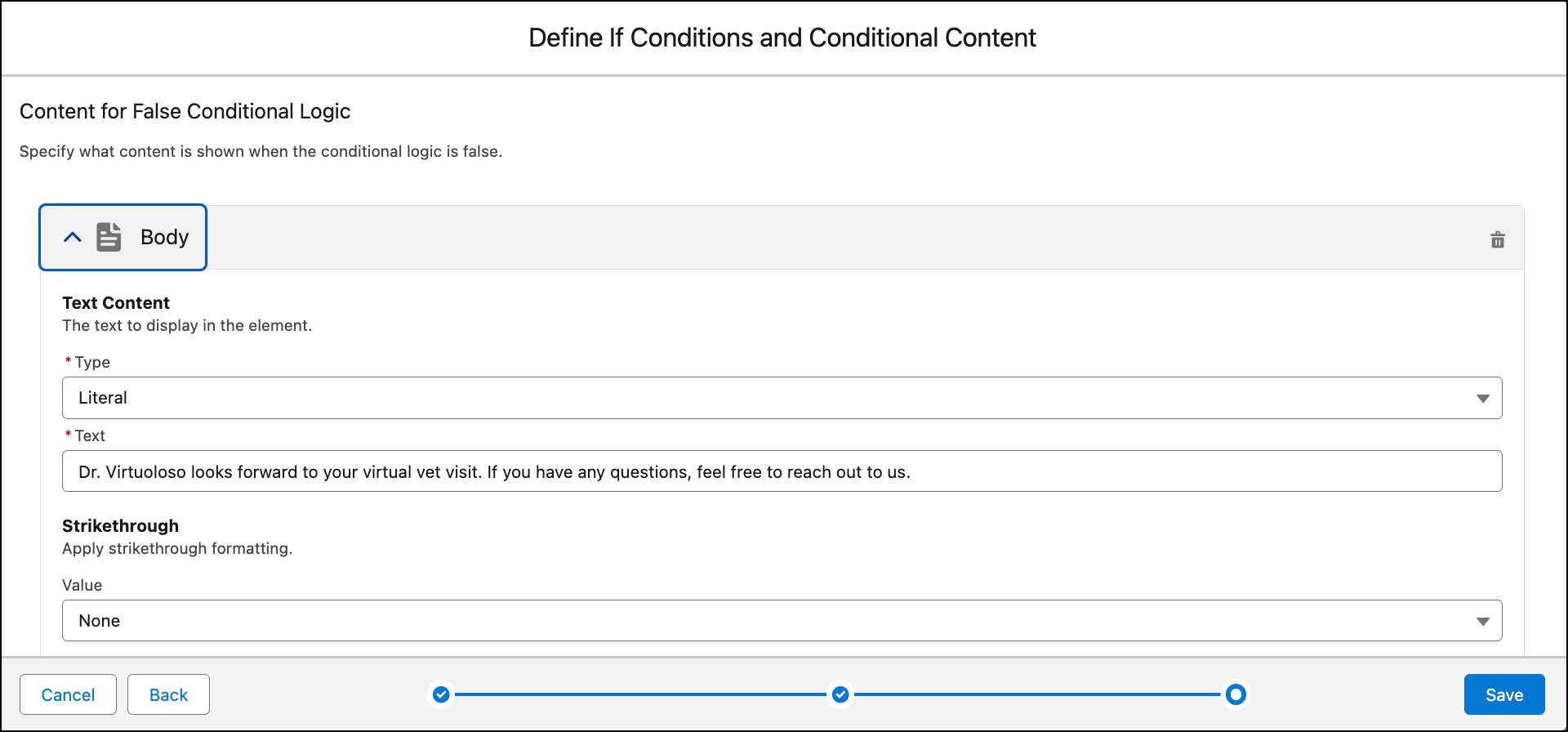
Define the content to show when the condition logic is true or false.
-
In the Content for True Conditional Logic screen, click Add
Content, and add the content.
-
Click Next.
-
In the Content for False Conditional Logic, click Add
Content, and add the content.
-
Click Save.
-
Save the messaging component.