Let service reps send time selector components in supported enhanced Messaging channels and Enhanced Chat. Create a screen flow, associate it with a messaging component and an Apex class, and add it to the Service Console.
Required Editions
| View supported editions. | |
 This article applies to:
|
Enhanced In-App Chat, Enhanced Web Chat v1, Enhanced WhatsApp, Enhanced Facebook Messenger, and Enhanced Apple Messages for Business, and Bring Your Own Channel |
 This article doesn’t apply to:
|
Enhanced Web Chat v2, Standard and Enhanced SMS, and Enhanced LINE |
| User Permissions Needed | |
|---|---|
| To open, edit, or create a flow in Flow Builder: | Manage Flow |
| To create or edit a console app: |
Customize Application AND View Setup and Configuration |

Note If you plan to create multiple messaging components that are linked to flows, here are
two ways to help service reps quickly find the flow they need in the Service Console:
- Group the Flow components in an Accordion component. To help service reps understand the purpose of the accordion component, enter a custom section label—for example, Messaging Components (Dynamic).
- Group all messaging component flows as sub-flows within one larger flow. When a service rep runs the flow, they select the relevant sub-flow to insert the messaging component they need.
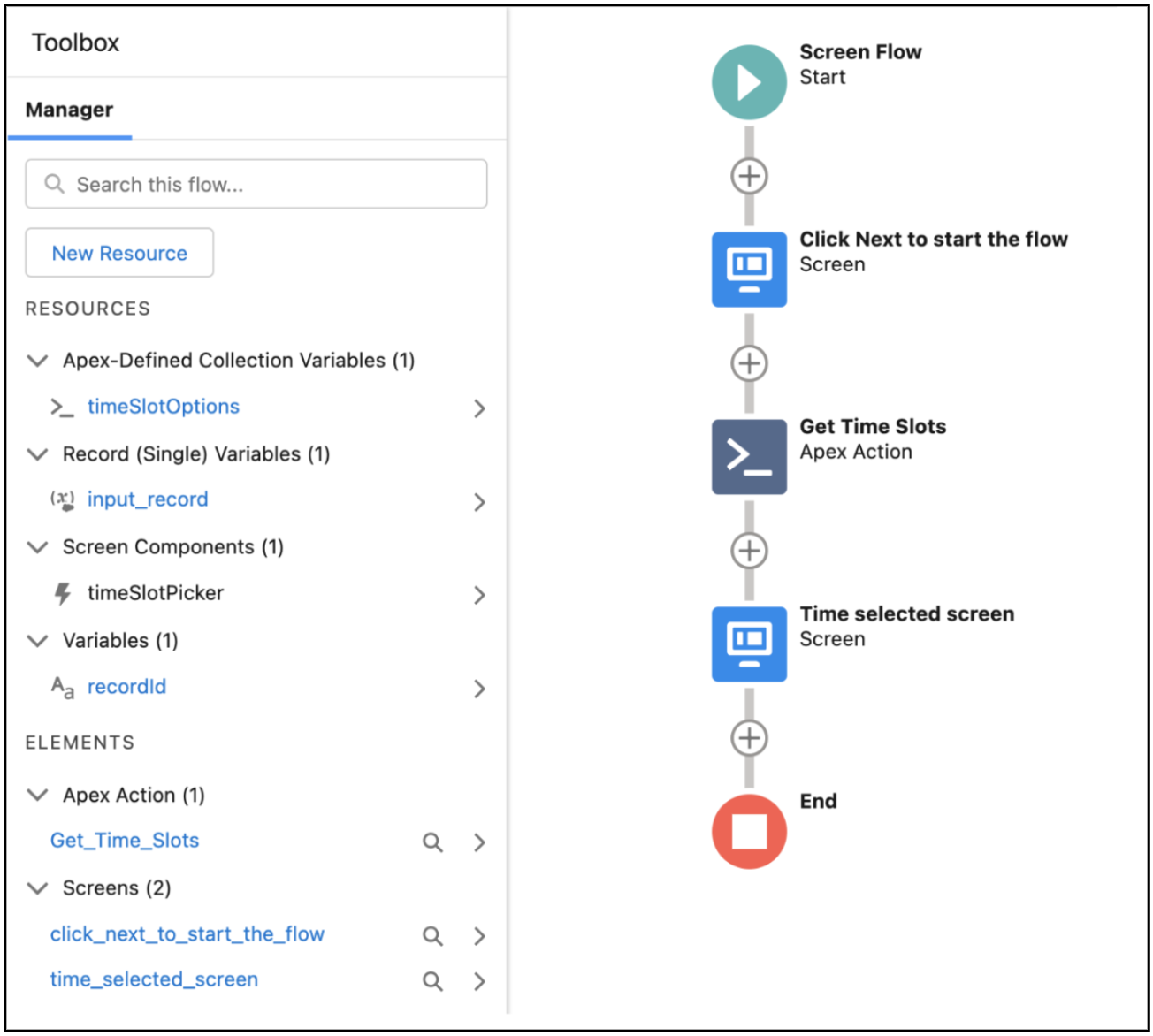
- In Flow Builder, create a screen flow. See the example for guidance.
- Add the flow to the Service Console so service reps can send the component during messaging sessions. See Add Messaging to the Service Console.
-
Send the time selector in enhanced Messaging channels or Enhanced Chat.
- During an active messaging session, in the Service Console, find the Flow component that’s linked to the time selector.
- Run the flow to insert the component into the message field.
- Click Send.
In this enhanced Facebook Messenger channel, the service rep sees: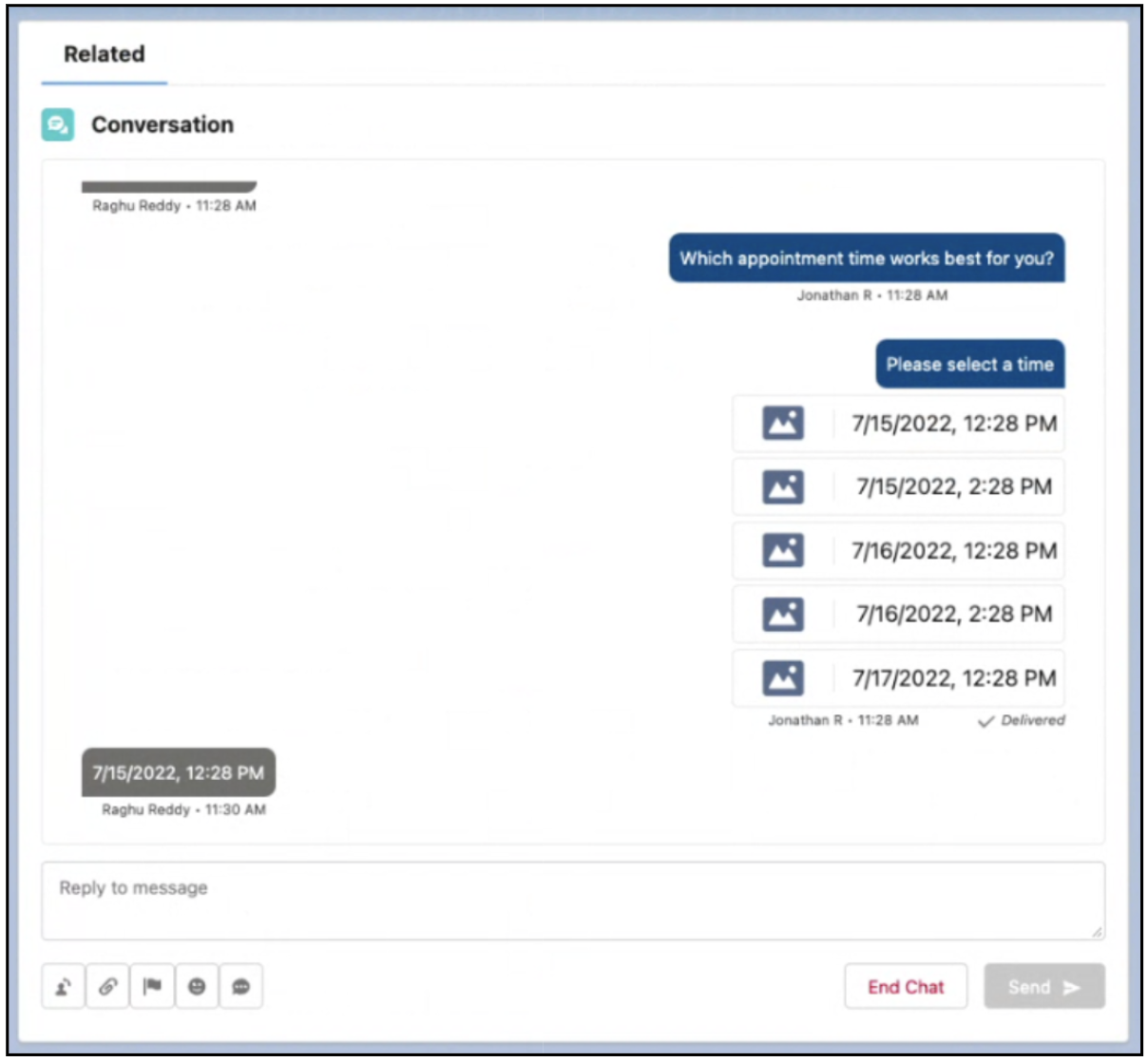
The customer sees:
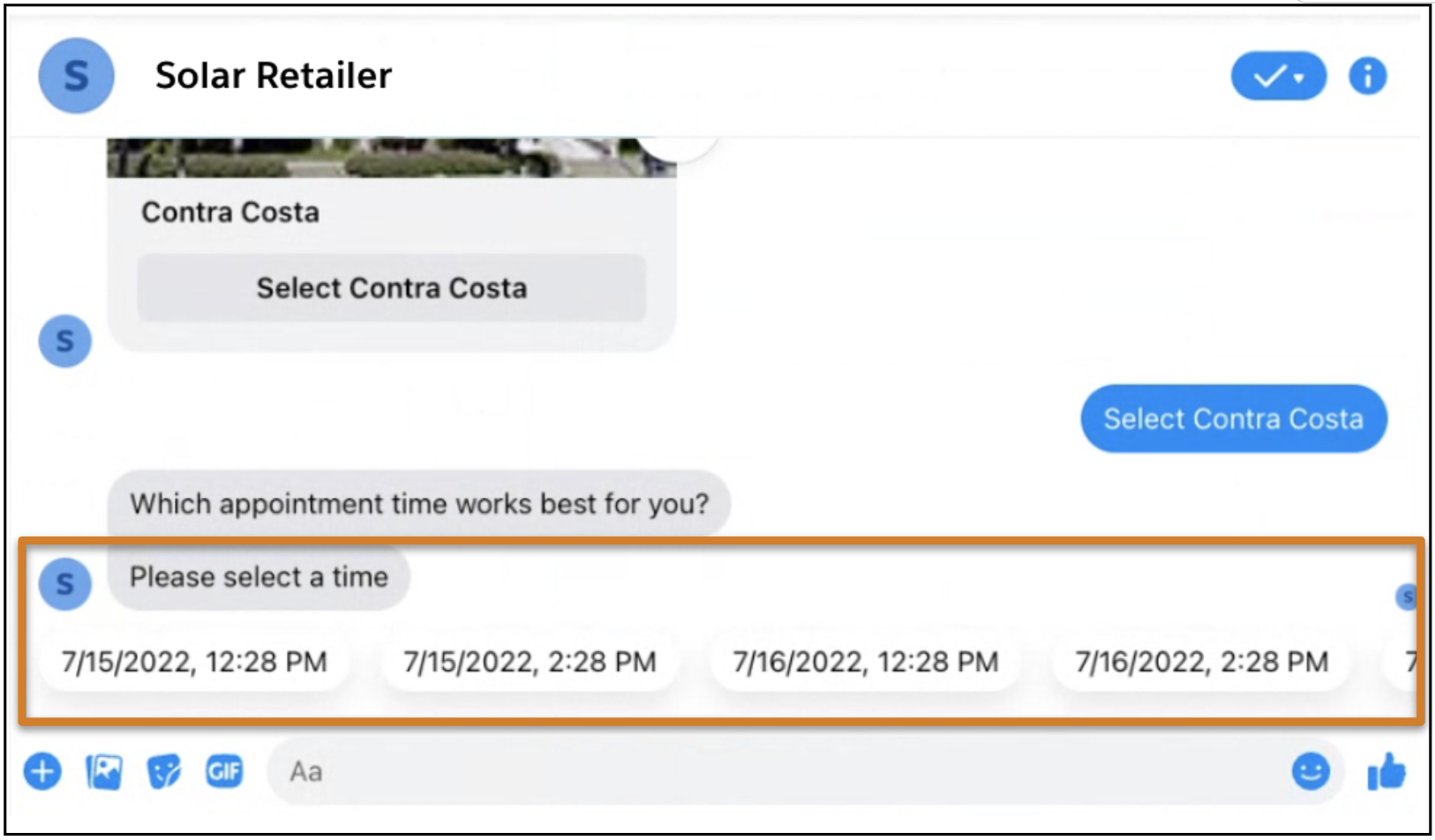

Example This flow sends a time selector component and asks the customer to select a time slot for
an appointment. The component is linked to the flow on the screen labeled Time selected screen.