
When you install a managed package to set up Bring Your Own Channel for Messaging or Bring Your Own Channel for CCaaS, your Messaging or CCaaS partner vendor may include a sample outbound flow for an AI agent. Create your own AI agent and set up an inbound flow to fit your use case, for example, to route an inbound message to the agent. If your managed package doesn’t include a sample outbound flow, you can still create one and associate it with your AI agent.
Required Editions
| View supported editions. | |
 This article applies to:
|
Bring Your Own Channel for Messaging and Bring Your Own Channel for CCaaS |
 This article doesn’t apply to:
|
Enhanced In-App Chat, Enhanced Web Chat v1, Enhanced Web Chat v2, Enhanced WhatsApp, Enhanced Facebook Messenger, Standard and Enhanced SMS, Enhanced Apple Messages for Business, and Enhanced LINE channels |
| User Permissions Needed | |
|---|---|
| To enable agents in Salesforce: | Manage AI Agents OR Customize Application |
| To build and manage Service Agents: | Manage Agentforce Service Agents AND Manage AI Agents OR Customize Application |

Note Bring Your Own Channel for Messaging is now Partner Messaging, and Bring Your Own Channel
for CCaaS is now Partner Contact Center Messaging. You may see references to Bring Your Own
Channel for Messaging and Bring Your Own Channel for CCaaS in Salesforce applications and
documentation.
- Follow steps to Set up a Service Agent.
-
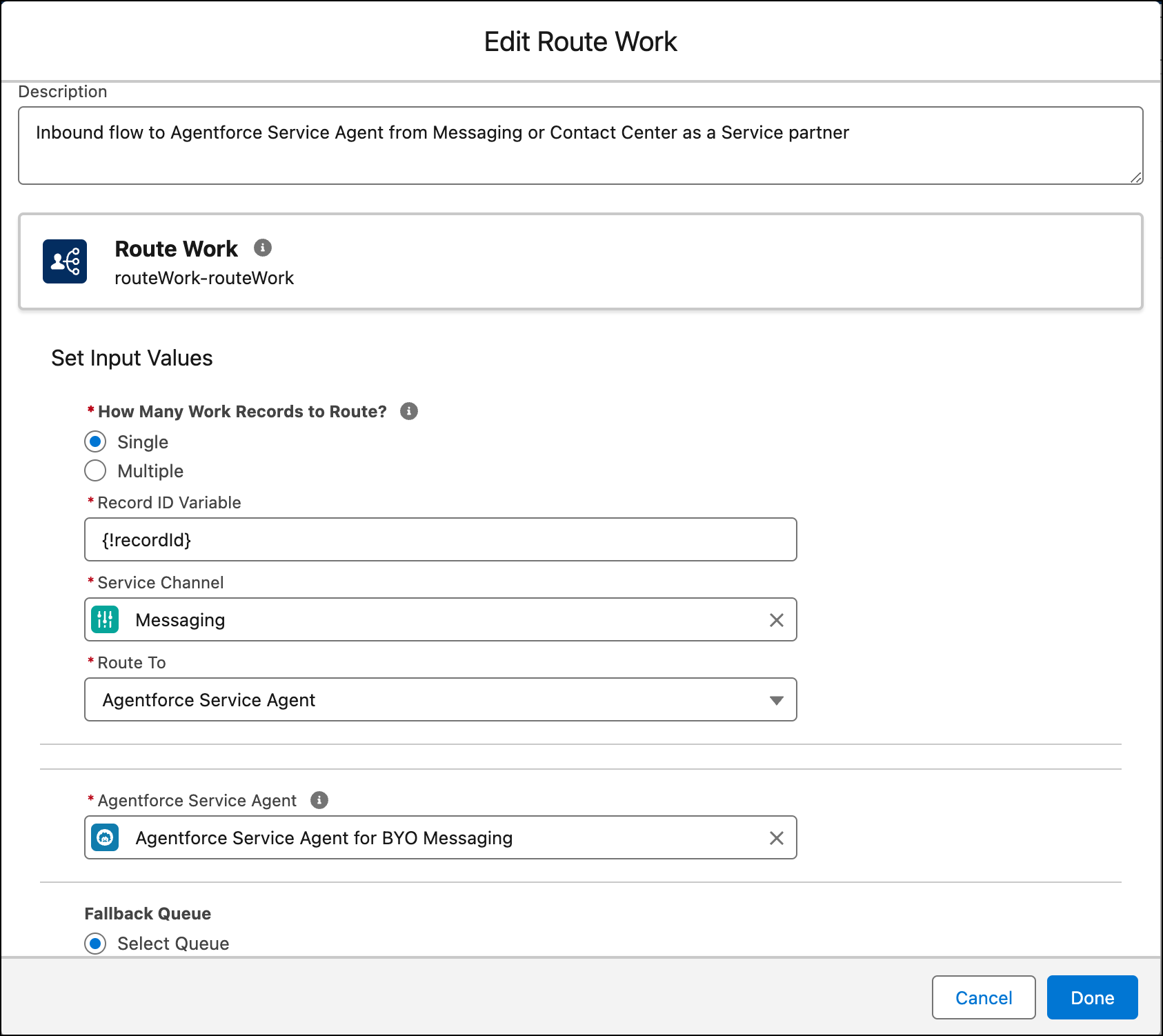
Follow the steps in the "Create an Omni Flow" section of the Prepare Your Salesforce Org for Bring Your Own
Channel for CCaaS or Prepare Your Salesforce Org for Bring Your Own Channel help topics to create an
inbound Omni-Channel flow. When you specify the Route To value, select
Agentforce Service Agent, and select your AI agent.
- Add the inbound flow to your Bring Your Own Channel for Messaging or Bring Your Own Channel for CCaaS messaging channel. For your Messaging channel, go to the Messaging Settings page in Setup. Then select Omni-Flow under Omni-Channel Routing and specify the inbound flow.
- The managed package may include an outbound Omni-Channel flow template for an AI agent. Edit the sample flow in Flow Builder to meet your needs, or create a different flow.
- To associate the outbound flow with the agent, in the Agents list, for the sample AI agent, select the agent name, and click the Connections tab. Choose your outbound flow under Outbound Omni-Channel Flow.
- For Bring Your Own Channel for CCaaS only, if your partner CCaaS vendor controls routing, contact the partner vendor to finish setting up routing for the flows associated with your AI agent. They will need the flow ID and fallback queue ID. If Salesforce controls routing, this step isn’t necessary.