
To personalize the URL being sent by an auto-response messaging component, use a placeholder. Personalizing the URL creates a dynamic experience for the end user. For example, use a placeholder to reference a language code in the URL, which presents the URL to the end user in their preferred language.
Required Editions
| View supported editions. | |
 This article applies to:
|
Enhanced Web Chat v1, Enhanced Web Chat v2, and Bring Your Own Channel |
 This article doesn’t apply to:
|
Enhanced In-App Chat, Enhanced WhatsApp, Enhanced Facebook Messenger, Standard and Enhanced SMS, Enhanced Apple Messages for Business, and Enhanced LINE channels |
| User Permissions Needed | |
|---|---|
| To create messaging components: | Customize Application AND View Setup and Configuration OR System Administrator |
| To set up and edit Messaging channels: | Configure Messaging |
| To view channels: | View Setup and Configuration |
Understand Placeholders
There are two types of placeholders that you can use to personalize an auto-response URL.
- Core Parameters, also known as Web Page Parameters - These parameters typically represent messaging session-related values. They’re configured in Salesforce in the Messaging Component builder under Web Page Parameters.
- Client Page Parameters, frequently known as API parameters - These parameters typically represent page-specific or end user context, such as language or location. They’re configured on the customer’s website using JavaScript and the Auto-Response API.
Use Placeholders to Personalize a URL in an Auto-Response
- Choose a name for your parameters. In this example, we call them Language and MessagingSessionName.
-
Add each parameter name as a placeholder in your URL.
-
A placeholder is a set of double curly braces that surround a parameter. If the
parameter is called language, its placeholder would be formatted as
{{Language}}. If the parameter is referencing a Messaging Session Name field, its placeholder would be{{MessagingSessionName}}. -
In this example, our URL looks like
https://www.example.com/{{Language}}?MessagingSessionName={{MessagingSessionName}}.
-
A placeholder is a set of double curly braces that surround a parameter. If the
parameter is called language, its placeholder would be formatted as
-
Add the URL to an auto-response component in the Messaging Component Builder.
- From the Messaging Components page in Setup, click the name of the auto-response messaging component to open the Builder.
- Select + Add Format.
- Select Web Page and click Done.
- Select Web Page under Component Formats.
- In the Message Configuration section, add the text portion of your message. In this example, we select Literal as the Type, and enter Please take our survey! in the Text field.
-
In the URL Configuration section, add the version of the URL that you configured in step
2. In this example, we select Literal as the Type and enter
https://www.example.com/{{Language}}?MessagingSessionName={{MessagingSessionName}}in the Text field.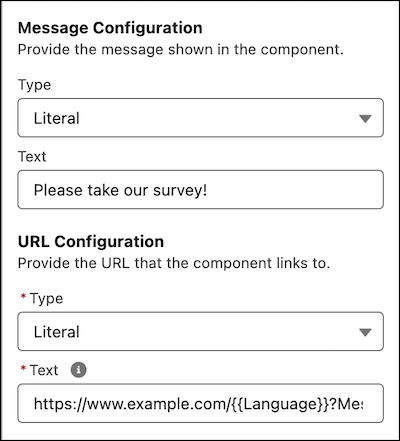
- In the Display Method field, select Pop-Up Message.
- If you intend to use Auto-Responses API to populate the URL placeholders, set that up and skip the remaining steps.
-
Under Web Page Parameters, click Add Parameter. Fill in the details
of your parameters.
-
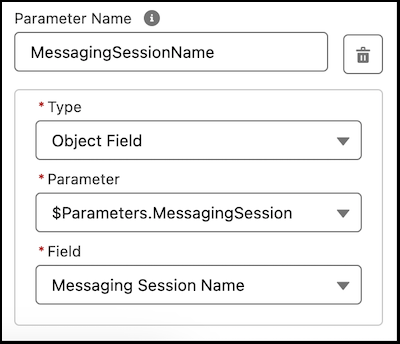
We’ll format the {{MessagingSessionName}} placeholder in the URL configuration as a core
parameter. We’ll name it MessagingSessionName and then configure a corresponding Web Page
Parameter by setting the Type to Object Field and then setting the Parameter to
$Parameters.MessagingSession (which tells the component what object to reference), and
select Messaging Session Name (which tells the component what field
on the object to reference).
-
We’ll format the {{MessagingSessionName}} placeholder in the URL configuration as a core
parameter. We’ll name it MessagingSessionName and then configure a corresponding Web Page
Parameter by setting the Type to Object Field and then setting the Parameter to
$Parameters.MessagingSession (which tells the component what object to reference), and
select Messaging Session Name (which tells the component what field
on the object to reference).