
Using a flow, send customers automated, template-based messages in standard Messaging channels to notify them about a product delivery, case update, or something else.
Required Editions
| View supported editions. | |
 This article applies to:
|
Standard SMS channels |
 This article doesn’t apply to:
|
Enhanced In-App Chat, Enhanced Web Chat v1, Enhanced Web Chat v2, Enhanced WhatsApp, Enhanced Facebook Messenger, Enhanced SMS, Enhanced Apple Messages for Business, Enhanced LINE, and Bring Your Own Channel |
| User Permissions Needed | |
|---|---|
| To create messaging templates and view errors: | Configure Messaging |
| To view channels: | View Setup and Configuration |
Automated messages appear in a customer’s messaging history. They don’t require a response, but if the customer does respond, their response is routed back to your support team.
Each automated message is based on a messaging template that determines the message content. You can add merge fields to your templates to include personalized data, such as the customer’s name or case status. A template can be used for multiple types of Messaging channels. After you create templates, create a flow to send the template-based messages.

- From Setup, enter Messaging in the Quick Find box, and select Messaging Templates.
- Click New.
- Enter a name and description for your template.
-
In the Message field, enter your message. Use merge fields to insert variables into the
message, such as the customer's name or case status.
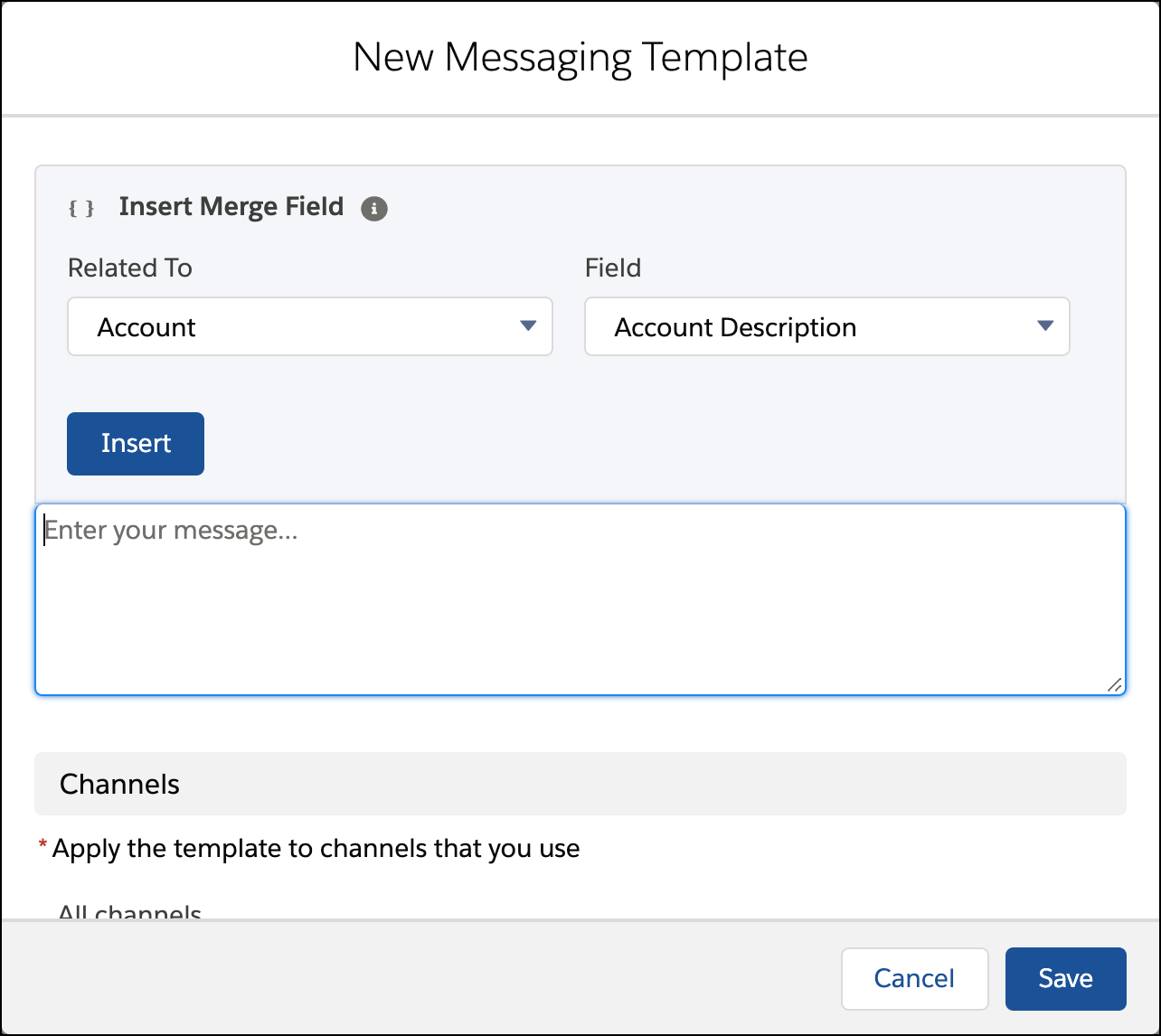
If you’re creating a standard WhatsApp template, copy and paste the approved template while replacing the parameter placeholders with your merge fields. The remaining template content must match your WhatsApp submission exactly, including spaces and line breaks.
-
Select the channels where this template will be available.
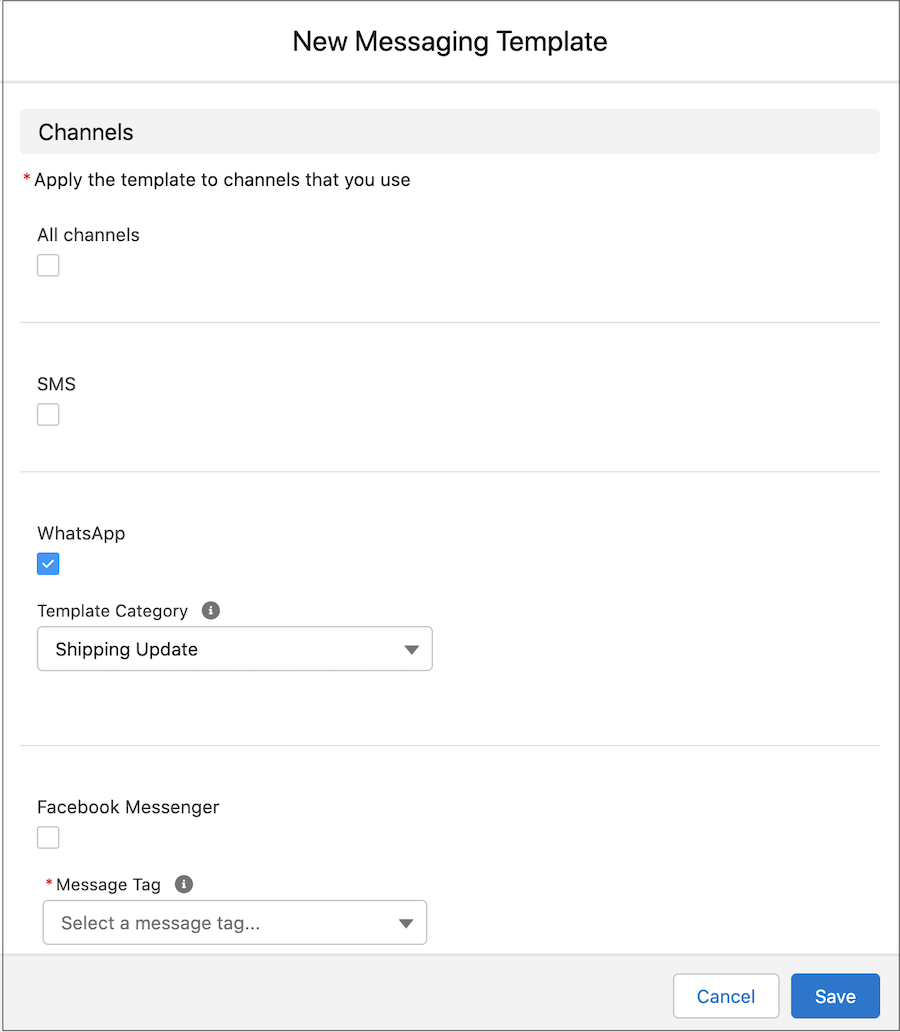
- Click Save.
After you create a messaging template, create a flow that manages the sending of the message.
- Create a Flow to Send Messages in Standard Channels
Set up automation that sends template-based messages in standard Messaging channels when certain conditions are met. - Troubleshoot Errors for Automated Messages in Standard Messaging Channels
If something goes wrong when a flow tries to send a message notification in a standard Messaging channel, review the Standard Messaging Error Log to find out what happened.