
When you’re done helping a customer, end the messaging session from the conversation window or from the Messaging Sessions list view.
Required Editions
| View supported editions. | |
 This article applies to:
|
Enhanced In-App Chat, Enhanced Web Chat v1, Enhanced Web Chat v2, Enhanced WhatsApp, Enhanced Facebook Messenger, Standard and Enhanced SMS, Enhanced Apple Messages for Business, Enhanced LINE, and Bring Your Own Channel |
| User Permissions Needed | |
|---|---|
| To end Enhanced Chat sessions from the messaging session record: |
Enhanced Chat User permission set license AND Enhanced Chat Rep user permission AND Owner of the messaging session |
| To end Standard or Enhanced Messaging sessions from the messaging session record: |
Messaging Agent AND Owner of the messaging session |
| To end Standard or Enhanced Messaging sessions from a list view: | End Messaging Session |
-
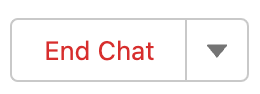
From the conversation window in an active messaging session that you own, click
End Chat.
To restore your capacity and accept new messaging sessions, close the messaging session tab.
-
Alternatively, go to the Messaging Sessions list view to close one or more messaging
sessions.
-
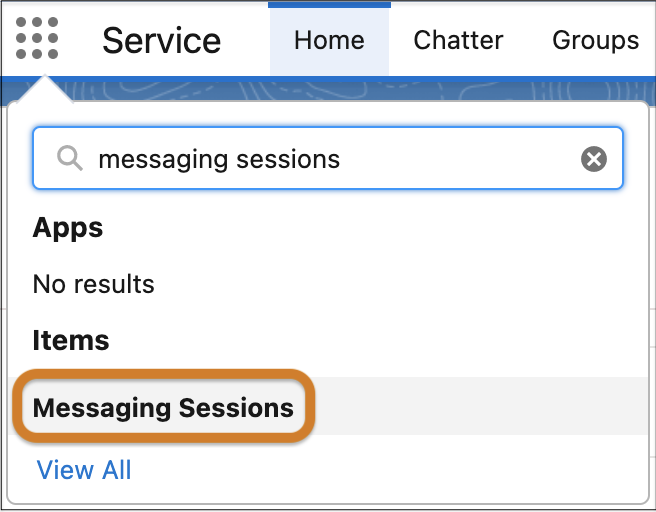
Select Messaging Sessions from the Item Picker or find the
Messaging Sessions related list on a messaging user record.
- In the list of messaging sessions, find the ones you want to end.
-
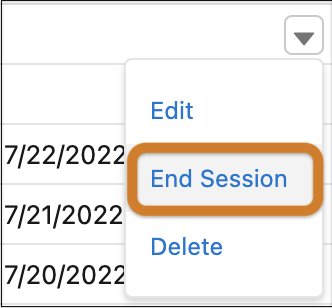
In standard channels only, click the action menu next to a messaging session and
select End Session.
-
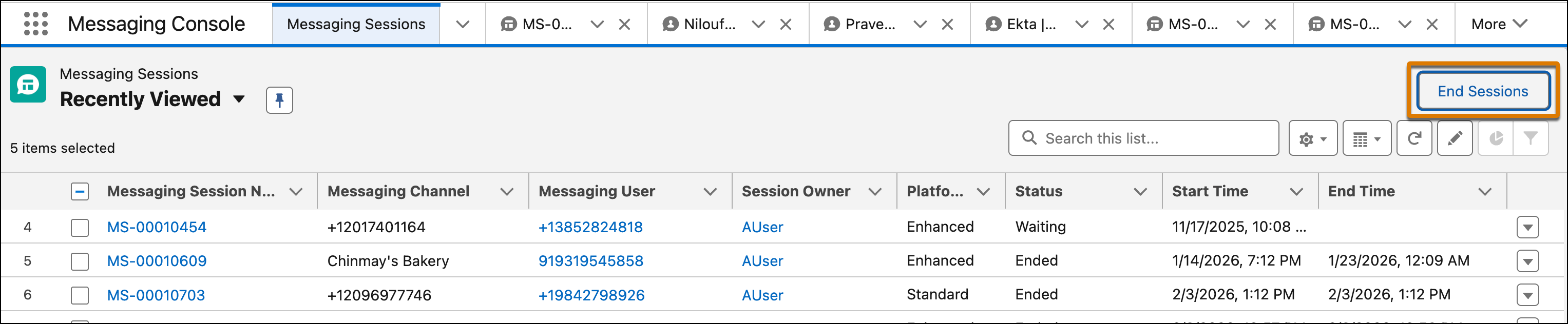
If you select multiple sessions, select End Sessions above
the list view.
-
Select Messaging Sessions from the Item Picker or find the
Messaging Sessions related list on a messaging user record.
Keep these considerations in mind:
- If you go offline for any reason during an active messaging session, what happens next depends on the capacity model that your business is using. If tab-based capacity is used, the session status changes to Waiting and the session is routed to an available service rep. If status-based capacity is used, the session remains active.
- If you log out of Omni, you see a warning that any ongoing sessions will end.
- If you initiate a messaging session and the customer doesn’t respond, the session ends automatically within 24 hours in standard channels and within 48 to 54 hours in enhanced channels.