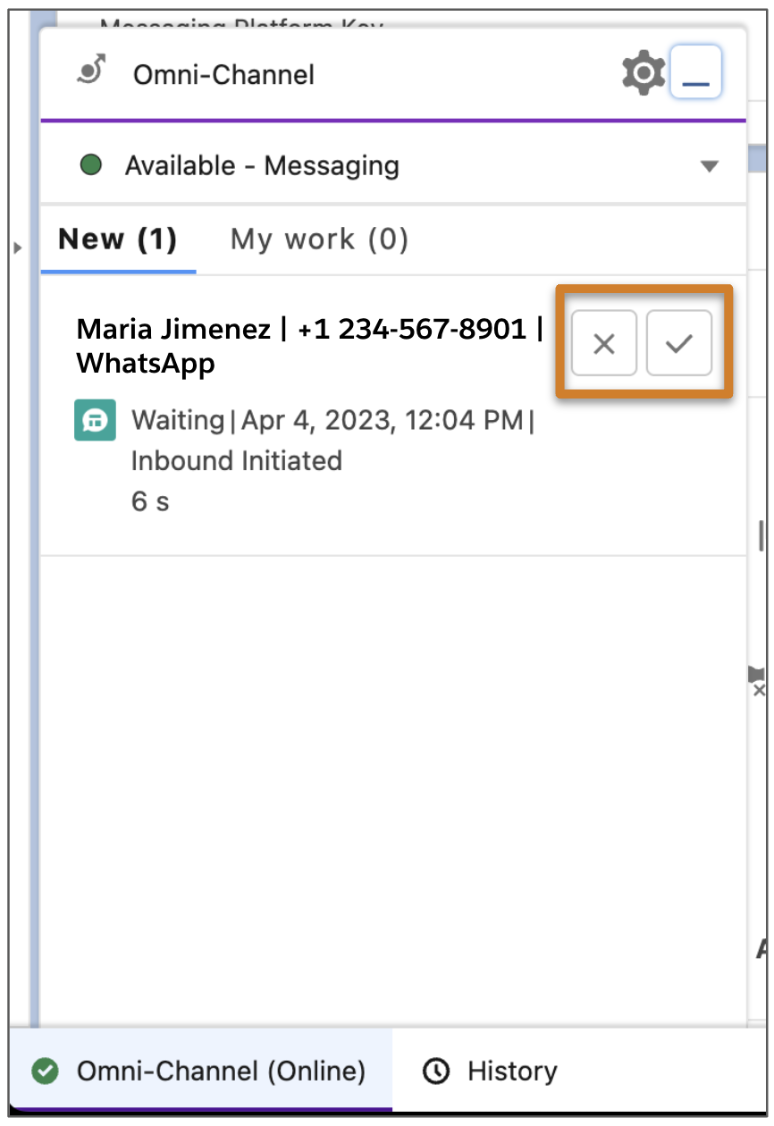
When a new message arrives in Messaging, it appears in the Omni-Channel utility or sidebar.
Required Editions
| View supported editions. | |
 This article applies to:
|
Enhanced In-App Chat, Enhanced Web Chat v1, Enhanced Web Chat v2, Enhanced WhatsApp, Enhanced Facebook Messenger, Standard and Enhanced SMS, Enhanced Apple Messages for Business, Enhanced LINE, and Bring Your Own Channel |
| User Permissions Needed | |
|---|---|
| To send and receive messages in Enhanced Chat: |
Enhanced Chat User permission set license AND Enhanced Chat Rep user permission |
| To send and receive messages in standard and enhanced messaging channels: | Messaging Agent |
-
To accept a message and open the messaging session window, click the checkmark icon.
To see the first message that a customer sent, hover your mouse over the checkmark icon. The first message can give you context about why the customer is contacting your company.
-
To send a message to the customer, enter your message and press
Enter on your keyboard.
 Tip To add more context to the messaging session, use the lookup fields on the Details tab to associate the session with a case, lead, or opportunity.