
You can transfer chat sessions to other agents when a customer needs extra help with an issue, or to make room for new requests.
Required Editions
| User Permissions Needed | |
|---|---|
| To chat with visitors in the Salesforce console: | Chat is enabled, set up, and included in a Salesforce console app |

Important
Legacy Chat will be retired on February 14, 2026. To avoid service interruptions to your end users, switch to enhanced Chat (formerly Messaging for In-App and Web). Enhanced Chat offers many of the legacy Chat features that you love plus asynchronous conversations that can be picked back up at any time. Learn about migrating in Help and Trailhead.
-
While chatting with a customer, click Transfer.
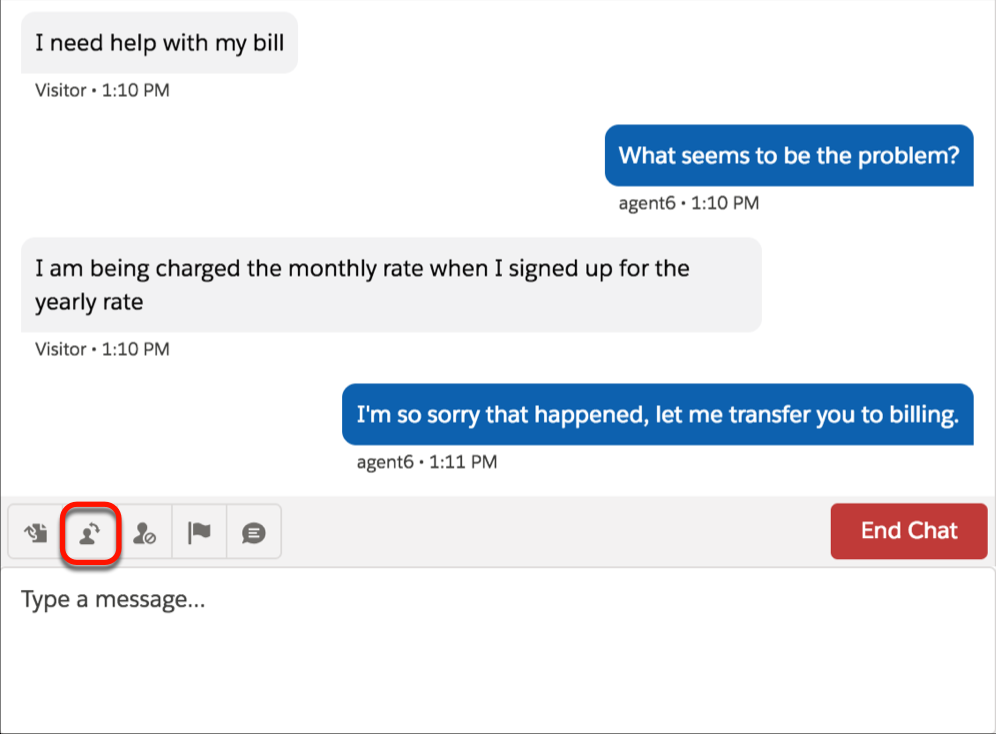
-
Select a transfer option from one of the menus.
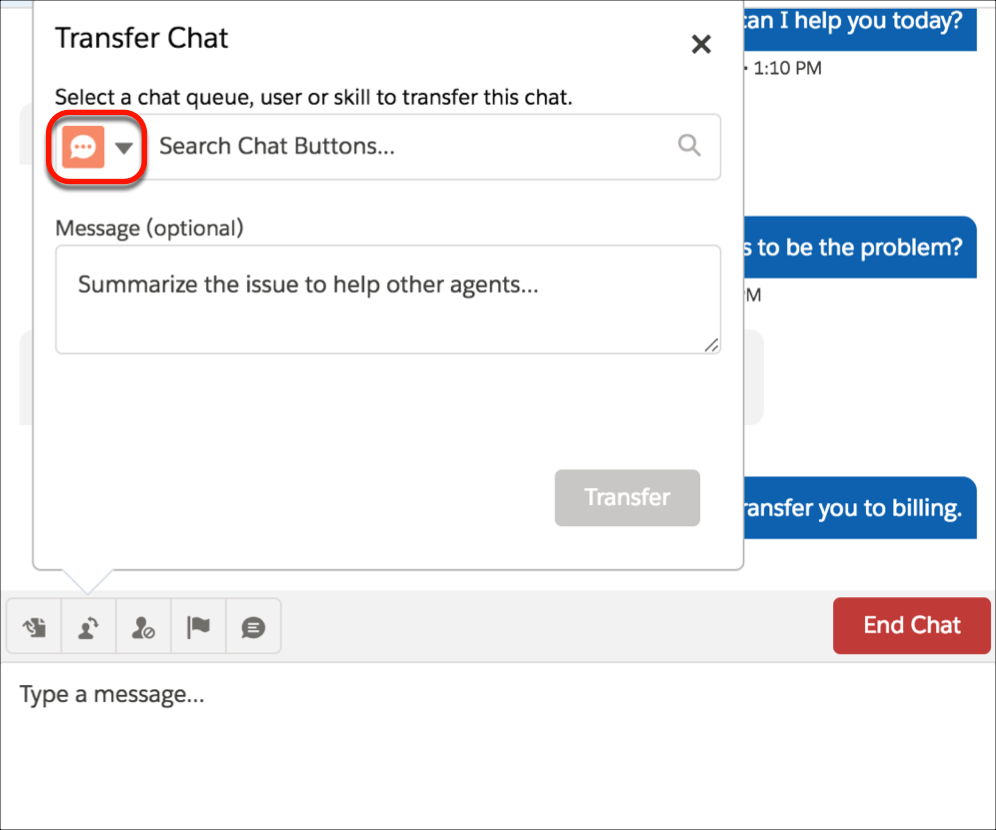
 Note There are options for each type of transfer that’s enabled for your Salesforce org. If you don’t see the option you need, ask your administrator to add it for you.
 -
(Optional) Write a message for the agent receiving the chat. This message is part of the
chat request to provide context for the next agent.
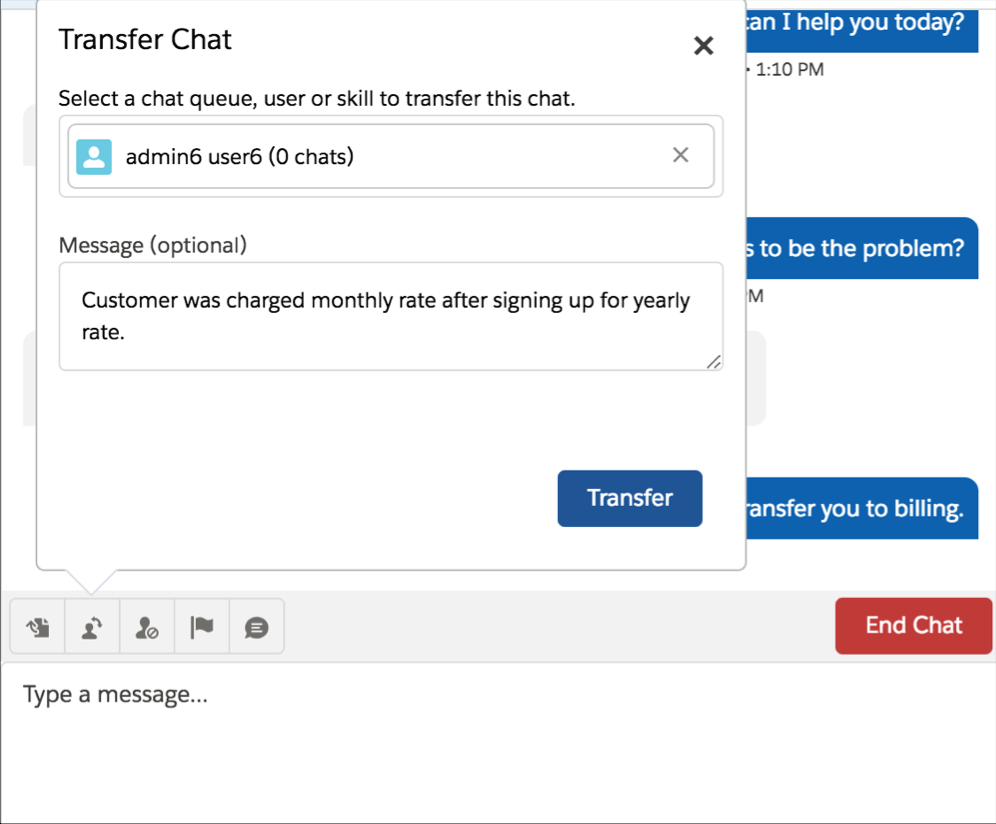
- If the transfer is accepted, your chat and any associated records automatically close (don’t worry, you’ll be prompted to save your changes if you haven’t already). If it’s rejected, you can try again with another recipient or transfer method.