---
schema_version: "1"
id: 4250fa284c983117319ac90aaffe8fe1abbd6c89f50a19da46441f80e947544d
title: Migrate a Single Article Type
collection: admin
version: current
locale: en-us
portal_url: https://docs.salesforce.com/admin/current/en-us/service/264-0-0/knowledge_migration_tool_SAT.md
canonical_url: https://help.salesforce.com/s/articleView?id=service.knowledge_migration_tool_SAT.htm&release=264.0.0&type=5
source_site: help.salesforce.com
content_type: documentation
content_hash: 97e37765118e8e1dcb3804d4f00ea859a5880262d765cbba9e8a68dfab1e4712
description: You planned your migration. You went over the pre-migration checklist, and you made all the prerequisite revisions to your Classic knowledge base. You’re aware of the limitations. You’re ready to go. Here’s your step-by-step guide to using the Lightning Knowledge Migration Tool in orgs with a single article type.
products:
- Service Cloud
release: "264"
---
# Migrate a Single Article Type
You planned your migration. You went over the pre-migration checklist, and you made all the prerequisite revisions to your Classic knowledge base. You’re aware of the limitations. You’re ready to go. Here’s your step-by-step guide to using the Lightning Knowledge Migration Tool in orgs with a single article type.
### Required Editions

Note This procedure applies to both sandbox and production migrations. To enable the Lightning Knowledge Migration Tool in your production org, log a request with Salesforce Support. Allow 1–2 weeks advance notice from your target migration date. Before we can enable the tool in production, our support team asks a series of questions about your migration plan and the results of your sandbox test.

Warning Make sure that no changes are made to any Knowledge content during migration. All revised data is lost or damaged. User and API activity, such as Apex triggers and jobs, can stop migration or lead to corrupted data in some articles and files.
1. Switch to Lightning Experience.
2. From Setup, enter lightning knowledge in the Quick Find box, then select **Lightning Knowledge Migration Tool**.
3. Follow the on-screen instructions and start the migration.
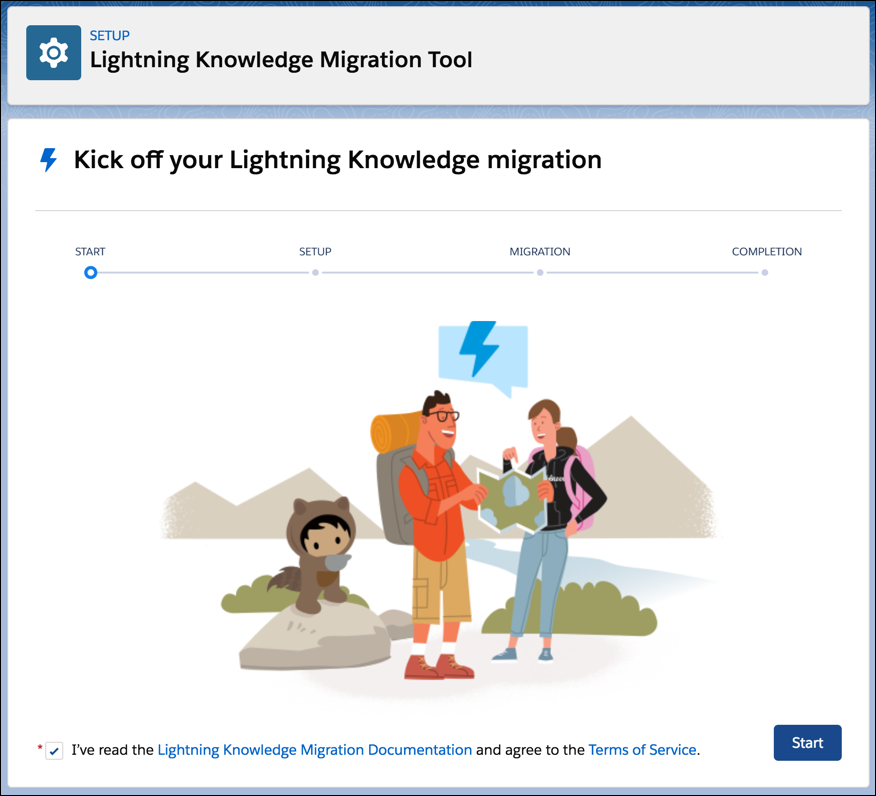

Note If you receive an error message after beginning the migration, follow the instructions in the message, and then restart the migration.
4. Choose whether to create a record type during migration.
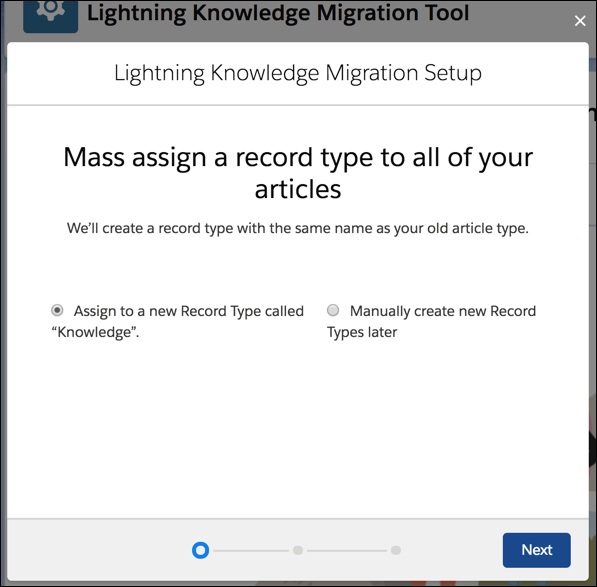
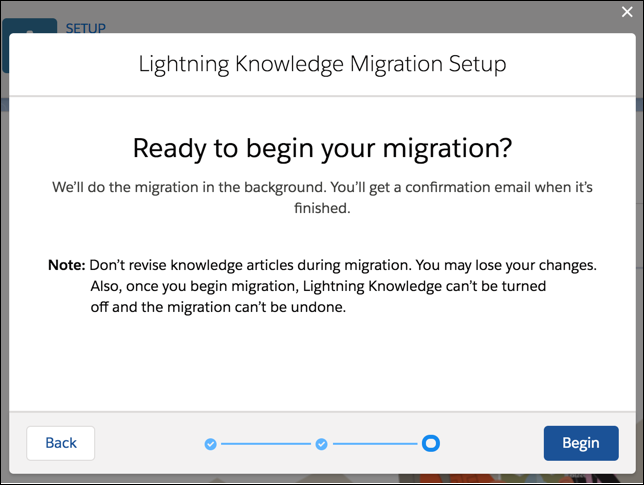
5. Begin migration. Follow the on-screen instructions. Completion time depends on the size of your knowledge base and how many other processes are running at the same time.

Important You can’t undo the migration or disable Lightning Knowledge after you start the migration. After you migrate, the Lightning Knowledge Migration Tool is no longer available in Setup.
6. (Optional) If your migration includes files, you see a screen during migration to set the default visibility. To provide your Experience Cloud site users, such as customers, partners, and guest users, access to files, select **All users**. File visibility is always restricted to users who can access the record where it is attached. You can change the visibility for individual files after migration.

Note If your migration includes files, you receive a confirmation email when the migration is complete, and a report is created to show the outcome of the file migration. All users with administrative permission and the Modify All Data permission receive the confirmation email.
Look for the report file named LightningKnowledgeMigrationResultTimestamp.txt in the standard Files tab. The admin who started the migration owns the report file. If everything migrated, the report shows a success message. The report also lists articles with files that failed to migrate.
7. Proceed to the [Lightning Knowledge Post-Migration Checklist](https://help.salesforce.com/s/articleView?id=service.knowledge_post-migration_checklist.htm&release=264.0.0&type=5 "After a successful migration, you have the new Knowledge object and are ready to verify and set up key aspects of the new Lightning Knowledge base.").