---
schema_version: "1"
id: 49463efd1ad14abd3e5a86907559e46f897f34255270ec996466a1200114004b
title: Create a Joined Report for Knowledge Feedback
collection: admin
version: current
locale: en-us
portal_url: https://docs.salesforce.com/admin/current/en-us/service/264-0-0/knowledge_feedback_create_report.md
canonical_url: https://help.salesforce.com/s/articleView?id=service.knowledge_feedback_create_report.htm&release=264.0.0&type=5
source_site: help.salesforce.com
content_type: documentation
content_hash: 811316b008c229e3b3360288a6d667302d4bdfe0ccc6c3e286c890a881afaa06
description: A joined report contains data from reports that are of different types, including standard and custom report types. You can use a joined report to present different types of information in a single report. Create a single, comprehensive report for Knowledge Feedback by adding Knowledge Article Feedback and Survey Responses report types to a joined report.
products:
- Service Cloud
release: "264"
---
# Create a Joined Report for Knowledge Feedback
A joined report contains data from reports that are of different types, including standard and custom report types. You can use a joined report to present different types of information in a single report. Create a single, comprehensive report for Knowledge Feedback by adding Knowledge Article Feedback and Survey Responses report types to a joined report.
### Required Editions
Available in: Lightning Experience
Available in: Enterprise, Performance, Unlimited, and Developer Editions
Available in: Enhanced Folder Sharing
User Permissions Needed
To create and update custom report types:
Manage Custom Report Types
To create, edit, and delete joined reports:
Enhanced Folder Sharing
Create and Customize Reports
AND
Report Builder
## Create Custom Report Types
Create custom report types for Knowledge Article Feedback and Survey Responses objects.
1. From Setup, in the Quick Find box, enter Report Types, and then select **Report Types**.
2. On the Custom Report Types welcome page, click **Continue**.
3. Click **New Custom Report Type** to create a custom report type for the Knowledge Article Feedback object.
4. Enter the report type details:
1. In the Primary Object field, select the **Knowledge Article Feedback** object.
After you save the report type, you can’t change the primary object.
2. Enter a unique display label, an API name, and a description to inform users what data is available in the report.
3. Select the category for the custom report type to help users find it.
4. Select an availability status.
- During design and testing, select **In Development**. The report type and its reports are hidden from all users except those with the Manage Custom Report Types permission. Only users with that permission can create and run reports when a report type is in development.
- If you’re ready to let all users access the report type, select **Deployed**.
5. Click **Next**.
6. Save the report type.
7. Follow steps 3 to 6 to create a custom report type for the Survey Responses object.
8. To include fields from the Survey Responses object, specify the records that you want to include in the report results.
1. Click **Click to relate another object** and select **Survey Question Responses**.
2. Select the criteria for the relationship.
- If you select **Each "A" record must have at least one related "B" record**, only parent records that have child records are included in the report. If you’re using Essentials Edition, you can only select this option.
- If you select **"A" records may or may not have related "B" records**, parent records are shown whether or not they have child records. All subsequent relationships use the may-or-may-not association.
3. Click **Save**.
9. From the Custom Report Types page, open the report type that you created earlier for the Knowledge Article Feedback object.
10. Click **Edit Layout**.
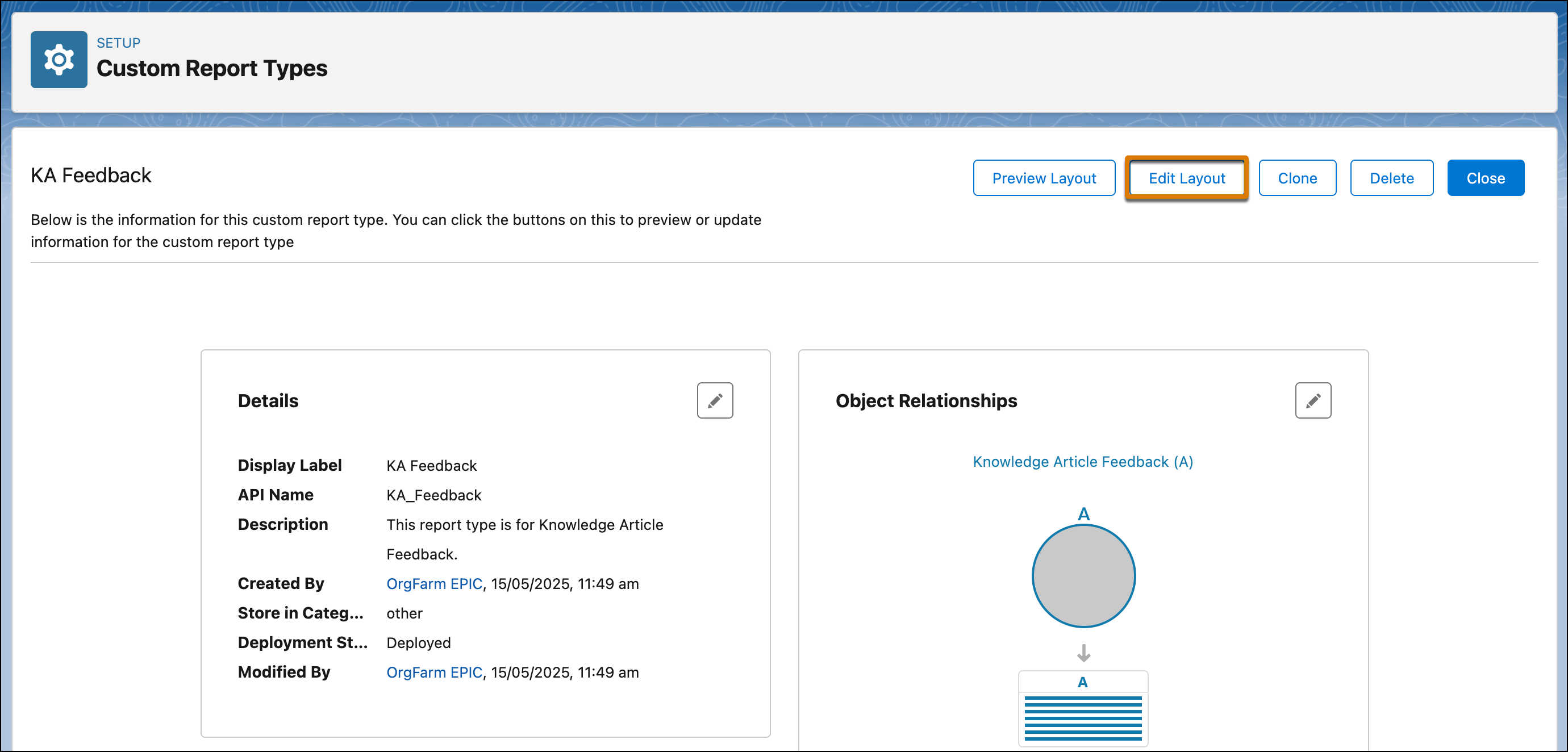
11. Click **Lookup Fields**.
12. From the Fields panel, click **Feedback Responses**, select **Survey Response ID**, and then click **Apply**.
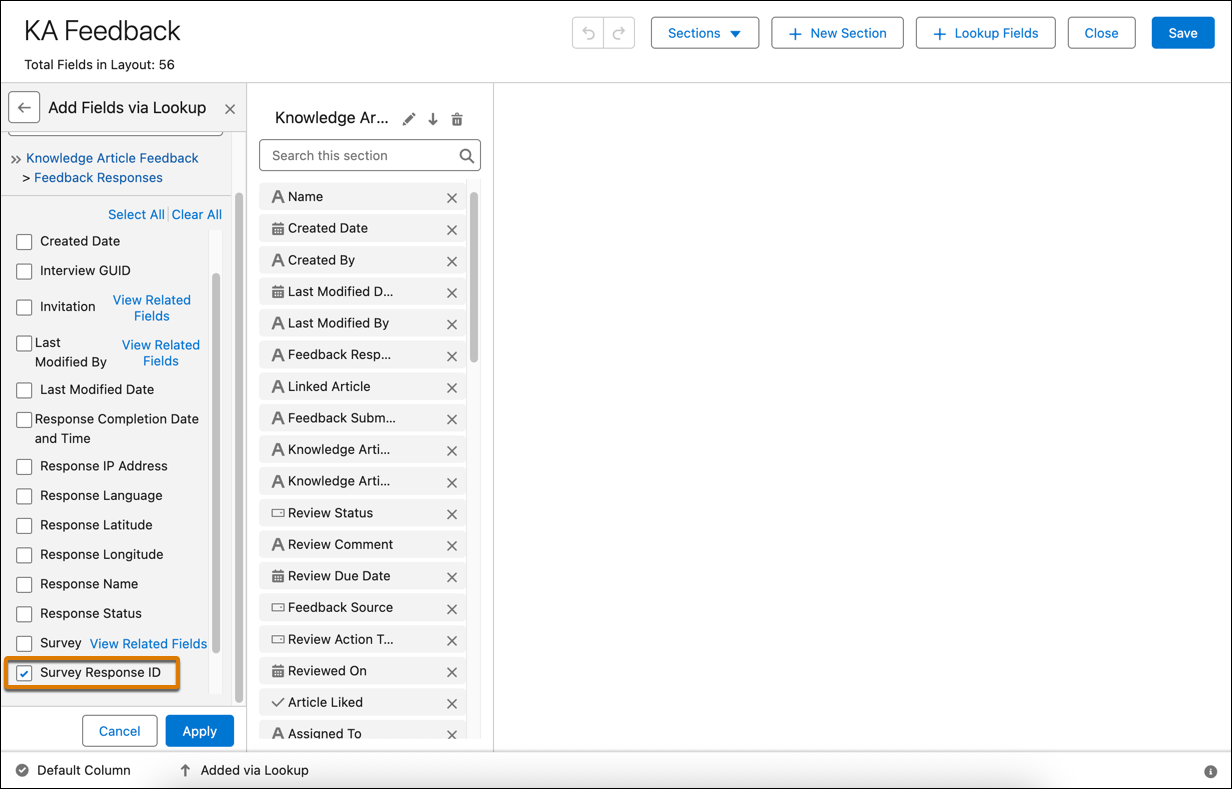
13. On the Apply Fields page, in the Section field, select **Knowledge Article Feedback**, and then click **Apply**.
14. Click **Save**.
## Create a Joined Report
1. From the App Launcher, find and select **Analytics**.
2. On the Analytics tab, select **Create** | **| Report**, or on the Reports tab, click **New Report**.
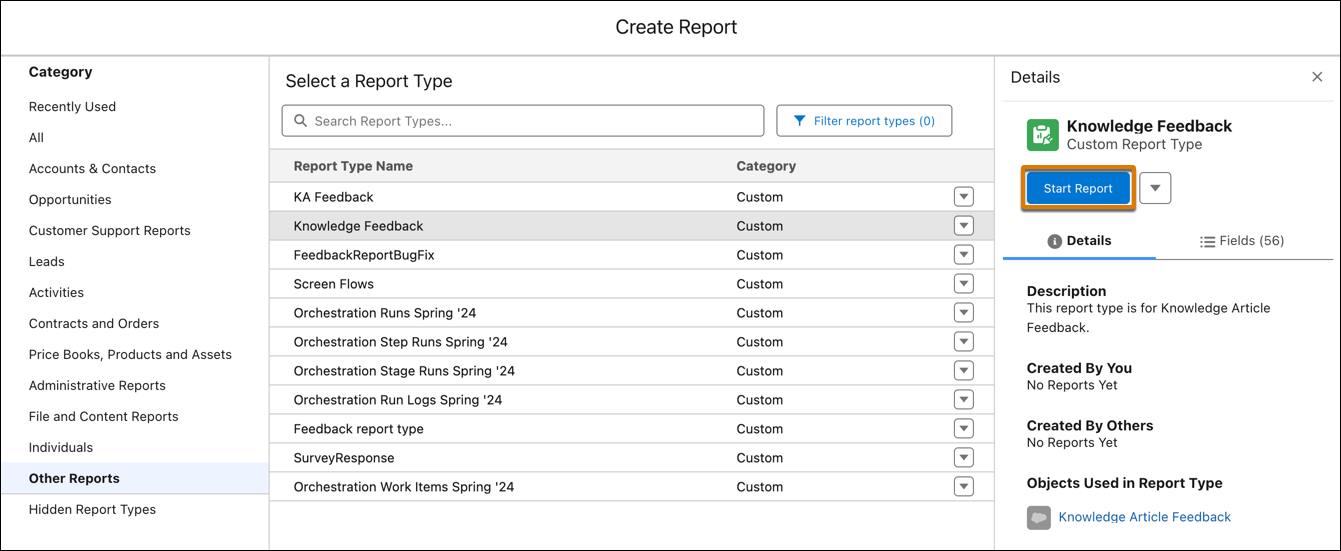
3. On the Create Report page, go to the Other Reports category and select the report type you created for the Knowledge Article Feedback object.
The report type you select becomes the joined report's principal report type. To learn more about principal report types in joined reports, see [How Joined Reports Work](https://help.salesforce.com/s/articleView?id=analytics.reports_joined_format_concepts.htm&language=en_US).
4. In the Details panel, click **Start Report**.
5. The report opens in the report builder. To create a joined report, in the upper left corner of the report builder, click **Report** | **| Joined Report** | **| Apply**.
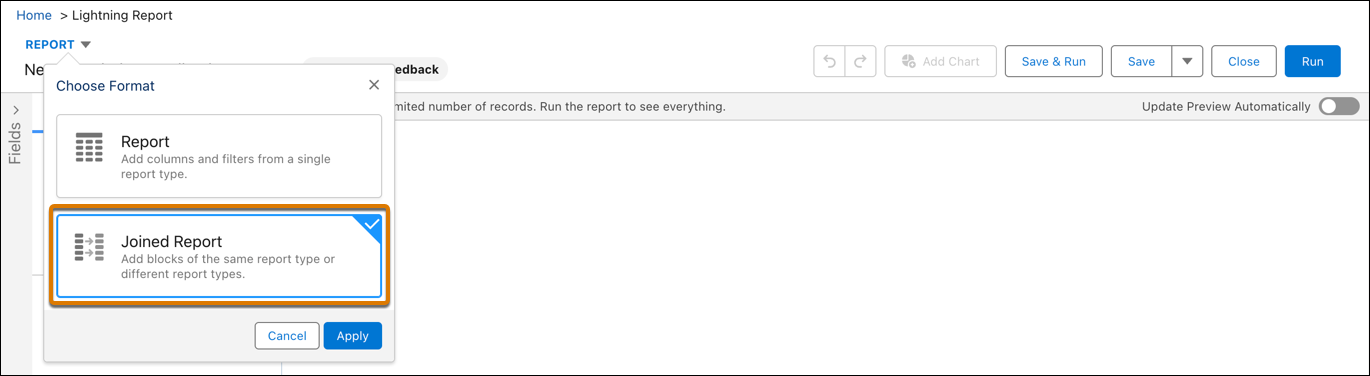
6. To add the report type you created for the Survey Responses object to the joined report, click **Add Block**.
7. Select the Survey Responses report type.
8. Click **Add Block**.
9. Customize the joined report with columns, groups, filters, and formulas.
10. Save the report.
11. On the Save Report As page, provide a name for the report.
12. Optionally, describe the report and click **Select Folder** to choose a report folder.
13. Click **Save**.
14. To generate the report, click **Run**.