
The Enterprise Knowledge component offers a streamlined search, sourcing information from both Salesforce Knowledge and external harmonized content in Data 360.
Required Editions
| Available in Lightning Experience. View supported editions. |
| User Permissions Needed | |
|---|---|
| To set up and manage Enterprise Knowledge: |
Customize Application AND Allow View Knowledge |
| To view and search knowledge articles | Knowledge object - Read permission |
Before you add the Enterprise Knowledge component to a Lightning Record page, make sure you’ve configured the Search Settings.
- From Setup, in the Quick Find box, enter Lightning App Builder, and then select Lightning App Builder.
- Edit the Lightning Record page where you want to add the Enterprise Knowledge component.
-
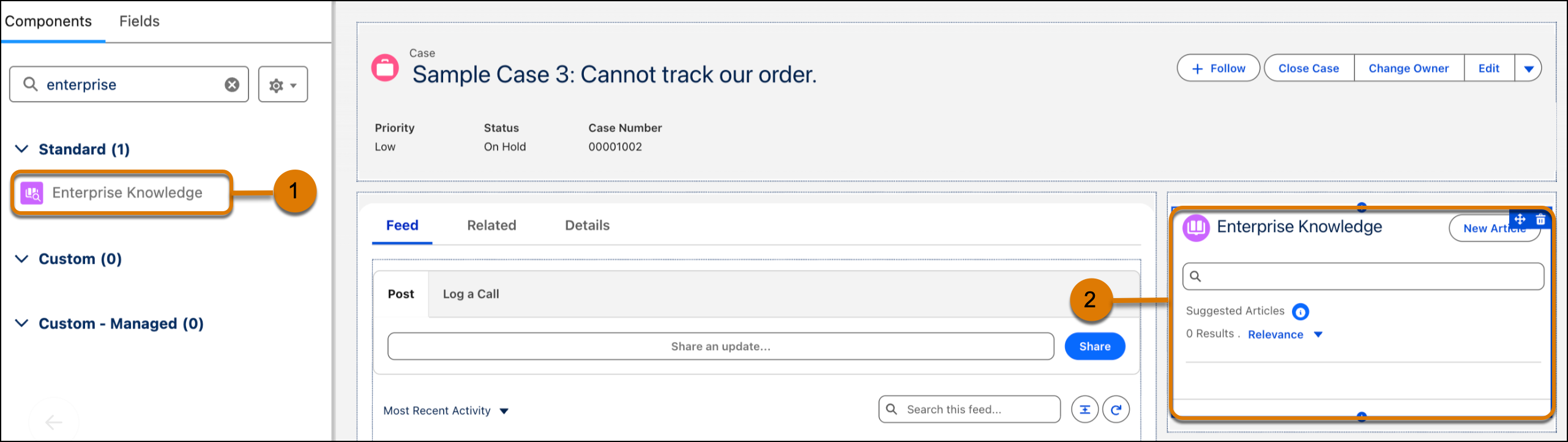
In the Lightning App Builder, go to the Components tab, search for Enterprise Knowledge
component (1). Then, drag the component to where you want it to appear on the page (2).
- Click the Enterprise Knowledge component.
-
In the Search Configuration Name field, find and select your search query configuration.
Make sure that you select the search configuration of the Lightning Knowledge Component
type.
The search results in the Enterprise Knowledge component is based on the search query configuration you select.
- Optionally, you can configure the component height and the results per page.
- To show suggested articles relevant to the record as soon as the page loads, select Show Article Suggestions on Page Load. The suggested articles give Agentforce better context to generate an accurate answer for the open case. If you don't select it, reps still can get Agentforce Answers, but they need to ask a question first.
- Save the page.
- Activate the Lightning Record page, if applicable.