
Embed a published knowledge block version into an article using the rich text editor's Insert menu.
Required Editions
| Available in Lightning Experience. View supported editions. |
| User Permissions Needed | |
|---|---|
| To insert knowledge blocks into articles: | Knowledge User license |
| To create and edit articles: |
Manage Articles AND Create, Read, and Edit on the article type |

Note To insert a knowledge block into an article in another language, translate the block
into the article’s language first.
- Open the Knowledge article you want to edit, or create an article.
- In the article's rich text editor, place your cursor where you want the block to appear.
-
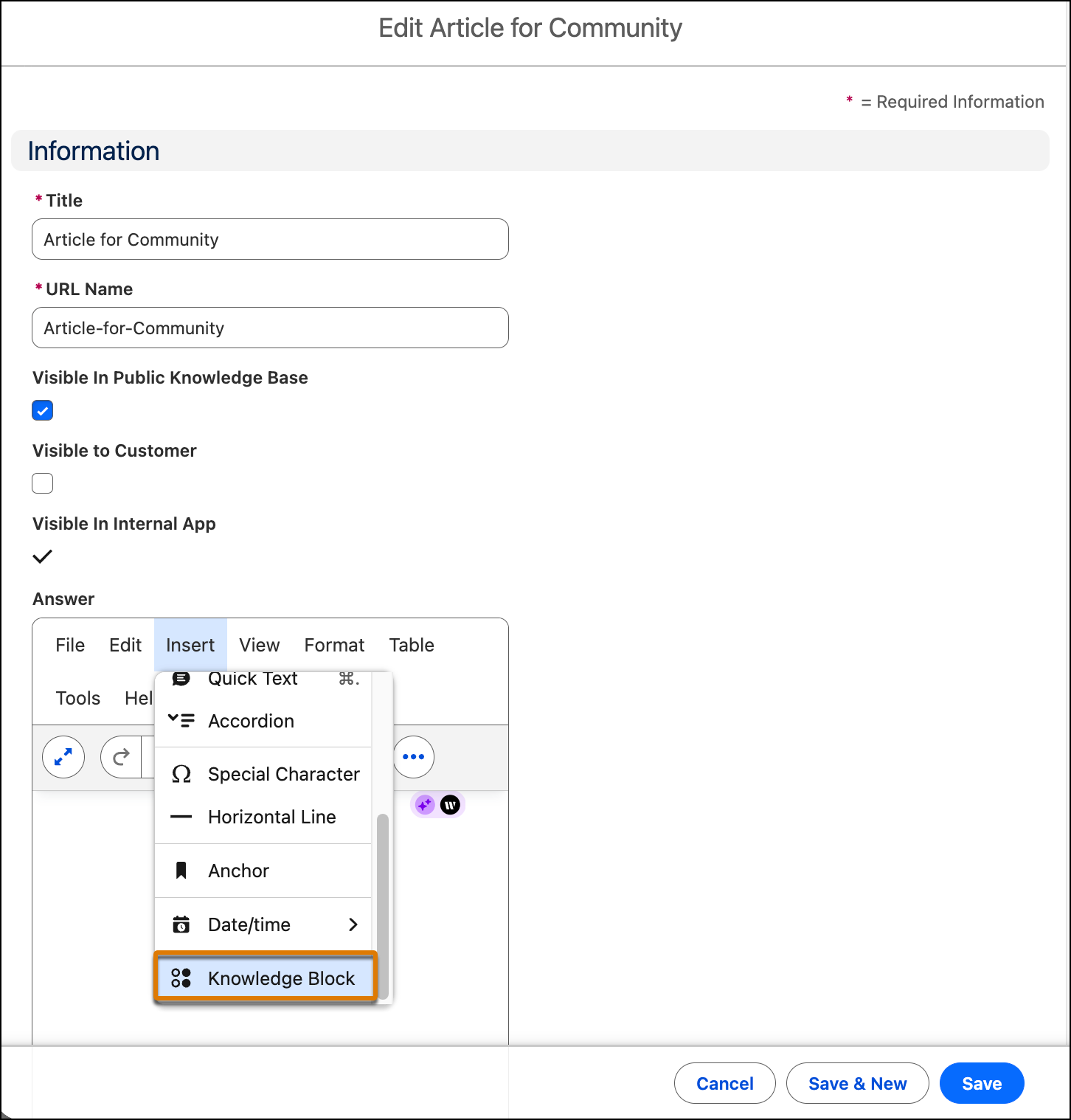
On the editor toolbar, click Insert, and then select
Knowledge Block.
-
In the Insert a Knowledge Block Version window, search for the block by name.
Note Only Published versions are available to insert.
-
Select the version you want.
The window shows the version and its language. Confirm that you've selected the right version.
- Insert the block. The block's content appears in the article.
- Save and publish the article.
The block's content appears in the article and updates automatically when a new version of the block is published.