---
schema_version: "1"
id: 6697c280d3e385e0e890c40c460b7723c12c9449ddba3140c40cf8afcc00b30e
title: Article Type Templates
collection: admin
version: current
locale: en-us
portal_url: https://docs.salesforce.com/admin/current/en-us/service/264-0-0/knowledge_article_templates_create.md
canonical_url: https://help.salesforce.com/s/articleView?id=service.knowledge_article_templates_create.htm&release=264.0.0&type=5
source_site: help.salesforce.com
content_type: documentation
content_hash: 2e40ac66bf04e475dc56e8a48e22aeb688df62041f8db7f5ab24219d7bea7625
description: Article types in Salesforce Knowledge require a template for each channel. The standard article-type templates—Tab and Table of Contents—specify how the sections in the article-type layout appear in the published article. For example, if you choose the Tab template, the sections defined in the layout appear as tabs when users view an article. With the Table of Contents template, sections appear on a single page with hyperlinks to each section. You can also create a custom template using Visualforce. Custom templates aren’t associated with the article-type layout.
products:
- Service Cloud
release: "264"
---
# Article Type Templates
Article types in Salesforce Knowledge require a template for each channel. The standard article-type templates—Tab and Table of Contents—specify how the sections in the article-type layout appear in the published article. For example, if you choose the Tab template, the sections defined in the layout appear as tabs when users view an article. With the Table of Contents template, sections appear on a single page with hyperlinks to each section. You can also create a custom template using Visualforce. Custom templates aren’t associated with the article-type layout.
### Required Editions
To create, edit, or delete article-type
templates:
Customize Application
AND
Manage Salesforce
Knowledge

Note To ensure access to Visualforce pages, always set the Visualforce permissions and visibility for article templates.
1. From Setup, enter Knowledge Article Types in the Quick Find box, then select **Knowledge Article Types**
2. Click an article type name.
- For a default template, continue with Step 12.
- To create a custom template, make note of the article type's API Name. You need this value when you create the Visualforce page.
3. From Setup, enter Visualforce Pages in the Quick Find box, then select **Visualforce Pages**.
4. Click **New**.
5. In the Name text box, enter the text that appears in the URL as the page name.
This name can contain only underscores and alphanumeric characters, and must be unique in your org. It must begin with a letter, not include spaces, not end with an underscore, and not contain two consecutive underscores.
6. In the Label text box, enter the text that users see when choosing this template from the Channel Displays related list on the article type detail page.
7. Add your Visualforce markup.
The only requirement for custom article-type templates is that the standard controller is equal to the API Name of the article type. For example, if the API Name of the article type is Offer\_\_kav, your markup is:
```markup
... page content here ...
```

Note Click **Component Reference** for a list of the Visualforce components, such as knowledge:articleRendererToolbar and knowledge:articleCaseToolbar, available for use in custom article-type templates.
8. If your article type has a [File field](https://help.salesforce.com/s/articleView?id=service.knowledge_custom_field_types.htm&release=264.0.0&type=5), you can allow users to download the field's content.
In this example, the article type is Offer, the name of the File field is my\_file, and the text that appears as a link is Click me:
```markup
Click
me
```

Note If the File field is empty (meaning the author didn't upload a file), the link still appears on the published article but has no function. If you do not want the link to appear when the File field is empty, replace Click me in the example with the name of the file. For example, {!Offer\_\_kav.my\_file\_\_Name\_\_s}.
9. Click **Save**.
Your custom template can now be assigned to any channel on the article type.
10. From Setup, enter Knowledge Article Types in the Quick Find box, then select **Knowledge Article Types**
11. Click an article type name.
12. For each channel, specify the template.
- For Internal App, Customer and Partner, **Tab** is the default template.
- For Public Knowledge Base, **Table of Contents** is the default template.
- If you created a custom template for this article type, it also appears in the dropdown menu.
13. Save your work.

Example
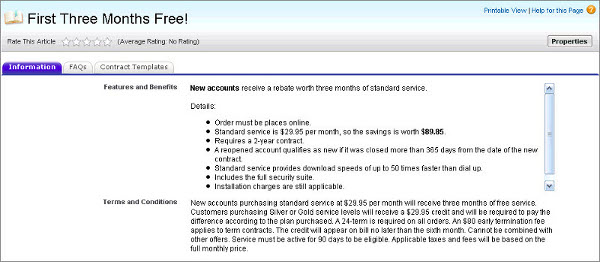
If you choose the Tab template, the sections you defined in the layout appear as tabs when users view an article.
**Published Article Using the Tab Article-Type Template**
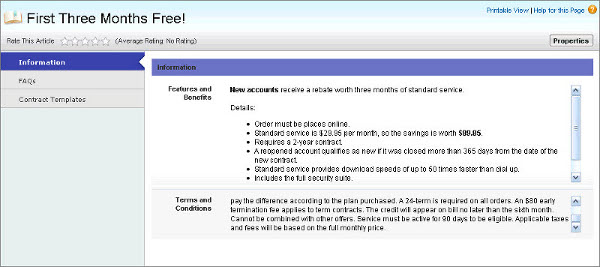
If you choose the Table of Contents template, the sections you defined in the layout appear on one page with hyperlinks to each section title.
**Published Article Using the Table of Contents Article-Type Template**
#### See Also
- [Knowledge Article Types](https://help.salesforce.com/s/articleView?id=service.knowledge_article_types_manage.htm&release=264.0.0&type=5 "Article types, such as FAQs and Tutorials, provide the format and structure to control how an article displays for each audience, known as a channel. For each article type you can create custom fields, customize the layout by adding or removing sections and fields, and choose a template for each channel. You can also create workflow rules and approval processes to help your organization track and manage article creation and publication.")
- [Salesforce Knowledge Help and Resources](https://help.salesforce.com/s/articleView?id=service.knowledge_map.htm&release=264.0.0&type=5 "Find the information you need about Salesforce Knowledge. Explore help documentation, developer documentation, and Trailhead modules.")
- [Set Visualforce Page Security from Profiles](https://help.salesforce.com/s/articleView?id=platform.users_profiles_visualforce_access.htm&type=5&language=en_US)
- [_Knowledge Article_: Make Visualforce pages visible to users](https://help.salesforce.com/s/articleView?id=000385350&type=1&language=en_US)