---
schema_version: "1"
id: 6c7fa48ea418efb7379602d392fa63eba4c2927697a727988107cb1be538a628
title: Use Proactive Assistance Actions on IT Service Records
collection: admin
version: current
locale: en-us
portal_url: https://docs.salesforce.com/admin/current/en-us/service/264-0-0/it_srvcs_use_proact_astnc_incdnts.md
canonical_url: https://help.salesforce.com/s/articleView?id=service.it_srvcs_use_proact_astnc_incdnts.htm&release=264.0.0&type=5
source_site: help.salesforce.com
content_type: documentation
content_hash: 7f3cd75c9b682f0a632d43a628ec1d1753668da9cdddcfc6eccee844bffc4f07
description: IT teams use the Proactive Assistance card on an incident or problem or risk page to review actions. They can refresh actions as required.
products:
- Service Cloud
- Agentforce IT Service
release: "264"
---
# Use Proactive Assistance Actions on IT Service Records
IT teams use the Proactive Assistance card on an incident or problem or risk page to review actions. They can refresh actions as required.
### Required Editions
Available in: Lightning Experience
Available in: Enterprise, and Unlimited Editions with Agentforce IT Service.
User Permissions Needed
To use proactive assistance:
Use Proactive Actions for IT Services
Service Planner User
1. From the App Launcher, find and select **Incidents** or **Problems**or **Risk**.
2. Open an incident or problem record.
If the record isn't resolved or closed, the proactive actions component shows all the actions that were triggered when the record was created.
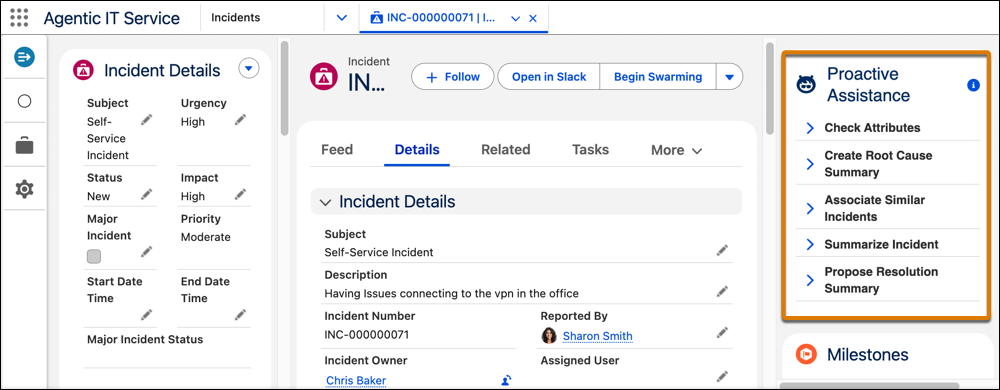
3. On the record, expand each action section on the Proactive Assistance card.
4. Review the detailed analysis to understand the insights from the record.
5. Refresh the agent actions for the latest information on these actions.
- Summarize record
- Propose resolution summary
- Create record root cause summary
- Create service plan
6. Use the feedback icons to provide feedback on the suggested information for each action.
If there is insufficient data to run a proactive action, the user is notified.