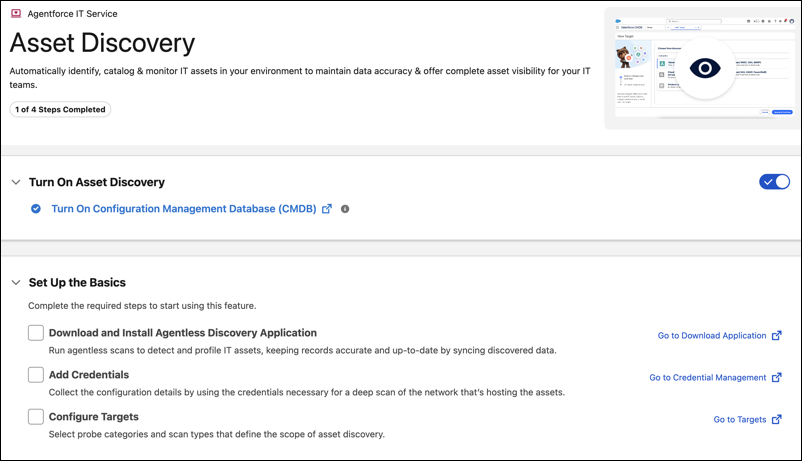
Swiftly enable Salesforce Discovery to automate asset identification and synchronization
in just a few steps by using Salesforce Go. Use the guided setup experience to turn on the
Discovery feature, install the agentless discovery application, and configure targets and
credentials. Reduce manual setup and ensure accurate CMDB population with a single activation
flow.
Required Editions
| Available in: Lightning Experience |
| Available in: Enterprise, Performance, and Unlimited
Editions with Agentforce IT Service. |
Ensure that your CMDB is enabled from Salesforce Go. For more information, see Set Up CMDB Using Salesforce Go.
Before you install the Discovery Application or configure discovery targets, complete the
preparation required for the Discovery Application host, network access, and target systems.
For more information about architecture and preparation, see Agentless Discovery for Scanning IT Assets.
-
From Setup, click Salesforce Go.
-
Search for and select Asset Discovery.
-
Click Get Started.
-
Enable Turn On Asset Discovery.
-
In the Set Up the Basics section, complete the following steps.
You can use the checkboxes in Set Up the Basics help you track your progress.
-
On Download and Install Agentless Discovery Application, click Go to Download
Application to download and install the discovery application.
Discovery application enables agentless scanning in hybrid environments using native
protocols.
-
On Add Credentials, click Go to Credential Management to add or
manage credentials.
Credentials are used to authenticate network scans and access configuration data.
-
On Configure Targets, click Go to Targets to create targets and
run scan jobs.
After completing discovery setup, run scans to identify assets and populate configuration
items in CMDB. For more information, Key Steps to Implement Discovery.