
Route support reps to an incident.
Required Editions
-
In Setup, from the Quick Find box, enter Routing, and then select
Routing Configurations.
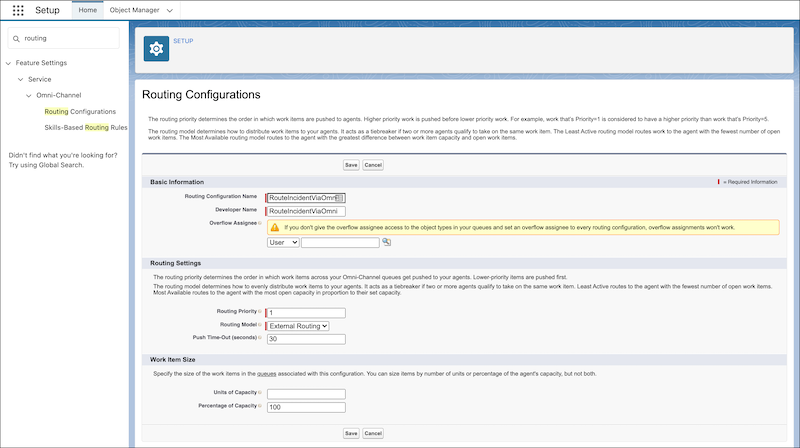
- Click New.
- Enter a routing configuration name and developer name.
- Add a user with the Omni-Channel Incident permission set as the overflow assignee.
- Set your routing priority. For example, to prioritize an incident over a case, set routing configuration for incidents to 1 and cases to 2.
- Select your incident routing model.
- Enter the amount of time that a support rep has to accept the work.
- Optional: If using skills-based routing, select Use with Skills-Based Routing Rules, and select your Incident skill.
- Determine the capacity requirement for the incident.
- Save your changes.