---
schema_version: "1"
id: da7cacf83913ed2e8ac7c4eedcd3b06ff548df01122adf090c2f55d6980fa17b
title: Set Up an Entitlement Process for Incidents
collection: admin
version: current
locale: en-us
portal_url: https://docs.salesforce.com/admin/current/en-us/service/264-0-0/incident_mgmt_set_up_entitlement_process.md
canonical_url: https://help.salesforce.com/s/articleView?id=service.incident_mgmt_set_up_entitlement_process.htm&release=264.0.0&type=5
source_site: help.salesforce.com
content_type: documentation
content_hash: ad68bc7a053221e24ecf2e2021f5aeb27d7f0241f1fbb05a34dadbb93f03d385
description: Enable entitlements for incidents to help support reps deliver the correct service level to your customers. Set up entitlement processes to create a customized timeline that includes all the steps (milestones) that support reps must complete to resolve an incident.
products:
  - Service Cloud
release: "264"
---
# Set Up an Entitlement Process for Incidents

Enable entitlements for incidents to help support reps deliver the correct service level to your customers. Set up entitlement processes to create a customized timeline that includes all the steps (milestones) that support reps must complete to resolve an incident.

### Required Editions

<table class="slds-table slds-table_bordered slds-max-medium-table_stacked slds-m-bottom_small edition"><colgroup><col></colgroup><tbody><tr class=""><td class="slds-cell-wrap" style="vertical-align:top;"><a href="https://help.salesforce.com/s/articleView?id=service.service_editions_reference.htm&amp;language=en_US" target="_blank">View supported editions</a>.</td></tr></tbody></table>

<table class="slds-table slds-table_bordered slds-max-medium-table_stacked slds-m-bottom_small permission">
        <colgroup>
          <col style="width:50%">
          <col style="width:50%">
        </colgroup>
        <thead class="slds-text-title_caps ">
          <tr class="">
            <th scope="colgroup" class="slds-cell-wrap" colspan="2" style="text-align:center;vertical-align:top;" id="d50518e55">User Permissions
              Needed</th>
          </tr>
        </thead>
        <tbody>
          <tr class="">
            <td data-label="User Permissions Needed" class="slds-cell-wrap" style="vertical-align:top;" headers="d50518e55 ">To enable entitlements:</td>

            <td class="slds-cell-wrap" style="vertical-align:top;" headers="d50518e55 ">Customize Application</td>

          </tr>
          <tr class="">
            <td data-label="User Permissions Needed" class="slds-cell-wrap" style="vertical-align:top;" headers="d50518e55 ">To view entitlements:</td>

            <td class="slds-cell-wrap" style="vertical-align:top;" headers="d50518e55 ">Read on entitlements</td>

          </tr>
          <tr class="">
            <td data-label="User Permissions Needed" class="slds-cell-wrap" style="vertical-align:top;" headers="d50518e55 ">To change entitlements:</td>

            <td class="slds-cell-wrap" style="vertical-align:top;" headers="d50518e55 ">Edit on entitlements</td>

          </tr>
          <tr class="">
            <td data-label="User Permissions Needed" class="slds-cell-wrap" style="vertical-align:top;" headers="d50518e55 ">To create and update entitlement processes:</td>

            <td class="slds-cell-wrap" style="vertical-align:top;" headers="d50518e55 ">Manage Entitlements</td>

          </tr>
        </tbody>
      </table>

Before you use entitlements and milestones for incidents, enable entitlements and create a milestone. For steps, see [Set Up and Manage Entitlements and Milestones](https://help.salesforce.com/s/articleView?id=service.entitlements_parent_admin.htm&type=5&language=en_US).

1. From Setup, in the Quick Find box, enter Entitlement, and then select **Entitlement Processes**.
2. Click **New Entitlement Process**.
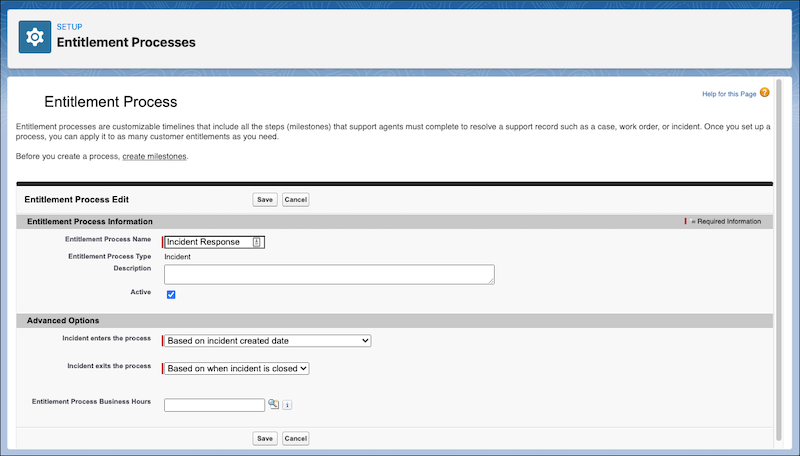
3. Select **Incident** as the entitlement process type and click **Next**.
    
    ![Entitlement Process page](https://sf-zdocs-cdn-prod.zoominsoftware.com/tdta-service-support-264-0-0-production-enus/dd14551c-a772-4db6-9a1d-d84df8df2980/support/images/incident_management/incident_mgmt_entitlement_process.png)
4. Enter a name for your process.
5. Set the entitlement process to **Active**.
6. Optionally, set the criteria for when an incident starts and ends the process.
7. Save your changes.
8. Under Milestone, click **New**.
9. Select a milestone. You can choose a recurring or non-recurring milestone for your entitlement process.
10. Enter a time trigger in minutes.
11. Set the order in which to process the milestone.
12. Save your changes.