
Show a custom incident list view from the Incident Alerts utility All tab. By default, an out-of-the-box All Incidents (Default) list view is shown.
Required Editions
You can add only public or shared list views to the Incident Alerts All tab. You can also customize the default All Incidents list view’s filters or fields to change which incidents and fields are shown to incident teams in the utility.
- Create a custom Incidents list view.
- From Setup, in the Quick Find box, enter Customer Service Incident Management, and then click Customer Service Incident Management.
- Under Set Up Broadcast Alert, find Add Incident Alerts Utility, and select Go to App Manager.
- Click the dropdown next to the console app that uses the Incident Alerts utility, then click Edit.
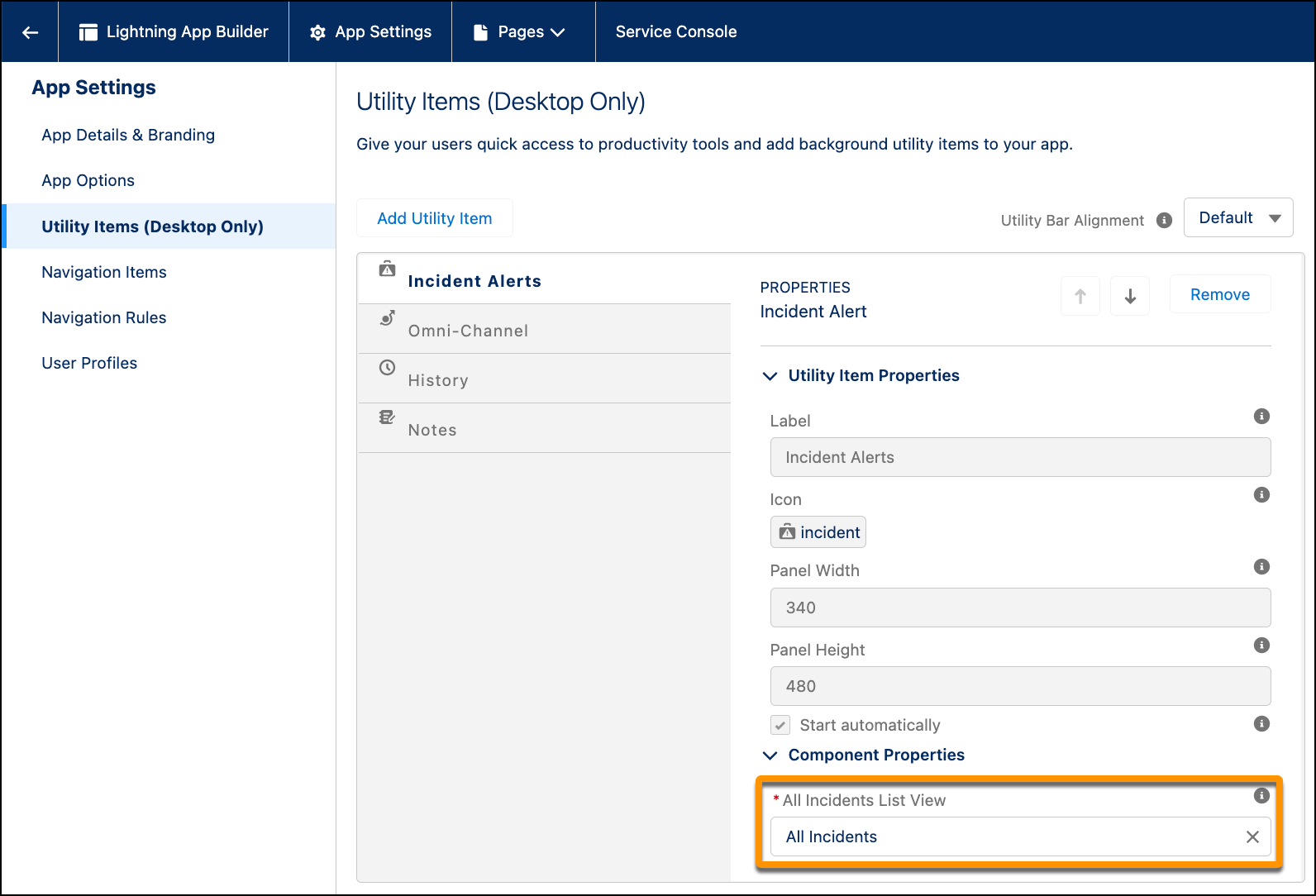
- Under Utility Items, select Incident Alerts.
-
Under Component Properties, find All Incidents List View, and select your custom public or
shared list view.
- Save your changes.
- Refresh the browser to see the new list view from the Incident Alerts utility.