The Service data kit includes the Service data bundle and provides the necessary data streams, data model objects, and data mappings for Field Service Intelligence.
Install the Service Data Kit

- Click the Setup gear icon and then select Data Cloud Setup.
- Under Configuration, select Salesforce CRM.
- Find the Service bundle, and click the menu button on the right. Select Install.
- In the Package Install flow, follow the standard process for installing a package.
To view the data kit details, go to Data Cloud Setup. Under Tools, select Data Kits and then click ServiceDK.
Set Up Service Data in Data 360
- In Data Cloud, go to the Data Streams tab and click New.
- Select the Salesforce CRM connected data source and click Next.
-
Select your connected Salesforce org.
If you have only one Salesforce org connected to Data 360, it’s selected by default.
- Select Data Bundles, then select the Service data bundle, and click Next.
-
Select the default data space and click Next.
The installed objects and fields are displayed. Don’t remove the data objects, fields, or mappings because Field Service Intelligence relies on the standard installation to populate the dashboards correctly.
-
Click Deploy
The Service data bundle deploys over 20 data streams. The Data Streams tab displays the progress. When the data streams show an Active status, you’re ready to continue.
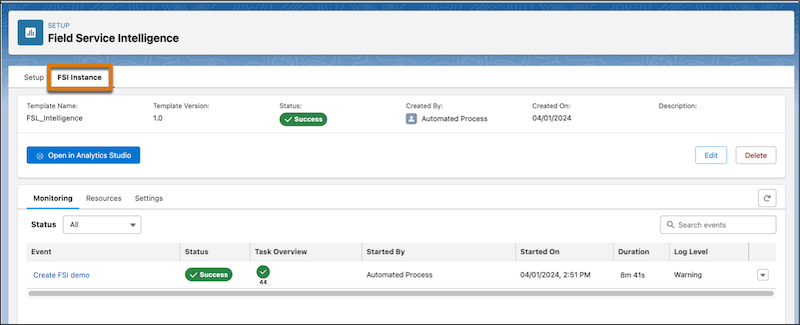
From the Setup menu, installed versions of Field Service Intelligence display as separate tabs. To view details about the app installation, select an app tab. The app details include the installation status, a list of installation events, and the tasks for each event. You can schedule app refreshes or refresh manually and see details of all the installed app resources like dashboards and data transforms. For more information about app management, see Manage Your Intelligent Apps.