
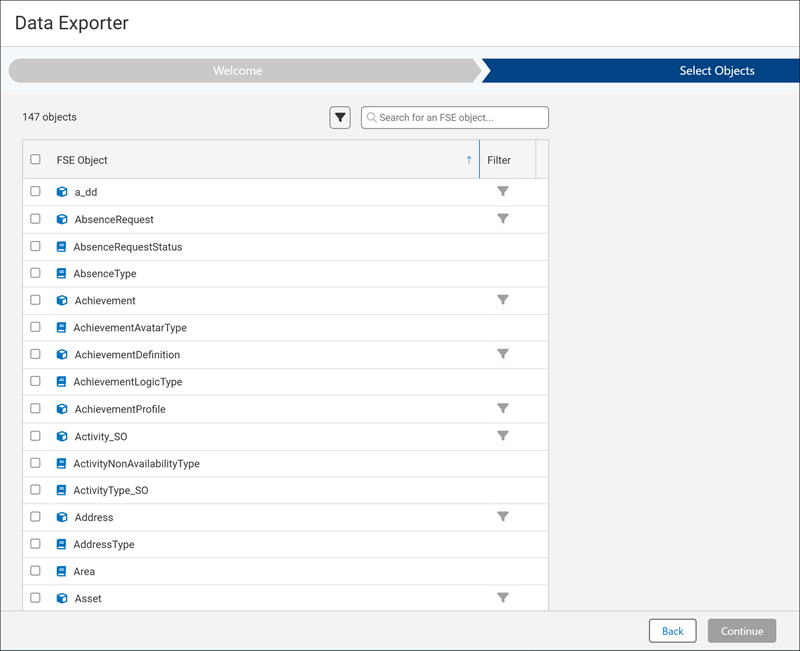
Select the objects to export.
The list of objects is a set of objects that are accessible to the admin and that aren’t product-protected. It contains a list of standard and custom objects. Ideally, objects that don’t have any data should be labeled in the list accordingly. However, this option is currently not available (see Known Issues).
» To select the objects to export:
- From the list, select the objects that you want to export or select FSE Object to export all the objects. You can filter objects by Object Type or by Object with Filter. You can also search for an object by entering its name in the search box.
-
If you want to export only specific records for objects of type Business Object, you can
apply an additional filter.
- Click the object’s filter icon.
- In Filters Management, add a new filter and enter the filter criteria.
- Click Save. You can add more filters as needed.
- Click Apply.
- Click Continue.
Use Shared Filters
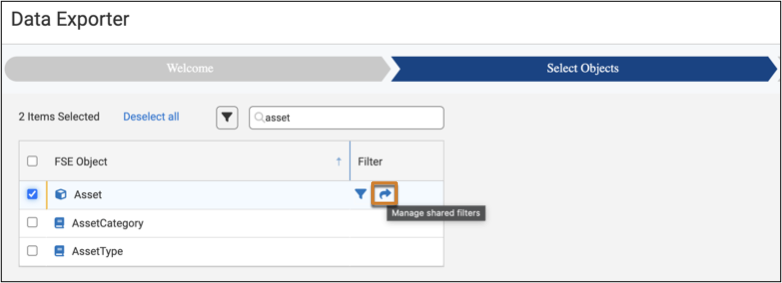
Share the filters created for your objects. These filters are stored and managed as system filters and are available to all users.
Admin users who access and use the Data Exporter Tool for migrating objects to Salesforce Field Service can share configuration and expedite the object extraction process, while improving collaboration.
- Review and select the objects for extraction to identify which objects can benefit from filters that can be used by multiple people during the migration lifecycle.
-
Click the arrow to save the required filter as a shared filter.
Considerations:
- Each filter that’s created is tagged as a system filter and is then shared across the entire solution.
- The shared filters are automatically prefixed with "~D_EXP - " followed by the object’s
display name, making them easy to track and manage.
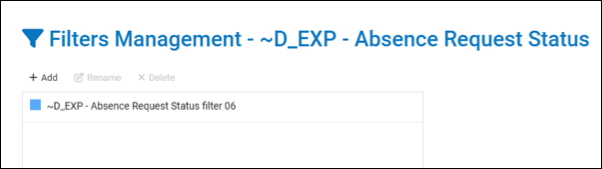
- The prefix ensures that Data Exporter filters appear at the end of the filter list when viewed in other modules, keeping them organized and non-intrusive.
- Admin users can also use the personalized filter option. These filters are saved to their user state and visible only to them.
- Admin users can delete shared filters.
- The shared filters are stored alongside filters from other modules under the
ObjectFilterConfiguration_SOobject. - You can’t delete the prefix. If a user tries to remove the prefix when renaming a filter, the system automatically adds it again to maintain consistency.