Manage the work plan template entries that store the work step templates associated with
your work plan template.
Required Editions
| Available in: Lightning Experience |
| The Field Service core features, managed package, and mobile app are available in
Enterprise, Unlimited, and Developer Editions.
|
| User Permissions Needed |
| To manage work plan template entries: |
Create, Update, and Delete on work plan templates |
| To add work plan template entries: |
Create on work plan templates |
| To reorder work plan template entries: |
Update on work plan templates |
| To remove work plan template entries: |
Update and Delete on work plan templates |
-
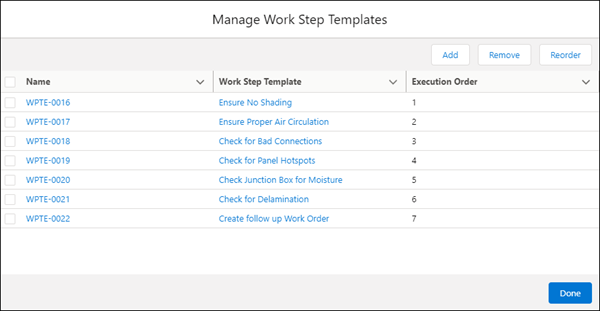
On the work plan template, open the Related tab. On the Work Plan Template Entries related
list, click Manage.
-
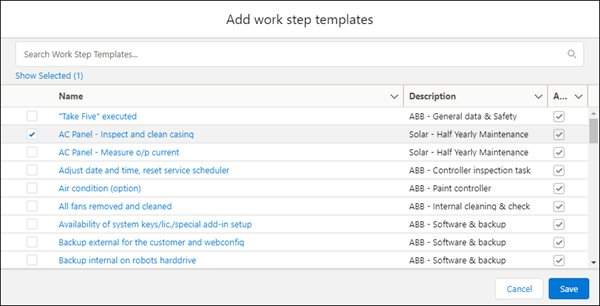
To add steps to the work plan template, click Add, and select work
step templates from the list.
-
Save your work.
-
To remove steps from the work plan template, select the relevant work step templates, and
click Remove Selected.
-
To confirm the action, click Remove.
-
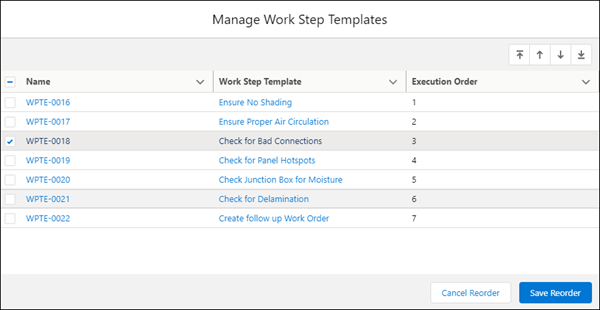
To reorder the work step templates, click Reorder, and select the
relevant work step templates.
-
To reorder the steps, click Move to Top
 , Move Up
 , Move Down
 , or Move to Bottom
 , and then click Save Reorder.
-
If you’re done, click Done.