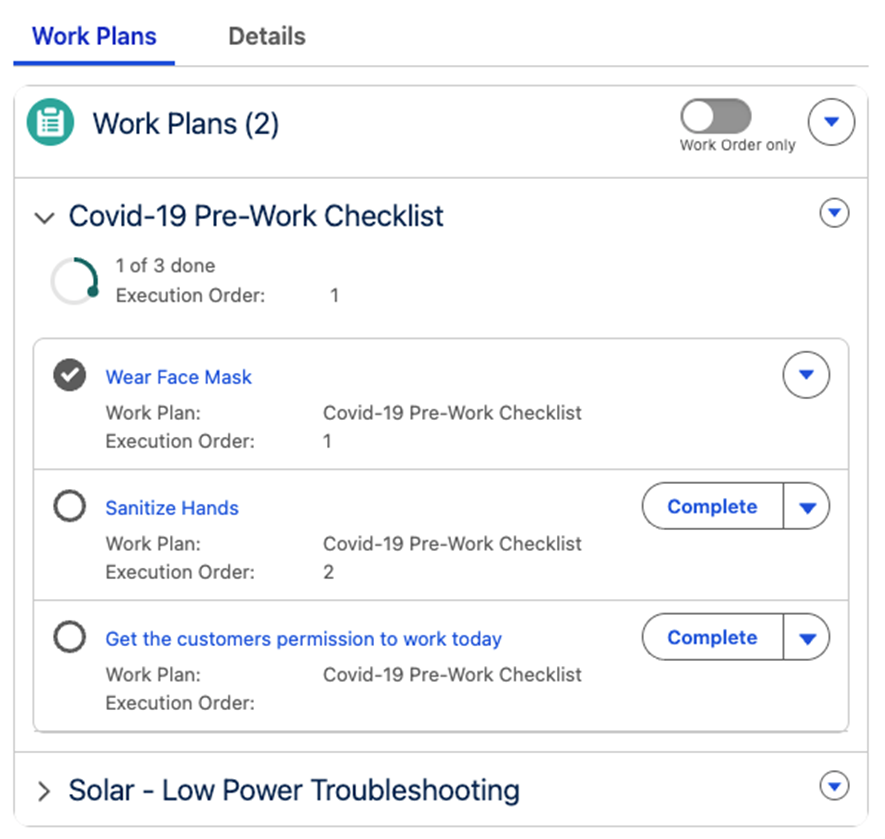
The Work Plans component displays the work plans and work steps associated with the work
order or work order line item. You can use it to view and complete assignments quickly and
accurately.
Required Editions
| Available in: Lightning Experience |
| The Field Service core features, managed package, and mobile app are available in
Enterprise, Unlimited, and Developer Editions.
|
| User Permissions Needed |
| To view the work plan record: |
Read on Execution Order, Name, and Work Order Line Item fields |
| To view the work step record: |
Read on Execution Order, Action Definition, and Action Type fields |
| To update the work step record: |
Update on Status and Status Category fields |
-
On the Work Plans component, expand the relevant work plan record to view its details and
its associated work steps.
-
On the work plan record, view the progress of the work plan on the progress ring. The
progress ring is updated based on the real-time progress of the work plan.
-
On the work step record, view the status of the step on the step’s status icon.
-
To mark a step’s status completed, click Complete on the work step
record, or select Complete on the action menu of the step.
If the step is a simple instruction, such as “Put on your safety gear”, we mark the step’s
status as completed. If the step includes a quick action or a field service mobile flow,
selecting Complete starts it. When a quick action starts, we change the
work step’s status to Complete when the action is completed. When a flow starts, the status
changes according to the way the flow is configured. Completed work steps remain on the work
plan record.

 Note Keep in mind that only the first two fields load from the Work Steps related list on the Work Plan. Also, enabling the Work Order only toggle filters your view to show just top-level work plans—turn it off if you need to see child-level plans.