Tweak work plans and work steps on a work order or work order line item.
Required Editions
| Available in: Lightning Experience |
| The Field Service core features, managed package, and mobile app are available in Enterprise, Unlimited, and Developer Editions. |
| User Permissions Needed | |
|---|---|
| To add work plans on a work order or work order line item: |
Edit and Read on work order or work order line item Create, Edit, and View All Records on work plan templates, work step templates, and work plan selection rules |
| To add work steps to a work plan: |
Edit and Read on work order or work order line item Edit and Read on work plans Read on work step templates |
Sometimes it’s necessary to adjust plans and steps on a work order or work order line item. For example, suppose your company requires a new safety procedure on every job. Create a work plan template with the procedure, and use that template to add the plan to outstanding work orders. If you don’t have an existing template, you can use the New button.
To add a work plan from a work plan template, follow these steps.
-
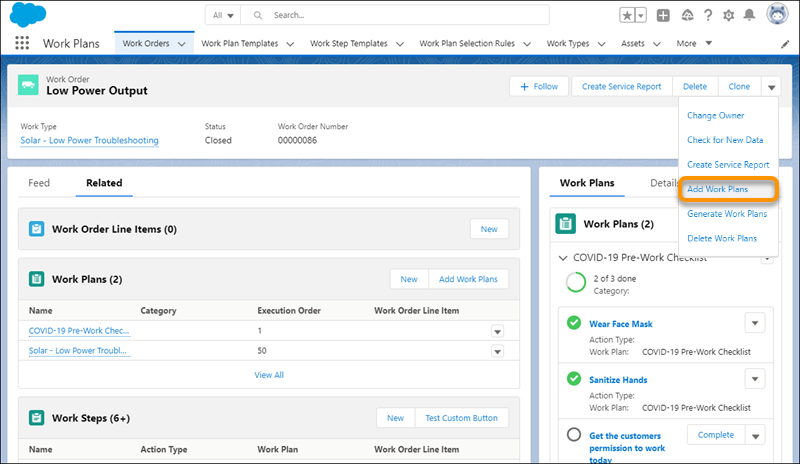
On the work order or work order line item, select Add Work Plans
from the action menu.
-
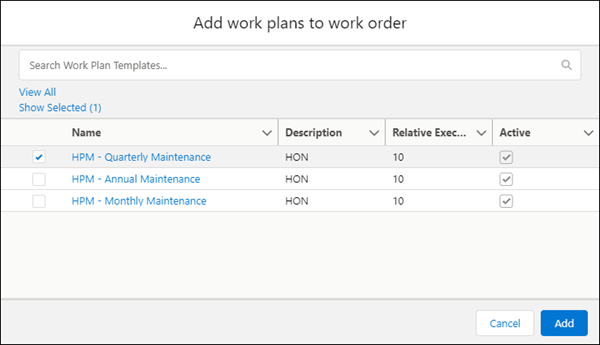
Select one or more work plans to add from the list of work plan templates. You can search
and select plans from your search results. The Show Selected link lets you see what’s
selected.
-
Click Add. Added work plans and work step instances appear in the
related lists.
 Note You can add work plans more than one time. We don’t prevent duplicates.
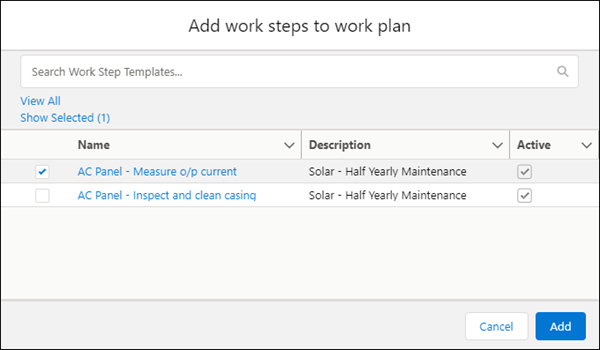
To add another work step from a work step template.
- On the work order or work order line item, go to the Work Plans related list.
- Select a work plan, or create a new one.
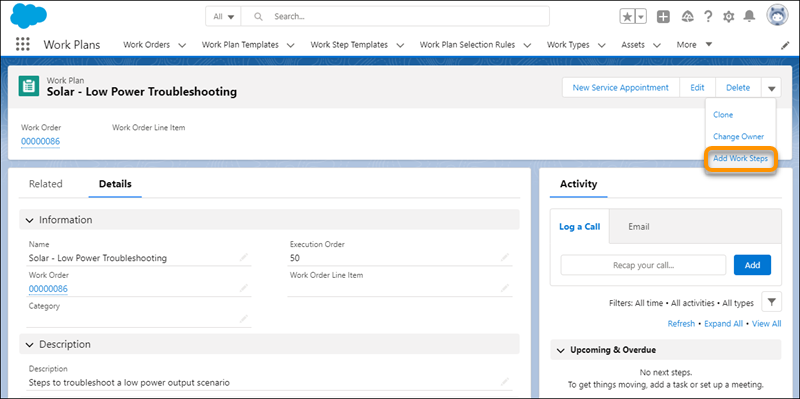
- On the work plan record, select Add Work Steps from the action menu.
- Select work step templates and click Add.