Work capacity limits let you control the amount of work scheduled for service resources
according to specific values of a service appointment’s attribute (workstream). Work capacity
limits are defined per service territory, for a certain time resolution, and over a given open or
closed-end date range. Define the work capacity limit for the whole service territory or restrict
it to a specific value of a service appointment’s attribute (workstream). Define the limit
threshold as the maximum number of hours or what percentage of the available work capacity you can
schedule for a service territory or the specific workstream. After you create a work capacity
limit, you can edit its description, limitation value, start and end dates, and days of the week.
You can edit WCLs only if they're inactive. You can also edit the limit for a specific date by
editing the work capacity usage object. Editing the daily limit doesn’t change the limit value in
the work capacity limit object.
Required Editions
| Available in: both Salesforce Classic (not available in all orgs) and Lightning
Experience |
| The Agentforce Field Service and Operations core features, managed package, and
mobile app are available in Enterprise, Unlimited, and Developer
Editions. |
| User Permissions Needed |
| To create, edit, or delete a Work Capacity Limit: |
Create, Update, or Delete on the Work Capacity Limits object |
-
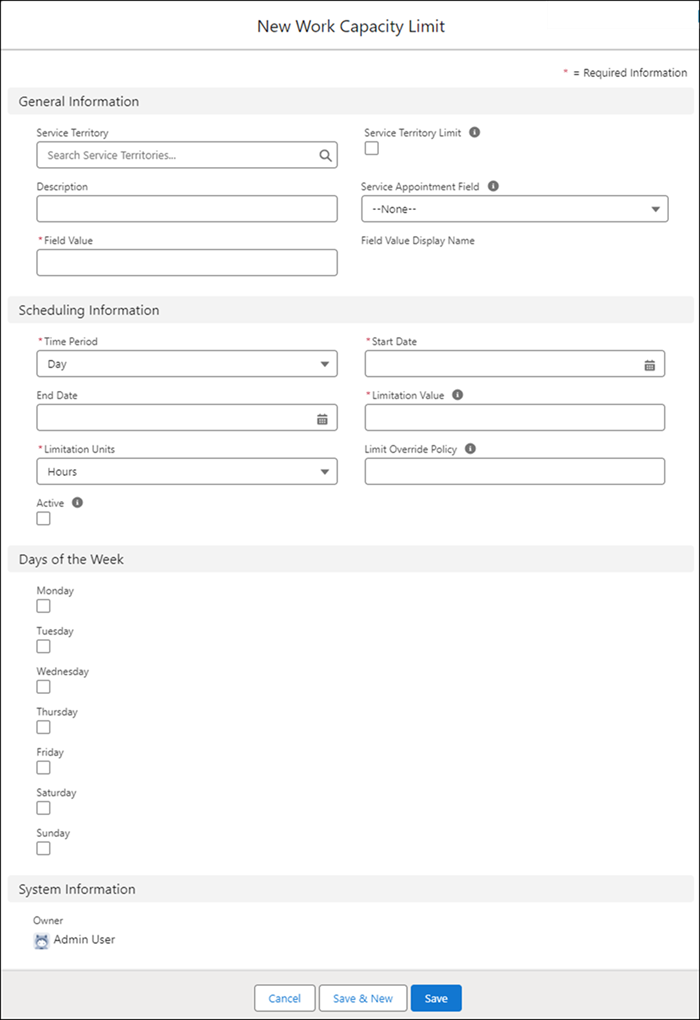
From the App Launcher, find and select Work Capacity Limits.
-
From the Work Capacity Limit list view, click New. The Limit Number
is added automatically.
-
Select the service territory.
-
To limit the work at the service territory level select Service Territory
Limit.
-
To apply to a specific workstream in the service territory:
-
Select the field that represents the attribute to use for limiting capacity from the
Service Appointment Field.
The service appointment field is set the first time a work capacity limit is created for
your Salesforce org. If you select another service appointment field, you get an
error.
The
data types supported for service appointment fields are Number (int, double), Text (string),
Checkbox, Picklist, and Lookup.
-
In Field Value, enter the value of the service appointment field.
For example, for the Work Type attribute, enter Maintenance.
-
Enter the scheduling information:
- Time period
- Limitation units: Hours or Percentage
- Limitation value in whole numbers greater or equal to zero
- Start date
- (Optional) End date
Close-ended time ranges take precedence over overlapping open-ended time ranges when
you’re limiting work.
-
Select the days of the week to which the limitation applies. Select at least one day.
-
If the limit override policy is set per limit in Field Service Settings define the
override
policy for this limit..
- Leave empty for no limit override.
- Enter 0 for the relaxation to start at midnight on the day of
service.
- Enter a positive integer to set the limit override to start this number of hours after
midnight on the day of service (maximum 23 hours).
- Enter a negative integer to set the limit override to start this number of hours before
midnight on the day of service (maximum 336 hours, 14 days).
If the limit override policy isn’t set per limit in Field Service Settings, this value is
ignored.
-
Save the new work capacity limit.
-
(Optional) To activate the work capacity limit, on the Work Capacity Limit list view, click
Edit, and select Active.
You can also activate it directly from the Work Capacity Limit list view.