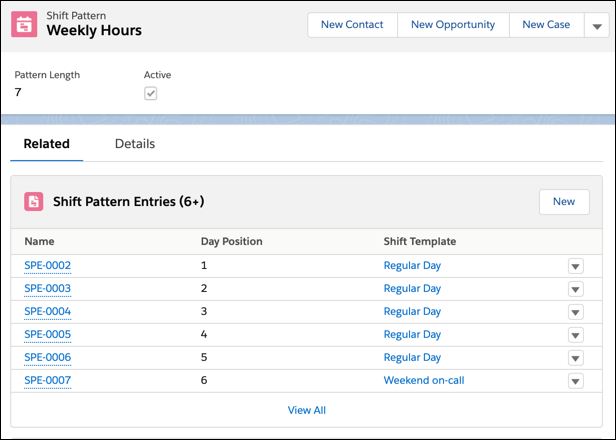
Create shift patterns that store commonly used sets of shifts. Your team can use the
New from Pattern action to quickly create shifts from templates.
Required Editions
| Available in: Lightning Experience |
| The Field Service core features, managed package, and mobile app are available in
Enterprise, Unlimited, and Developer Editions. Shift Scheduling
and Workforce Engagement are available in Enterprise, Performance, and
Unlimited Editions.
|
| User
Permissions Needed |
| To view, create, and update shift patterns |
View, create, and edit on Shifts, Shift Patterns, Shift Pattern
Entries |
-
From the App Launcher, select Shift Patterns.
-
Click New.
-
Enter a name and description for the pattern.
We recommend that you include key details in the shift pattern name. For
example, you can include in the intended start day of a multi-day pattern such
as Weekly Regular Hours (Monday).
-
Click Save.
-
Switch to the Related tab.
-
Find the Shift Pattern Entries related list and add the appropriate shift
templates.
-
To add a template, click New and then fill out the form
fields.
To create multiple shifts per day with the same details, you can add the same
template multiple times. You can also add the same template to different days of
the week by changing the day position.
-
Make sure that the shift templates and the shift pattern are active.