
Popovers consolidate key information and actions into one unified view, giving dispatchers quick access to service resource details without navigating away.
Required Editions
| Available in: Lightning Experience |
| The Field Service core features, managed package, and mobile app are available in Enterprise, Unlimited, and Developer Editions. |
 This is a Field Service managed package feature.
Popovers consolidate key information and actions into one unified view. Dispatchers can quickly access the service resource details that they need, including skills, resource absences, and service appointment details, without navigating away.
Service Appointment Popover
View the information of a service appointment by hovering over a service appointment tile on the Gantt, an appointment in the service appointment list, or a service appointment marker on the map.
If your admin defined a subtitle in the Gantt Label Details field on the Service Appointment object, it also shows. See Set Up the Scheduling Console.
You can also open the Service Appointment side panel and select actions to perform on the service appointment.
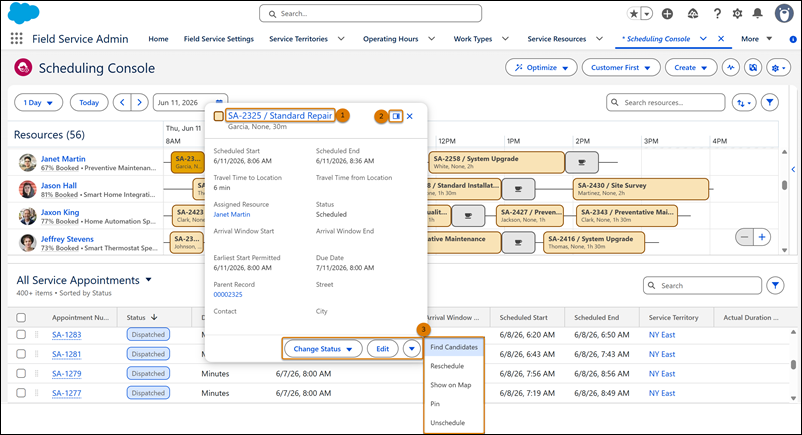
- Click the appointment name to open the service appointment record in a new tab (1).
- Click the side panel icon to view and edit service appointment details (2). See Service Appointment Side Panel in Features of the Scheduling Console.
- Select an action (3).
Service Resource Popover
View the information of a service resource by hovering over a resource in the service resource list.
If your admin defined a subtitle in the Gantt Label Details field on the Service Resource object, it also shows. See Set Up the Scheduling Console.
You can view the service resource's skills and skill levels. Time-phased skills are aligned with the Gantt's date range.
Below the service resource's name, an online status indicator shows whether the resource is currently active or when they were last active. Your admin can configure how many minutes a resource can be inactive before they're marked as offline. See Customize the Scheduling Console.
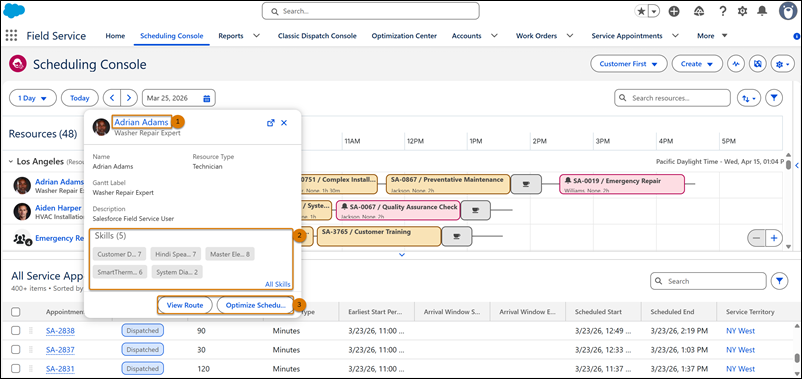
- Click the resource's name to open the service resource record in a new tab (1).
- Click All Skills to view the resource's skills and skill levels (2).
- Select an action (3).
Resource Absence Popover
View absence information by hovering over a resource absence tile on the Gantt or a resource absence marker on the map. You can also view and perform absence-related actions from the popover.
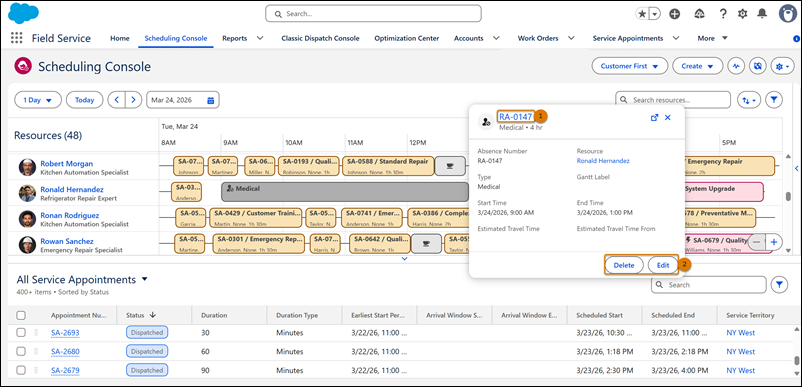
- Click the resource absence title to open the resource absence record in a new tab (1).
- Select an action (2).
Break Popover
View break information by hovering over a break tile on the Gantt.
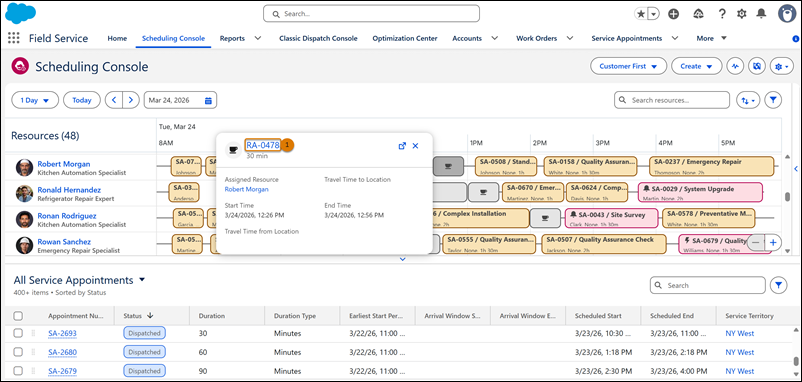
Click the break title to open the resource absence record in a new tab (1).
Capacity-Based Tile Popover
View information related to capacity-based service appointments by hovering over a capacity-based tile on the Gantt.
The popover includes utilization information and a link to view the list of service appointments assigned to the capacity-based resource. The list search results appear in a temporary list, showing a maximum of 50 records. Live updates aren’t applied to these results.
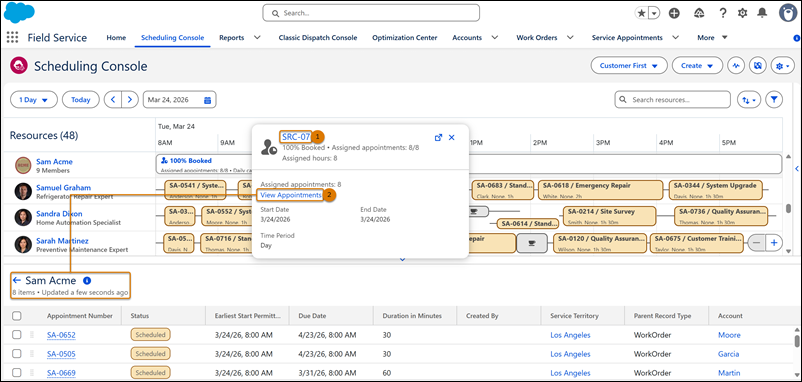
- Click the capacity-based resource's name to open the service resource record in a new tab (1).
- Click View Appointments to show the service appointment list linked to the capacity-based service resource (2).
Capacity-Based Resource Popover
View information related to a capacity-based service resource by hovering over the relevant resource in the service resource list. You can also view the service resource's skills and skill levels.
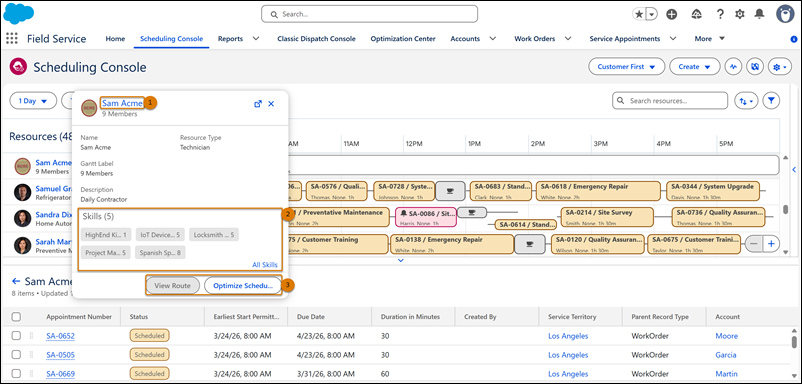
- Click the capacity-based resource's name to open the service resource record in a new tab (1).
- Click All Skills to view the resource's skills and skill levels (2).
- Select an action (3).