
Similar to how you use designated time slots on operating hours, in Field Service, you can use Record set Filter Criteria to define and designate which appointments can be scheduled to service resources during shifts. Create Recordset Filter Criteria based on service appointment field values, and then add the filter to a shift so that only relevant appointments get scheduled.
Required Editions
| Available in: Lightning Experience |
| The Field Service core features, managed package, and mobile app are available in Enterprise, Unlimited, and Developer Editions. |
| User Permissions Needed | |
|---|---|
| To view, create, and update recordset filter criteria |
View, create, and edit on Service Appointments, Shifts, Recordset Filter Criteria, and Recordset Filter Criteria Rules AND Delete on Recordset Filter Criteria Rules |
- In the App Launcher, click Recordset Filter Criteria.
-
In the Recordset Filter Criteria list view, click
New.
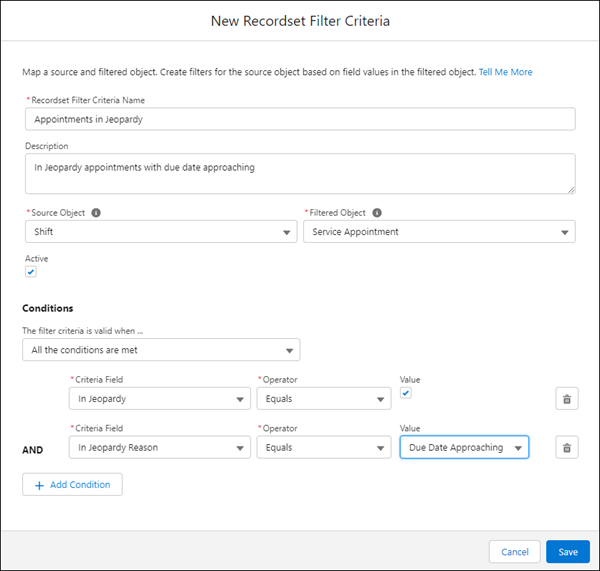
- Enter a name and description for the criteria.
- In the Source Object field, select Shift.
- In the Filtered Object field, select Service Appointment.
- Select Active.
- In the Conditions section, select the relevant condition for when the recordset filter criteria is valid.
-
Add filter conditions.
- Select the Criteria Field, the Operator, and the field Value to match on. The Value input changes depending on the field you select. For example, picklist fields show the list of available choices.
- Add another condition if you must.
- Save the recordset filter criteria.
- Assign your new record set filter criteria record to a shift record to make sure the scheduling and optimization engine only allows service appointments that meet the criteria to be assigned during the shift time-frame.
- Guidelines for Recordset Filter Criteria
Field Service filter criteria let you match records in one object against records in another. For example, you can choose criteria to filter which service appointments can be scheduled during a shift.