
Before using Omni Supervisor or Omni-Channel, set up the Messaging Session object’s page layout to display engagement topics.
Required Editions
| Available in: Lightning Experience |
| Available in: Enterprise, Performance, Unlimited, and Developer Editions with Field Service and Foundations. Also available with Einstein 1 Field Service Edition or Agentforce 1 Field Service Edition. |
-
Add the Engagement Topics related list to the Messaging Session object’s page layout.
- From Setup, click Object Manager.
- In the Quick Find box, find and select Messaging Session.
- Click Page Layouts.
- From Related Lists, drag Engagement Topics into the Related Lists section.
- Save your changes.
-
Create a Lightning app.
- From Setup, in the Quick Find box, enter Lightning, and then select Lightning App Builder.
- Click New.
- Select Record Page and click Next.
- Enter a label, for example, Messaging Session Record Page.
- For Object, find and select Messaging Session, and then click Next.
- Select the Header and Right Sidebar template and click Done.
-
From Components, drag Engagement Topics onto the page.
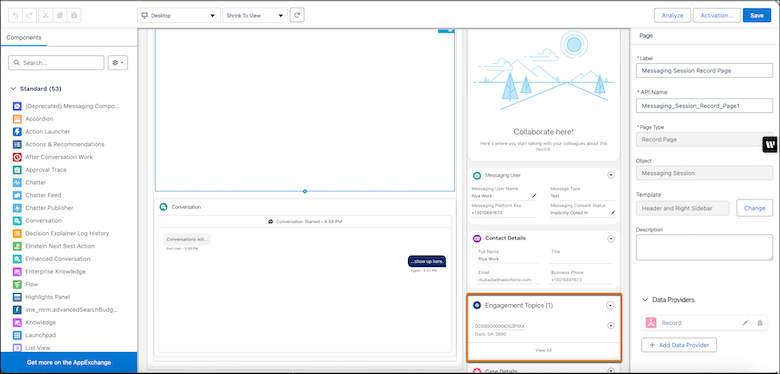
- Save your changes and activate the component.
- Set up Omni Supervisor.
- We recommend adding the Omni-Channel component to a Lightning app to view it as a sidebar. If you don’t add the sidebar component, you can still view escalated conversations from the Omni-Channel utility bar.