
Now that your agent is ready to go, make sure that it’s working as expected.
Required Editions
| Available in: Lightning Experience |
| Available in: Enterprise, Performance, Unlimited, and Developer Editions with Field Service and Foundations. Also available with Einstein 1 Field Service Edition or Agentforce 1 Field Service Edition. |
Test the Agent
- From Field Service, find a service resource who has multiple service appointments.
-
In Slack or in the Field Service mobile app, write: I’m sick today.
Note: In Slack, start the message with @Agentforce Employee Agent.
 Note In Slack, start the message with @Agentforce Employee Agent.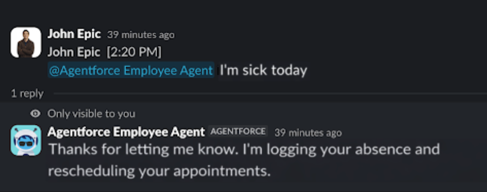
- View the created Resource Absence on the Gantt and pay attention to the appointments that were rescheduled successfully.
- For appointments that couldn’t be rescheduled, a Customer Outreach message is sent to the customer for rebooking purposes. In the meantime, these appointments remain assigned to the service resource.
Troubleshoot the Agent
To see why certain service appointments weren’t rescheduled with this process, use Flow Builder to see what caused the failure. Modify your setup as required.
- In Setup, find and select Flows.
- Find and select the Reschedule Service Appointment flow.
- In Flow Builder, click Debug.
- When prompted for the serviceAppointmentId input variable, enter the ID of one of the service appointments that failed to reschedule.
-
Analyze the output. Running the flow directly with the specific service appointment ID in
debug mode can reveal critical information, such as:
- No Candidate Slots Found: The scheduling policy couldn’t find a suitable time or service resource.
- Scheduling Constraints Violation: Specific rules (for example, skill requirements, travel time, operating hours, and exclusion rules) prevented scheduling.
- Scheduling Policy Issues: The scheduling policy used might be missing necessary configuration.