
(Optional) Set Up Customer-Initiated Scheduling for Prospect Customers in the Legacy Agentforce Builder
By default, only authenticated customers can use Customer-Initiated Scheduling. You can configure guest user access to let prospect customers schedule appointments without needing a contact record.
Required Editions
| Available in: Lightning Experience |
| Available in: Enterprise, Performance, Unlimited, and Developer Editions with Field Service and Foundations. Also available with Einstein 1 Field Service Edition or Agentforce 1 Field Service Edition. |
| User Permissions Needed | |
|---|---|
| To open, edit, or create a flow in Flow Builder: | Manage Flow |
-
Enable guest users from the flow.
- In Setup, find and select Flows.
- Open the Field Service: Send Verification Code flow.
- Click Save As New Flow.
- Open the Toolbox.
- Open the enableGuestUser variable.
-
Change the default value from False to
True.
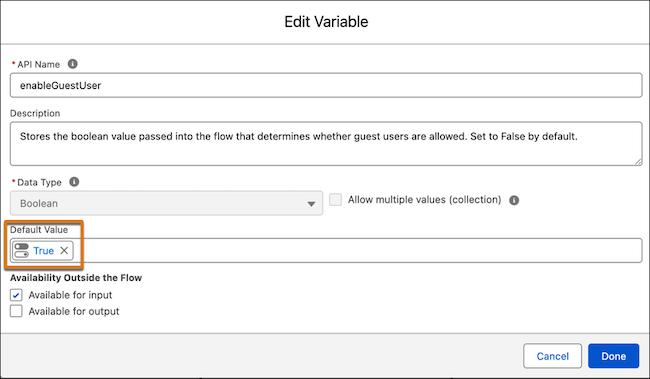
- Click Done.
- Save and activate the flow.
-
Add the subagent.
- In Setup, find and select Agentforce Agents.
- Open your agent.
- Click Open in Builder.
- If you already activated your agent, deactivate it to make changes.
- From Subagents, click New and select Add from Asset Library.
- Select the Contact Creation for Field Service subagent and click Finish.
-
Map the output variables to the context variables.
- From Subagents, open the Contact Creation for Field Service subagent.
- Click This Subagent’s Actions.
- Open the Create Contact for Field Service action.
-
In the Outputs section, map these variables:
Is Verified to isCustomerVerified
Contact Id to VerifiedCustomerId
-
Add the filter to the action.
- In the Contact Creation for Field Service subagent, click the filter icon.
- For Assign Filters, select Verified Email.
- Save your changes.
- Activate the agent.
- Add the required permissions. See Object and Field Permissions for Customer-Initiated Scheduling.

Note The guest user functionality is affected by the org’s Standard Contact Matching Rule, which prevents creating
two contact records with the same first name and last name. If you want to allow this behavior,
modify the rule. See Standard Contact Duplicate Rule.