---
schema_version: "1"
id: f71d824bf74ba241d5e7900b9d84b64c47a75d8531bad2e05e6c4cc6b9ab205e
title: Set Up the Milestone Tracker
collection: admin
version: current
locale: en-us
portal_url: https://docs.salesforce.com/admin/current/en-us/service/264-0-0/entitlements_milestone_tracker.md
canonical_url: https://help.salesforce.com/s/articleView?id=service.entitlements_milestone_tracker.htm&release=264.0.0&type=5
source_site: help.salesforce.com
content_type: documentation
content_hash: 45d8dd4f374ad5b3bc71a2f6d232ae850be450fd909b88d99f16e4bc1b277a02
description: The milestone tracker gives support reps a complete view of upcoming and completed milestones, and displays countdowns for active and overdue milestones. Add it to the case feed, work order feed, a custom page, or the Service Console.
products:
- Service Cloud
release: "264"
---
# Set Up the Milestone Tracker
The milestone tracker gives support reps a complete view of upcoming and completed milestones, and displays countdowns for active and overdue milestones. Add it to the case feed, work order feed, a custom page, or the Service Console.
### Required Editions
To set how time displays in the milestone tracker:
Manage Entitlements
Often, support reps’ performance is measured by how often they meet milestones. The milestone tracker helps support reps be prepared for support deadlines by showing them:
- The time remaining until an active milestone reaches its Target Date
- The time passed since an overdue milestone’s Target Date
- A list of upcoming milestones
- A list of completed milestones
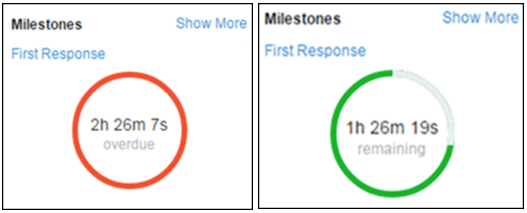
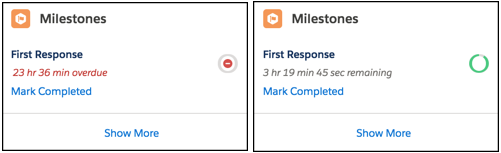
When a milestone is in progress, the milestone is represented by a green circle. The circle winds down clockwise as time elapses. The remaining time is shown in the center of the circle. When the time to complete the milestone expires, the circle turns red. The amount of time that the milestone is overdue is shown in the center of the circle. If more than 24 hours remain on a milestone, the countdown displays in days (for example, 1d). When fewer than 24 hours remain, the countdown format switches to hours/minutes/seconds.
In Salesforce Classic:
In Lightning Experience:
1. Expose the milestone tracker to support reps.
In Salesforce Classic, you can:
- Add it to the case feed. If you plan to use milestones on work orders, follow the same steps to add the tracker to the work order feed.
1. From the object management settings for cases, go to Page Layouts.
2. In the Case Page Layouts section, click **Edit**, and then click **Feed View** in the page layout editor.
3. In the Other Tools and Components section, select the **Milestone Tracker** and specify where on the page you want it to appear.
4. Click **Save**.
- Add it to a custom Visualforce page using the `` component.
- Add it as a component to the Service Console.
In Lightning Experience, go to Lightning App Builder and add the Milestones component. See [Create and Configure Lightning Experience Record Pages](https://help.salesforce.com/articleView?id=lightning_app_builder_customize_lex_pages.htm&language=en_US) . In the Lightning App Builder, you can opt to hide the Mark Completed link from your support reps.
2. Set how the milestone tracker displays time remaining or time overdue on milestones.

Note By default, the tracker displays actual hours.
To make it display time remaining or time overdue in business hours, follow these steps.
1. From Setup, enter Entitlement Settings in the Quick Find box, then select **Entitlement Settings**.
2. In the Milestone Tracker section, deselect **Show the time remaining in actual hours, not business hours**.
3. Click **Save**.

Example Suppose an active milestone’s business hours are 9 a.m. to 5 p.m. Right now, it’s 4:30 p.m. and the milestone’s Target Date is 11:00 a.m. tomorrow.
- If the milestone tracker shows the remaining time in business hours (the default setting), it displays a countdown of 2 hours and 30 minutes (4:30 to 5 p.m. today and 9 to 11 a.m. tomorrow).
- If the milestone tracker shows the remaining time in actual hours, it displays a countdown of 18 hours and 30 minutes (4:30 p.m. today to 11:00 a.m. tomorrow).