---
schema_version: "1"
id: 9b7b875448864e2ce1eabb973cace44b00a3ff52aa519ca1567edc27df449f25
title: Set Up Enhanced Summaries for Case
collection: admin
version: current
locale: en-us
portal_url: https://docs.salesforce.com/admin/current/en-us/service/264-0-0/enhanced_summaries_case_setup.md
canonical_url: https://help.salesforce.com/s/articleView?id=service.enhanced_summaries_case_setup.htm&release=264.0.0&type=5
source_site: help.salesforce.com
content_type: documentation
content_hash: bc5dd81aa5af96eb9cbec30dd4c33a3566a7daeb73e223ed5d8707d8d9302ff7
description: Enhanced Summaries for Case creates comprehensive summaries tailored for each role and context, by using data from case fields, comments, email messages, and the case feed. Service reps and supervisors can quickly review case details, reducing manual note-taking, handling time, and after-call work. To generate a case summary, issue, and resolution, turn on and set up Enhanced Summaries for Case.
products:
- Service Cloud
- Service Intelligence
release: "264"
---
# Set Up Enhanced Summaries for Case
Enhanced Summaries for Case creates comprehensive summaries tailored for each role and context, by using data from case fields, comments, email messages, and the case feed. Service reps and supervisors can quickly review case details, reducing manual note-taking, handling time, and after-call work. To generate a case summary, issue, and resolution, turn on and set up Enhanced Summaries for Case.
### Required Editions

Note If Personally Identifiable Information (PII) is enabled for relevant fields, the case summary limit is 262,144 characters. If PII is disabled, the limit is 65,536 characters.
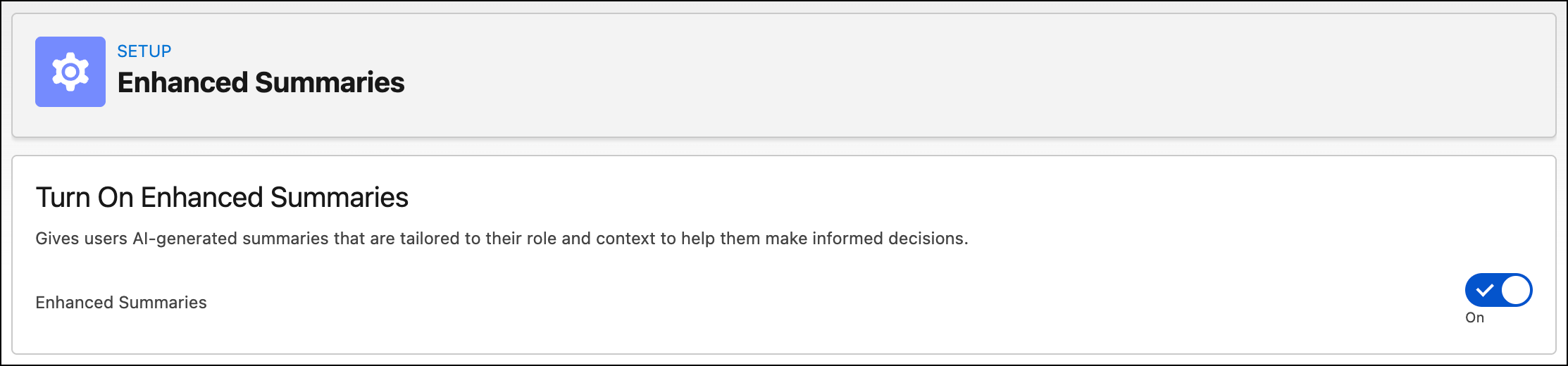
1. From Setup, in the Quick Find box, enter and select **Enhanced Summaries**.
2. On the Enhanced Summaries page, go to the Case tab in the Available Objects section.
3. Turn on the toggle for Case.
4. To create case summary configurations for a specific role, like service rep or supervisor, in the Set Up Case Summaries section, click **New Configuration**.
5. In the New Case Summary Configuration window, enter a name for your case summary configuration.
Users select this configuration name in the Service Console to generate a case summary. A distinct name for each case summary configuration prevents confusion for users when making their selection. The Configuration API Name is auto-filled based on the name that you enter, which is uneditable.
6. Save your configuration.
7. Next, click the arrow next to your configuration name to define how case summaries are generated and presented.
8. In the Set Up Prompt and Grounding section, select an active case summary prompt. Only the case summary prompt type is available to select. The prompt provides instructions to the AI model on the format, tone, and information to extract for the case summary.
9. In the Set Up Grounding section, click Go to Grounding to turn on Grounding with Cases and select the required case fields for AI to ground on. See [Ground with Cases](https://help.salesforce.com/s/articleView?id=service.einstein_generative_ai_ground_cases.htm&type=5&language=en_US).
10. In the Set Up Summary Output section, select where you want to let users post case summaries—Case Feed, Case Comments, both, or none.
When posted on case feed or case comments, all case viewers can see posted summaries, irrespective of their role or permissions.
11. Save your changes.
12. In the Give Users Access section, assign permissions to users to view the configuration.
- To give permission to all users, select Assign to all users.
- To give permission to users with specific permission sets, select Assign to users with selected permission sets. Select the custom permission sets from the Permission Sets column and click the right arrow to move them to the Selected Permission Sets column. You can select one or more custom permission sets. Users with any selected permission sets can access the configuration.
13. Save your changes.
14. Activate the case summary configuration.
You can set up case summary configurations for different roles on your service team. To make changes to a case summary configuration, first deactivate it, then update as needed.
- **[Add Enhanced Summaries Component to the Case Record Page](https://help.salesforce.com/s/articleView?id=service.enhanced_summaries_add_component.htm&release=264.0.0&type=5)**
To use the Enhanced Summaries for cases in the Service Console, add the Enhanced Summaries component to the Case record page.