
Set up and configure the Dynamic Q&A component in Experience Cloud so article readers can view and interact with top questions.
Required Editions
| Available in: Salesforce Classic and Lightning Experience |
| Available in: Enterprise, Performance, and Unlimited Editions |
| Available in: Aura and LWR Experience Cloud Sites |
| Available in: Available in: Enterprise, Performance, Unlimited, and Developer Editions with Foundations or Agentforce 1 Editions. Access to some standard agent actions requires additional add-on licenses. |
| User Permissions Needed | |
|---|---|
| To create and manage prompt templates in Prompt Builder: |
Prompt Template Manager permission set
|
| To create and manage Agentforce Service agents: | Manage Agentforce Service Agents permission set AND Manage AI Agents To let the agent user securely access data and perform actions, see Best Practices for Agent User Permissions. |
| To create an Experience Cloud site: | Create and Set Up Experiences AND View Setup and Configuration |
| To customize or publish an Experience Cloud site: | Create and Set Up Experiences AND View Setup and Configuration AND be a member of the site OR View Setup and Configuration AND be a member of the site AND have appropriate role-based site access |
| To enable digital experiences | Customize Application |
Before you begin, make sure you've completed these steps:
- Your org has assigned CustomerCommunity or CustomerCommunityPlus licenses.
- An Experience Cloud site is active with at least one published knowledge article.
- Service AI Grounding is enabled for Knowledge data in Setup.
- An Agentforce Service Agent is configured for your site.
- The Improve Performance of Connect APIs in your LWR Sites setting is disabled in your site's Administration workspace.
- From Setup, in the Quick Find box, enter Service Cloud Einstein, and then select Service AI Grounding.
- On the Service AI Grounding page, turn on Service AI Grounding.
-
Under Knowledge, select only public fields that are accessible to portal and guest users
for use in Q&A generation, and then click Activate.
 Note To prevent exposure of sensitive data, make sure that only public Knowledge fields are selected. If a private field was previously selected, data from those fields may still appear in Q&A and summary content for guest users, while authenticated users are not affected.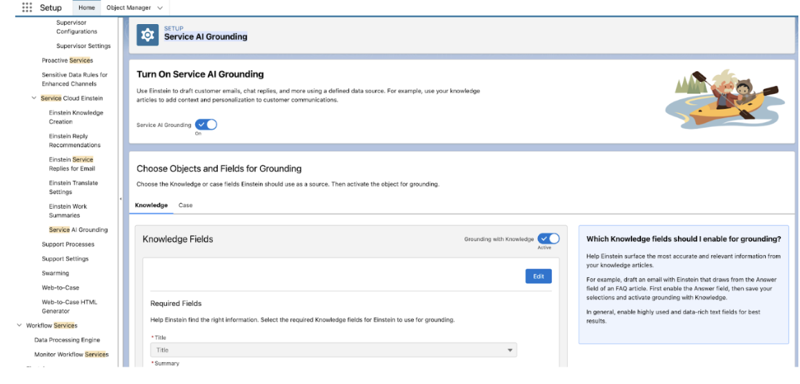
- From Setup, in the Quick Find box, enter Digital Experiences, and then select All Sites.
- Click Builder next to your site.
-
In the Components panel, drag Knowledge Article FAQs component onto the article detail
page.
- For Aura sites, place it on the Article Detail page.
- For LWR sites, place it on the Knowledge Detail page.
- Choose a label for the section.
- Set the maximum number of questions to show on the component at runtime.
-
Publish the site to apply your changes.
Note After you publish the site, you can see answers in two ways: Prompt-Generated: Answers are generated from your configured knowledge data during the initial question generation. Agentforce Service Agent: Answers are generated in real time using the active agent you have configured for your site.