---
schema_version: "1"
id: 59b310c3cae68d5a7406da3b04d5fb5e08777a8d846c063339fd674ecb6684b7
title: Set Branding for the Channel Menu
collection: admin
version: current
locale: en-us
portal_url: https://docs.salesforce.com/admin/current/en-us/service/264-0-0/embedded_menu_branding.md
canonical_url: https://help.salesforce.com/s/articleView?id=service.embedded_menu_branding.htm&release=264.0.0&type=5
source_site: help.salesforce.com
content_type: documentation
content_hash: e3958f13207383ee7a82f00f37cc2ed186de0f93914fe4941f8f07ff554e3076
description: After you create a channel menu for your Salesforce site or Experience Cloud site, customize the button colors, header background, and font to reflect your company’s brand.
products:
- Service Cloud
release: "264"
---
# Set Branding for the Channel Menu
After you create a channel menu for your Salesforce site or Experience Cloud site, customize the button colors, header background, and font to reflect your company’s brand.
### Required Editions
Before you start, get your company’s brand color codes from the team that maintains your website. Select colors by providing the hey code or RGB value, or by selecting from the color picklist.
Here’s a side-by-side comparison of a channel menu before and after light branding. The button and header background colors were changed in Branding. The Header text was changed in [Labels](https://help.salesforce.com/s/articleView?id=service.embedded_menu_labels.htm&release=264.0.0&type=5 "Customize the text that appears in the channel menu on your website or Experience Cloud site. You can use the existing default labels or create custom labels for your menu header and channel names. Additional steps are required for translated labels.").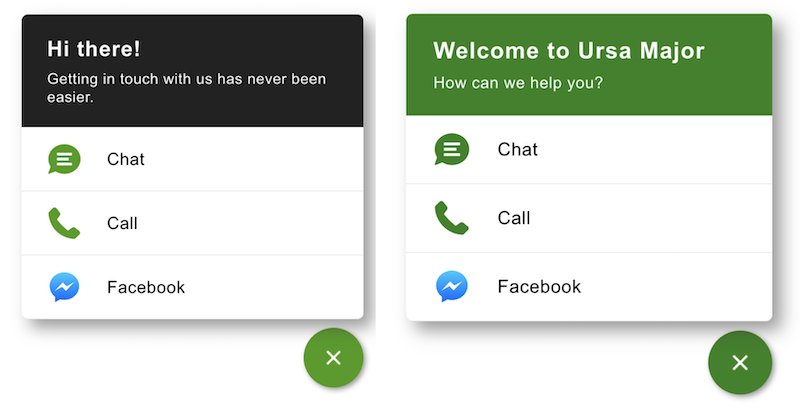

Note Some fonts aren’t supported on mobile browsers. If you select a font that isn’t available for a mobile user, the browser’s default font is displayed.
From the Channel Menu Settings page, select **Edit** for Branding. Follow the steps to customize your buttons:
1. From Setup, enter Channel Menu in the Quick Find box and select **Channel Menu**.
2. Click the name of the channel menu you want to edit.
3. In the Branding section, click **Edit**.
4. Select Button and Button Icon colors. Add your hex code or RGB code, or select a color.
5. Use the default button and close icons, or add custom URLs to replace them.
6. Expand the Channel Menu Header and Background section and indicate whether to show a header.
7. Select colors for the header background and text, and set your Header Text Alignment.
8. Add an optional Header Background Image URL or leave blank for a solid color.
9. Customize the main panel with a Menu Background Color, Menu Text Color, Menu Text Hover Color, and Menu Background Hover Color.
10. Select **Show lines between items** to show horizontal lines between your menu items, and select a Horizontal Line Color.
11. Select a preferred font for your menu and choose a base font size. If you select a custom font, the font must be hosted on your web server.
12. Check your branding selections in the Preview window. Custom fonts and custom buttons don’t appear. If your Preview window is empty or missing a channel, check your menu item settings.
13. Save your changes.
Keep these considerations in mind when customizing your fonts, font size, and background image:
- Some fonts aren’t supported on mobile browsers. If you select a font that isn’t available for a mobile user, the browser’s default font is displayed.
- The header height can’t exceed 75 pixels.