---
schema_version: "1"
id: 37bac97b7f66e8261af458ed0ff7f925f2def004d8aef595e53cc3835239c65a
title: Create a Channel Menu Deployment
collection: admin
version: current
locale: en-us
portal_url: https://docs.salesforce.com/admin/current/en-us/service/264-0-0/embedded_chat_menu_deployment.md
canonical_url: https://help.salesforce.com/s/articleView?id=service.embedded_chat_menu_deployment.htm&release=264.0.0&type=5
source_site: help.salesforce.com
content_type: documentation
content_hash: 87395d6e62f9a003abc495be4838c393c2ad8b570ff7300417af8773af16a671
description: To add a menu of contact channels to your website or Experience Cloud site, start by creating a channel menu deployment in Setup. After you create your menu deployment, you can add items to the menu and customize its branding.
products:
- Service Cloud
release: "264"
---
# Create a Channel Menu Deployment
To add a menu of contact channels to your website or Experience Cloud site, start by creating a channel menu deployment in Setup. After you create your menu deployment, you can add items to the menu and customize its branding.
### Required Editions

Important
Channel Menu code snippets created before August 8, 2025 use legacy infrastructure that’s in maintenance mode and scheduled for retirement on July 1, 2026. If you’re using a code snippet generated before August 8, 2025, we recommend updating it to avoid future disruptions. Generate a new snippet from the Get Code section under the deployment settings for your existing Channel Menu deployment and update your webpage. Learn more in [help](https://help.salesforce.com/s/articleView?id=service.embedded_menu_code_snippet.htm&type=5&language=en_US).
To edit public access settings for Salesforce sites:
Manage Users
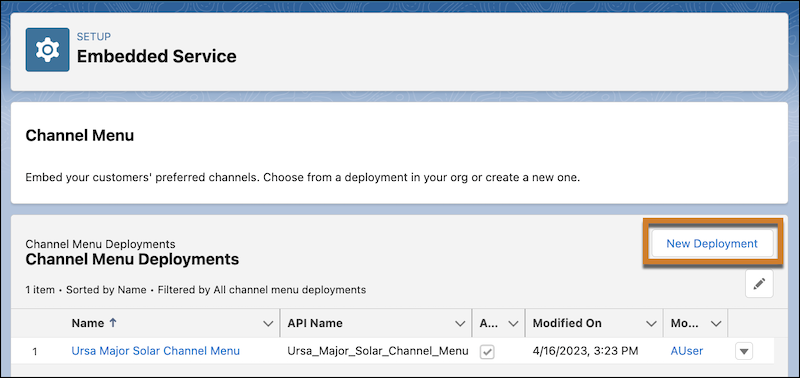
1. From Setup, enter Channel Menu in the Quick Find box and select **Channel Menu**.
2. Click **New Deployment**.
3. Give the menu deployment a name that is easy to remember (spaces are OK). Customers can’t see this name on your site.
4. Add your API name without spaces.
5. Set the site endpoint.
6. Enable guest access to the Support API for the site you use for the channel menu.
1. From Setup, enter Sites in the Quick Find box and select **Sites**.
2. Click your site, then click **Edit**.
3. Select **Guest Access to the Support API**. Move the quick actions associated with your deployment from Available Quick Actions to Selected Quick Actions. Then, click **Save**.