
Select the chat window colors and font to reflect your company’s brand identity on an Experience Cloud site.
Required Editions
| View supported editions. |

Important
Legacy Chat will be retired on February 14, 2026. To avoid service interruptions to your end users, switch to enhanced Chat (formerly Messaging for In-App and Web). Enhanced Chat offers many of the legacy Chat features that you love plus asynchronous conversations that can be picked back up at any time. Learn about migrating in Help and Trailhead.
To customize chat window branding colors, images, and fonts on an Experience site, use the settings in the Embedded Chat component.
-
From the Experience Builder make sure that your chat window is selected. Navigate to the
Theme tab.
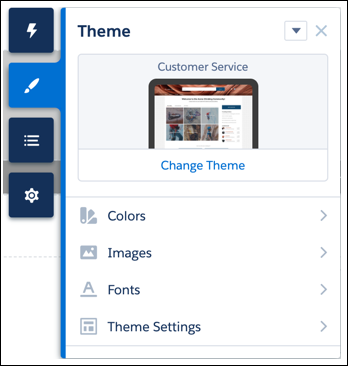
-
Select the colors for your chat window.
 Note For Experience sites, Action Color maps to the Brand Primary and Brand Secondary colors for web chat windows. Text Color maps to the Contrast Primary color for a web chat window.
 -
Select your font and add images to your chat window:
- Agent Avatar (recommend 40 px by 40 px)
- Logo (recommend 36 px by 36 px)
- Pre-Chat Background (recommend 320 px by 100 px)
- Waiting State (recommend 250 px by 60 px)
-
Save your site.
Note These branding tokens are created in Embedded Service Setup and automatically pass to your site: width, height, header text, and header alternate.