---
schema_version: "1"
id: c39cbcd257a2c096e4ccb83301853d6df483f39da17ac443fa2de266e83e2ddd
title: Give Service Reps Access to Einstein Article Recommendations
collection: admin
version: current
locale: en-us
portal_url: https://docs.salesforce.com/admin/current/en-us/service/264-0-0/einstein_article_recommendations_give_agents_permission.md
canonical_url: https://help.salesforce.com/s/articleView?id=service.einstein_article_recommendations_give_agents_permission.htm&release=264.0.0&type=5
source_site: help.salesforce.com
content_type: documentation
content_hash: 672b9decff64912a51631db23485ea106d8f60e7de914c9b2e984cbc8af7e9f5
description: By default, all Lightning Knowledge users see Einstein Article Recommendations in the Knowledge component. A Lightning Knowledge user is a standard user with the Knowledge User permission and read access to Knowledge articles in Lightning Knowledge. If you prefer, you can limit access to users of your choice.
products:
- Service Cloud
- Service Intelligence
release: "264"
---
# Give Service Reps Access to Einstein Article Recommendations
By default, all Lightning Knowledge users see Einstein Article Recommendations in the Knowledge component. A Lightning Knowledge user is a standard user with the Knowledge User permission and read access to Knowledge articles in Lightning Knowledge. If you prefer, you can limit access to users of your choice.
### Required Editions
When you activate your Einstein Article Recommendations model, we ask you to decide who sees article recommendations in the Knowledge component.
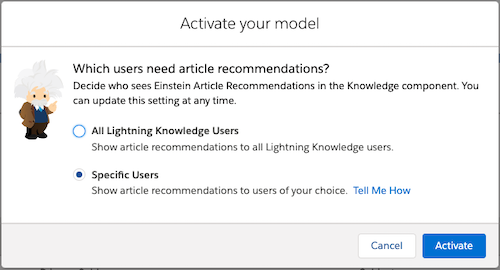
Choose between two access options:
- **All Lightning Knowledge Users** (default): Show article recommendations to all users of Lightning Knowledge. We recommend selecting this option to avoid user permission assignment and upkeep.
- **Specific Users**: Show article recommendations to users you choose—for example, if you’re rolling out the feature slowly. If you select this option, only users with the View and Act On Einstein Article Recommendations user permission can see article recommendations. Assign this permission using permission sets or profiles.
- In a permission set:
1. From Setup, in the Quick Find box, enter Permission Sets, and select **Permission Sets**.
2. Click the name of the permission set where you want to enable Einstein Article Recommendations.
3. Click **System Permissions** | **Edit**.
4. Select **View and Act on Einstein Article Recommendations**.
5. Click **Save**.
- In a profile:
1. From Setup, in the Quick Find box, enter Profiles, and select **Profiles**.
2. Click **Edit** next to the name of the profile that needs access to Einstein Article Recommendations.
3. Under Administrative Permissions, select **View and Act on Einstein Article Recommendations**.
4. Click **Save**.
You can change your user access preference at any time. From Setup, navigate to the Einstein Article Recommendations page and update the User Access setting.