---
schema_version: "1"
id: 91e3172d8daa8703fbd251b1b9742aa252b8254ca13d1c178458fb03fe1a1ed3
title: Build and Activate Your Article Recommendation Model
collection: admin
version: current
locale: en-us
portal_url: https://docs.salesforce.com/admin/current/en-us/service/264-0-0/einstein_article_recommendations_build_model.md
canonical_url: https://help.salesforce.com/s/articleView?id=service.einstein_article_recommendations_build_model.htm&release=264.0.0&type=5
source_site: help.salesforce.com
content_type: documentation
content_hash: 3811cf35821220d9879221b46abb12ad7ebe4d6aec86e202906f47700c355606
description: After you select data-rich fields from cases and knowledge articles, build and activate your article recommendation model.
products:
- Service Cloud
- Service Intelligence
release: "264"
---
# Build and Activate Your Article Recommendation Model
After you select data-rich fields from cases and knowledge articles, build and activate your article recommendation model.
### Required Editions

Note You can have only one article recommendation model at a time. If you save changes to an existing model and build it, the new model replaces the previous one.
1. From Setup, in the Quick Find box, enter Einstein Article Recommendations, and select **Einstein Article Recommendations**.
2. Confirm the case and knowledge article fields and languages that you selected for your model. Then, under Build Model, click **Build** | **Build Model**.
Sit tight while the system builds your article recommendation model. This process can take up to 48 hours.

Note If Einstein finds that your cases and articles don’t contain enough high-quality data to ensure accurate article recommendations, a warning appears and you can’t activate your model. This can happen if too many fields on your cases or knowledge articles are blank, incomplete, or improperly filled out.
The warning tells you how often the fields in your model were left blank. Use this information as a starting point to conduct a quality review of your knowledge based and recent cases. Or, boost your model’s data quality by choosing different case and knowledge fields for Einstein to learn from. Then rebuild your model.
3. After your model finishes building, click **Activate** to start showing recommendations to service reps.
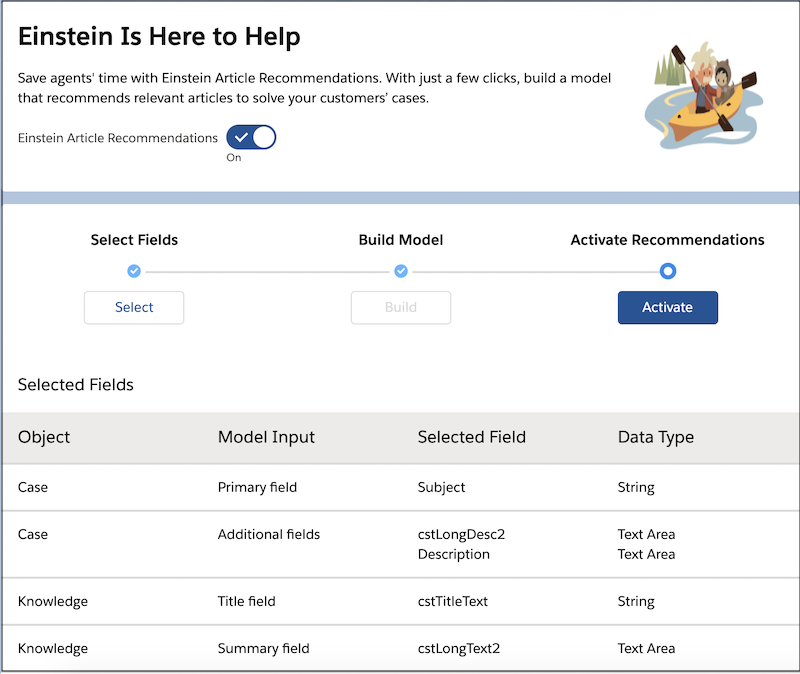
In the activation window, indicate whether to show recommendations to all Lightning Knowledge users or to specific users. If you choose to limit access to specific users, [assign them](https://help.salesforce.com/s/articleView?id=service.einstein_article_recommendations_give_agents_permission.htm&release=264.0.0&type=5 "By default, all Lightning Knowledge users see Einstein Article Recommendations in the Knowledge component. A Lightning Knowledge user is a standard user with the Knowledge User permission and read access to Knowledge articles in Lightning Knowledge. If you prefer, you can limit access to users of your choice.") the View and Act on Einstein Article Recommendations user permission.
Einstein makes or refreshes article recommendations only when:
- A case is created
- A field included in your article recommendation model is updated on a case
Cases that don’t fall into these two categories don’t receive new recommendations. If a new article is published, we know that it might not yet be attached to any cases. Don’t worry; within one day of publishing, Einstein reviews the new article and starts considering it for recommendation.
To change which fields are included in your model, click **Edit Fields** on the Setup page. If you update your field selections, your model is discarded and you’re prompted to build a new one. If you’ve just activated your model, allow a few weeks to pass before you edit it. By then, you’ll understand how recommendations are working for your team.