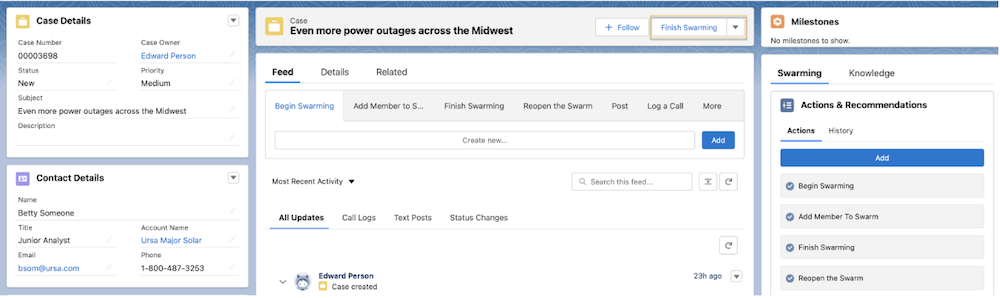
Use dynamic actions to show swarming flows with rules that streamline your support
reps’ experience and help prevent errors. Add rules so that only the appropriate tasks appear in
the Edit dropdown based on record criteria. For example, set a rule so that Finish Swarming
appears only when a case’s status is set to Closed.
Required Editions
With dynamic actions, swarming flows appear in a window over the
record.
-
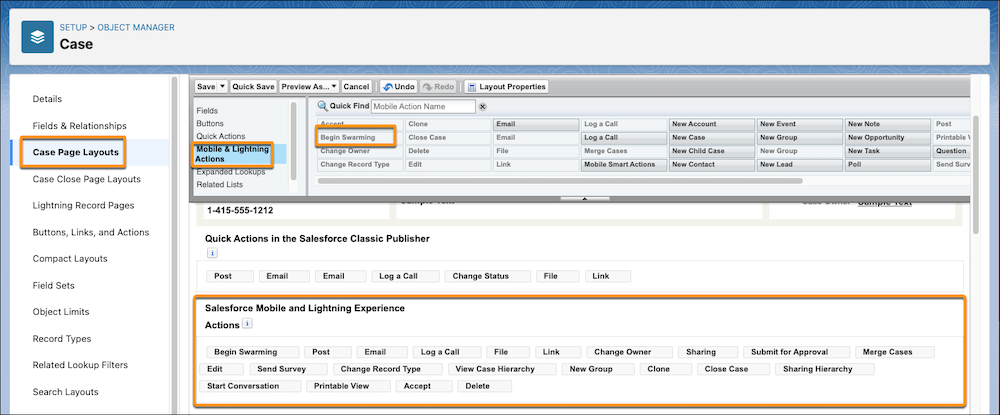
Create a quick action of action type Flow for each flow that you want to add to the
Console, such as Begin Swarming or Add Member to Swarm.
-
From the management settings of the object you created an action for, click
Page Layout.
-
Drag your flow action from the Mobile & Lightning Actions section to the Salesforce
Mobile and Lightning Experience Actions section of your page layout.
-
Save your changes.
-
From Setup, in the Quick Find box, enter Lightning App Builder,
and then select Lightning App Builder.
-
Select the page layout you want to add your quick action to and click
Edit.
-
Select the Highlights Panel.
-
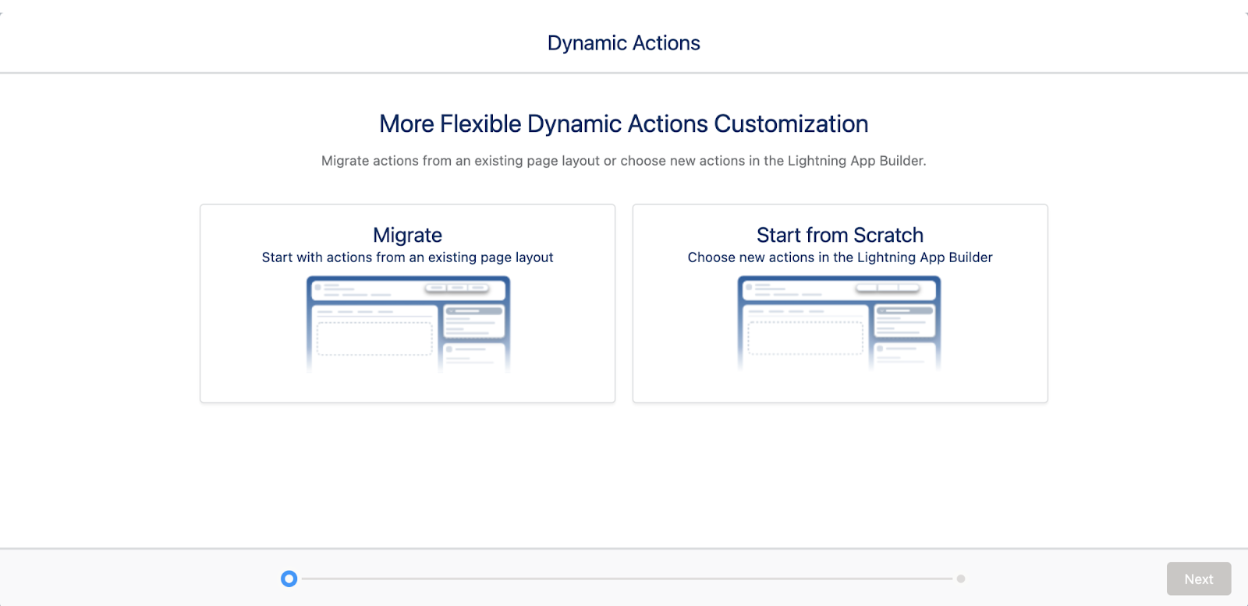
Upgrade to Dynamic Actions on the right side of the App Builder. Migrate to start with
actions from one of your page layouts, or select Start from Scratch to
select new actions.
-
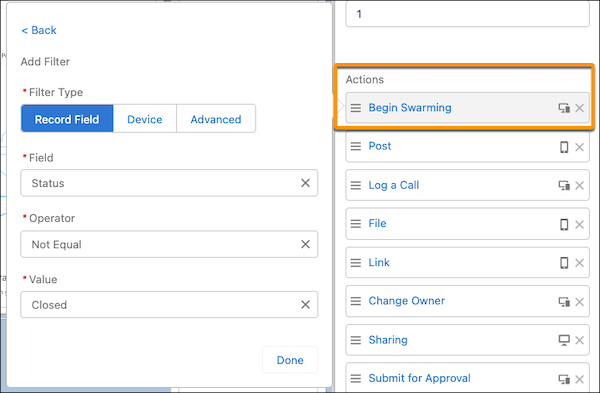
From the highlights panel settings, click Add Action, and then
select the quick action you created.
-
Under Set Action Visibility, add filter criteria to determine when the dynamic action
is shown to users, such as Status Not Equal to Closed.
-
Choose the order in which your actions appear in the dynamic actions dropdown, and then
add any more actions your support reps need before saving.