---
schema_version: "1"
id: 8c144f5d12b11e2644e8ba8f4bb9e290bf1cfda42cb21932d83e44a401572c45
title: Set Up Custom Channels in Customer Signals Intelligence
collection: admin
version: current
locale: en-us
portal_url: https://docs.salesforce.com/admin/current/en-us/service/264-0-0/csi_custom_channels.md
canonical_url: https://help.salesforce.com/s/articleView?id=service.csi_custom_channels.htm&release=264.0.0&type=5
source_site: help.salesforce.com
content_type: documentation
content_hash: 3f258d90182050b7da710dc74688bf5b7550213bb356de8d1b0caef54a38707f
description: Analyze data from custom objects through custom channels to reveal customer insights. For every channel you enable, all the historic data is ingested into Data 360 and uses Data 360 credits.
products:
- Service Cloud
- Service Intelligence
release: "264"
---
# Set Up Custom Channels in Customer Signals Intelligence
Analyze data from custom objects through custom channels to reveal customer insights. For every channel you enable, all the historic data is ingested into Data 360 and uses Data 360 credits.
### Required Editions
Available in: Lightning Experience
Custom Channels available in: Enterprise, Unlimited, and Developer Editions with the Customer Signals Intelligence add-on
User Permissions Needed
To set up custom channels:
Data Cloud Admin permission set
Make sure you’ve provided View All Fields and View All Records permissions for custom objects in the Salesforce Data Connector permission set.
- **[UserCustomObject Fields](https://help.salesforce.com/s/articleView?id=service.csi_usercustomobject_fields.htm&release=264.0.0&type=5)**
Learn more about the fields in the UserCustomObject so you can correctly map them to fields in your custom object.
- **[Custom Data Lake Object Mapping Examples](https://help.salesforce.com/s/articleView?id=service.csi_object_mapping_examples.htm&release=264.0.0&type=5)**
See examples of how to map fields from your custom object to the UserCustomObject for surveys.
## Create Custom Object and Data Stream in Data 360
Create a custom object and custom data stream in Data 360.
1. From Data 360, [create a custom object](https://help.salesforce.com/s/articleView?id=data.c360_a_create_custom_data_model_object.htm&type=5&language=en_US). Make sure that your custom object name and custom object field names don't contain the string CustomChannel. If you already have a data stream for the custom object in Data 360, go to step 6.
2. In the Data Cloud Salesforce Connector permission set for your custom object, enable View All Fields and View All Records permissions.
3. For your custom object, [create a data stream](https://help.salesforce.com/s/articleView?id=data.c360_a_create_crm_data_stream.htm&type=5&language=en_US) of the category **Engagement**.
4. [Import data](https://help.salesforce.com/s/articleView?id=data.c360_a_upload_a_csv_file.htm&type=5&language=en_US) from a .csv file into the custom object using the option for File Upload. For details, see the [import limits](https://help.salesforce.com/s/articleView?id=xcloud.import_limits.htm&type=5&language=en_US). Additionally, you can use Bulk API 2.0, Bulk API, Salesforce Data Loader, Data Import Wizard, or Amazon S3 Connector to import your custom channel data into Salesforce.
A data lake object (DLO) is created and associated with your data stream.
## Install Custom Channel
Install your custom channel in CSI.
1. From Setup, use Quick Find to open **Customer Signals Intelligence**.
2. From Manage Channels, go to Custom Channels, and click **Add Custom Channel**.
3. Enter a channel name. The name should be less than 29 characters and shouldn't contain spaces or special characters. Select which insights you want to generate, and click **Install**.
4. After your channel is successfully created and installed, a custom transform is created for the channel.
5. To open the custom transform for your custom channel, click **Manage Data Transform**.
## Configure Custom Transform in Data 360
Configure the data transform in Data 360.
1. From the transform definition, click **Edit**.
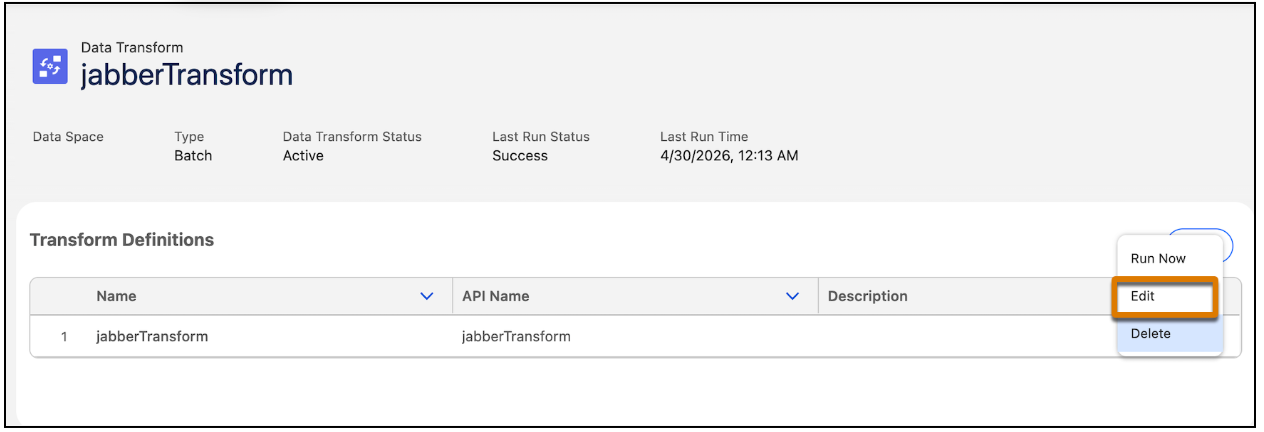
2. The custom transform has UserCustomObject as the input DLO. UserCustomObject contains the field names that have been configured by Salesforce. Replace UserCustomObject with your custom DLO.

Important For CSI to work as intended, don’t change anything in the output nodes of the transform. If you add new output nodes, they won't be considered for processing.
3. Bring your data into the custom DLO for processing. To bring in your data, map the fields in your custom DLO to the exact field names in UserCustomObject.

Note Customer Name, Customer Email, and Customer Mobile Number are optional for mapping. Map all other fields.
4. If the fields are incorrectly mapped, you see an error icon in the node. To map your custom fields to UserCustomObject fields, [add a new Transform node](https://help.salesforce.com/s/articleView?id=data.c360_a_batch_transform_transform_node.htm&type=5&language=en_US) after UserCustomObject.
5. Open the new transform node, and [use the Edit Attributes Transformation](https://help.salesforce.com/s/articleView?id=data.c360_a_batch_transform_edit_attributes.htm&type=5&language=en_US) to set the labels and API names of all columns to the labels and API [names used in the UserCustomObject](https://help.salesforce.com/s/articleView?id=service.csi_usercustomobject_fields.htm&release=264.0.0&type=5 "Learn more about the fields in the UserCustomObject so you can correctly map them to fields in your custom object."). For example, consider that your custom DLO captures user feedback in the field named UserFeedback. UserCustomObject captures user feedback in the field named FeedbackText. Using the Edit Attributes Transformation, change the label name and API name of your custom field, UserFeedback, to FeedbackText and FeedbackText\_\_c respectively.
Fields that uniquely identify the customer interaction should be mapped to the ThreadId in UserCustomObject. For instance, in a survey, the survey question response ID is mapped with the Thread ID.
6. To verify that the transform mappings are correct, click each output node of the custom channel transform and check if the preview shows data for all the mapped fields.
7. Schedule a time to run your transform, or manually run it now.
8. After the transform runs, you see that your data has been processed and is stored in the Engagement Analysis Text object.

Note To use Data Governance features, grant permissions to the listed objects per your chosen policy according to [Assign Data Access](https://help.salesforce.com/s/articleView?id=data.c360_a_dc_access.htm&language=en_US). If you have more than one data space, you must grant access to objects in each data space. Object names in non default data spaces follow the convention of \_