
To review and analyze conversation data, use Data 360 to access transcripts from enhanced Messaging channels, voice calls, and Unified Messaging. Analyze transcripts with reports and dashboards in Data 360, zoom in to your data with Data Cloud API, and search for specific information by using Salesforce Object Query Language (SOQL) queries.
Required Editions
| Available in: Lightning Experience |
| This article applies to: Enterprise and Unlimited editions with Enhanced Messaging, Voice, or Unified Messaging |


- This feature isn't supported in Government Cloud.
- This feature doesn't work if you migrate a Data 360-enabled org to another Point of Delivery (Pod).
As of October 14, 2025, Data Cloud has been rebranded to Data 360. During this transition, you may see references to Data Cloud in our application and documentation. While the name is new, the functionality and content remains unchanged.
To share transcript data with Data 360, enable transcript access in Setup.
- Turn On Data 360.
- Create Data 360 users and assign permissions.
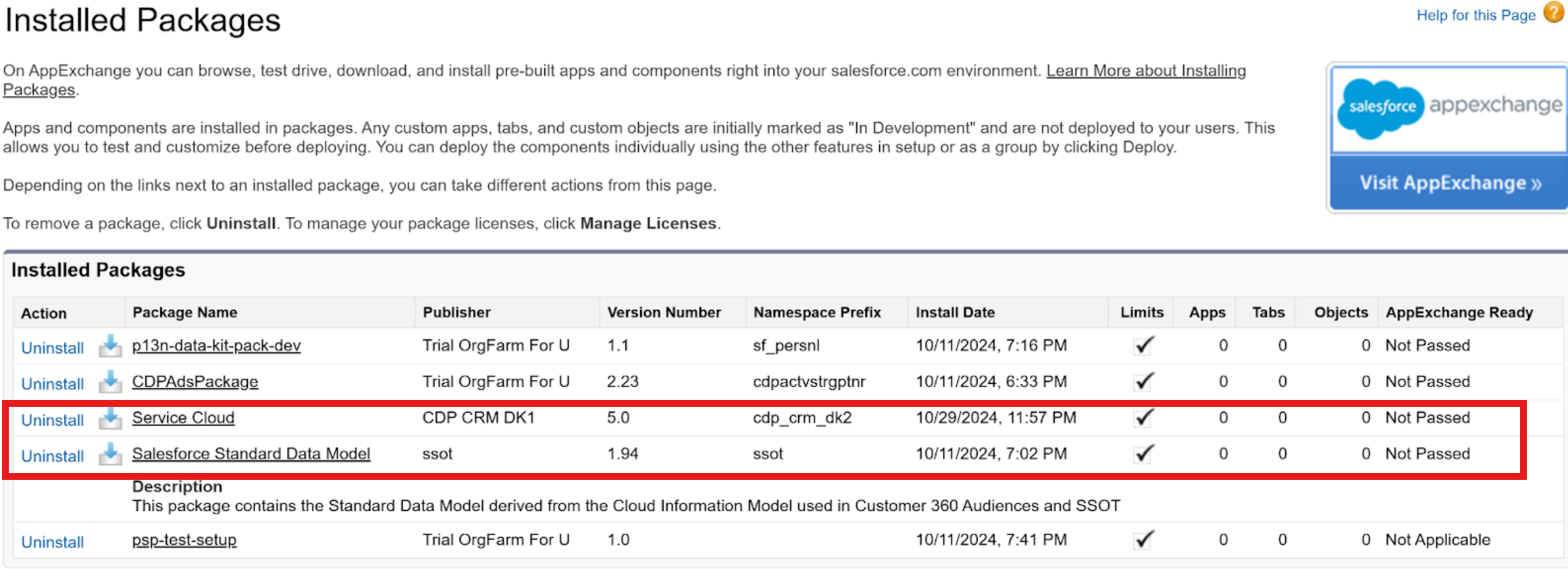
- Verify that the Salesforce Standard Data Model package is installed. This package gets automatically installed when Data 360 is provisioned for your org. If you don’t find this package, contact customer support.
- Install the Service Cloud Data Kit package. This package is used for creating data streams.
- Enable Data Governance permissions for Conversation Transcript objects.
- Ensure that you have the Data 360 reporting permissions. For help getting the required permissions assigned, contact Salesforce Support.

Data 360 uses the default data space to house the conversation transcripts. After you enable transcript access, all users with access to the default data space can access the conversation transcripts.
- Create Data Streams for Conversation Transcripts
To analyze conversation transcripts, it’s important that you have conversation-related data in Data 360. To import this data, you can create data streams using Conversation, Conversation Participant, Participant, Messaging Session, Voice Call, Conversation Entry, and Related Records objects. Methods below describe how you can access these objects to get conversation-related data and create data streams. - Enable Data Governance Permissions for Conversation Transcript Objects
To customize access to Data 360 objects used in conversation transcripts, grant object access according to your chosen Data Governance policy. - Analyze Conversation Transcripts Using Data 360 Reports
To analyze conversation transcripts, leverage Data 360 reporting. - Access Conversation Transcripts via a Companion Org
You can use Data 360 to access conversation transcripts from enhanced messaging channels, voice calls, and unified messaging. Create reports to learn from transcripts, zoom into your data with the Data Cloud API, and analyze your data using SOQL queries. Use this task to access conversation transcripts via a companion org that is connected to a home org with Data Cloud. You can also associate created Data Streams with any data space, not just the default one. - Analyze Conversation Transcripts Using Data 360 Public APIs
As an alternative to Data 360 reports, analyze conversation transcripts using Data 360 public APIs. We’ve provided sample API requests and responses to help you get started.